
How to use Equal Height features of Sky Addons for WordPress
The Sky Addons Equal Height extension for Elementor automatically equalizes the height of widgets inside a section or container. No more uneven cards, info boxes, or pricing columns when one has more text than the others. Enable it on the parent section/container, choose which elements to match (all widgets, hand-picked widgets, nested child elements, or a custom selector), and the extension measures the tallest item and sizes the rest to match. You can even switch it off on tablet or mobile where columns stack anyway.
Key Features
- Works on Elementor Sections and Flexbox Containers
- Nine targeting modes: from all widgets down to third-level child elements or a custom CSS selector
- Hand-pick exactly which widgets to equalize with the Select Widgets list
- Apply the matched size as height or min-height
- Disable independently on tablet and mobile
- Scripts load only on pages where the feature is enabled
Activate Equal Height Module
Equal Height is a core module in Sky Addons that comes pre-activated. However, if you need to verify its status:
- Navigate to your WordPress Dashboard and locate “Sky Addons” in the left sidebar menu
- Click on the “Modules” tab within the Sky Addons dashboard
- Find “Equal Height” in the modules list
- Ensure the toggle switch is in the “On” position
- Save your changes if you made any adjustments
Using Equal Height
- Open the Elementor Editor and select the Section or Container that holds your columns of cards/widgets
- Navigate to the Advanced tab
- Locate the Equal Height section (marked with the Sky Addons icon)
- Toggle Enable to activate height matching for the elements inside
Equal Height Controls
- Enable: Activates equal height for this section/container.
- Apply Elements: What gets equalized: Widgets (every widget inside), Select Widgets (pick specific ones, the default), Widgets > 1st/2nd/3rd Element (a direct child of each widget), Widgets > Child > 1st/2nd Element and Widgets > Child > Child > 1st Element (deeper nested elements, useful for matching inner card bodies), or Custom (your own CSS selector).
- Select Widgets: In Select Widgets mode, a multi-select list of the widgets inside the section so you can equalize only the ones you choose.
- Custom Selector: In Custom mode, enter a class such as
.class-nameto match elements directly. - CSS Property: Apply the computed size as Height (default) or Min-Height (lets items still grow if content changes later).
- Disable on Tablet / Disable on Mobile: Turn the effect off per device. Mobile is disabled by default since stacked columns don’t need matching heights.
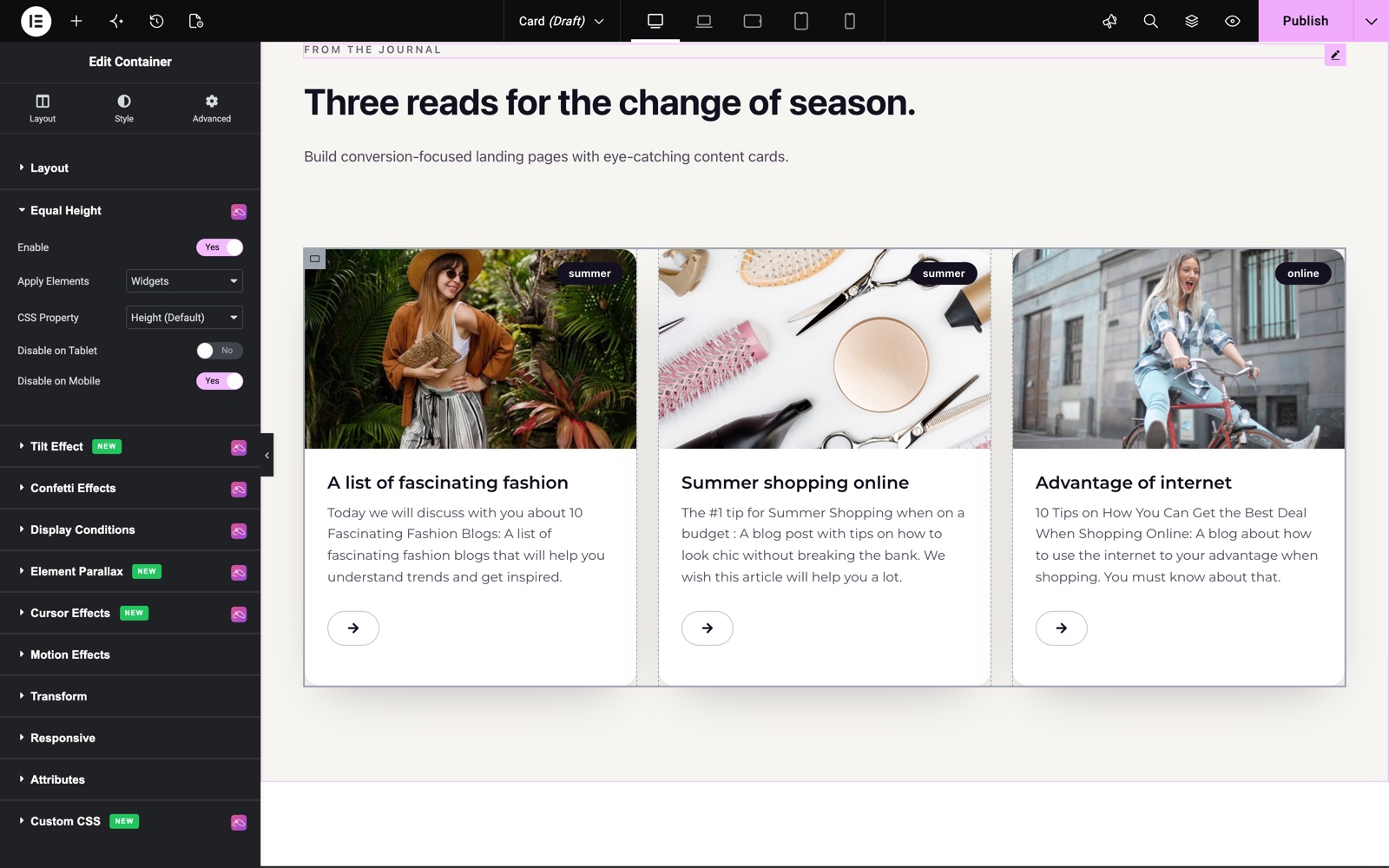
Here the container that holds three blog cards has Equal Height on, with Apply Elements set to Widgets and CSS Property set to Height. All three cards end at the same line, even though their texts have different lengths. Disable on Mobile stays on, because the cards stack on phones.
Save and Preview
- Once you’ve configured equal height, click “Publish” or “Update” to save your changes.
- Preview the page and resize the browser to confirm the heights match at each breakpoint.
Troubleshooting
- Heights not matching: Make sure Enable is on for the parent section/container of the items (not on the widgets themselves), and that the Apply Elements mode actually targets the element you expect.
- Only part of the card is equalized: Use one of the nested modes (Widgets > 1st Element, Widgets > Child > …) or the Custom selector to target the inner element that varies in height.
- Works on desktop but not mobile: Disable on Mobile is on by default. Switch it off if you genuinely need matched heights on small screens.
Frequently Asked Questions
How do I make Elementor columns or cards the same height?
Select the parent Section or Container, open the Advanced tab, find the Equal Height section from Sky Addons, and toggle Enable. The widgets inside are measured and matched to the tallest one automatically.
Can I equalize only certain widgets inside a section?
Yes. Keep Apply Elements on Select Widgets (the default) and pick the exact widgets from the multi-select list. Everything else in the section keeps its natural height.
What’s the difference between Height and Min-Height in the CSS Property option?
Height locks every targeted element to exactly the tallest item’s height. Min-Height sets that value as a floor, so elements still expand if their content later grows beyond it. This is the safer choice for dynamic content.
Why is Equal Height off on mobile by default?
On mobile, columns usually stack vertically, so forcing equal heights just adds empty space. Disable on Mobile defaults to on; switch it off in the Equal Height section if your layout keeps multiple columns on small screens.
Does the Equal Height extension work with Flexbox Containers?
Yes. The Equal Height section appears in the Advanced tab of both classic Sections and Elementor Flexbox Containers, with the same set of controls.
Related Documentation
Conclusion
The Equal Height extension by Sky Addons for Elementor fixes one of the most common layout headaches, uneven card heights, with a single toggle and smart targeting options. If you have any questions while using Equal Height, the Sky Addons support team is happy to help.
Need help? Our team is happy to answer questions on the Sky Addons support page.