
How to use Custom Clip Path features of Sky Addons for WordPress
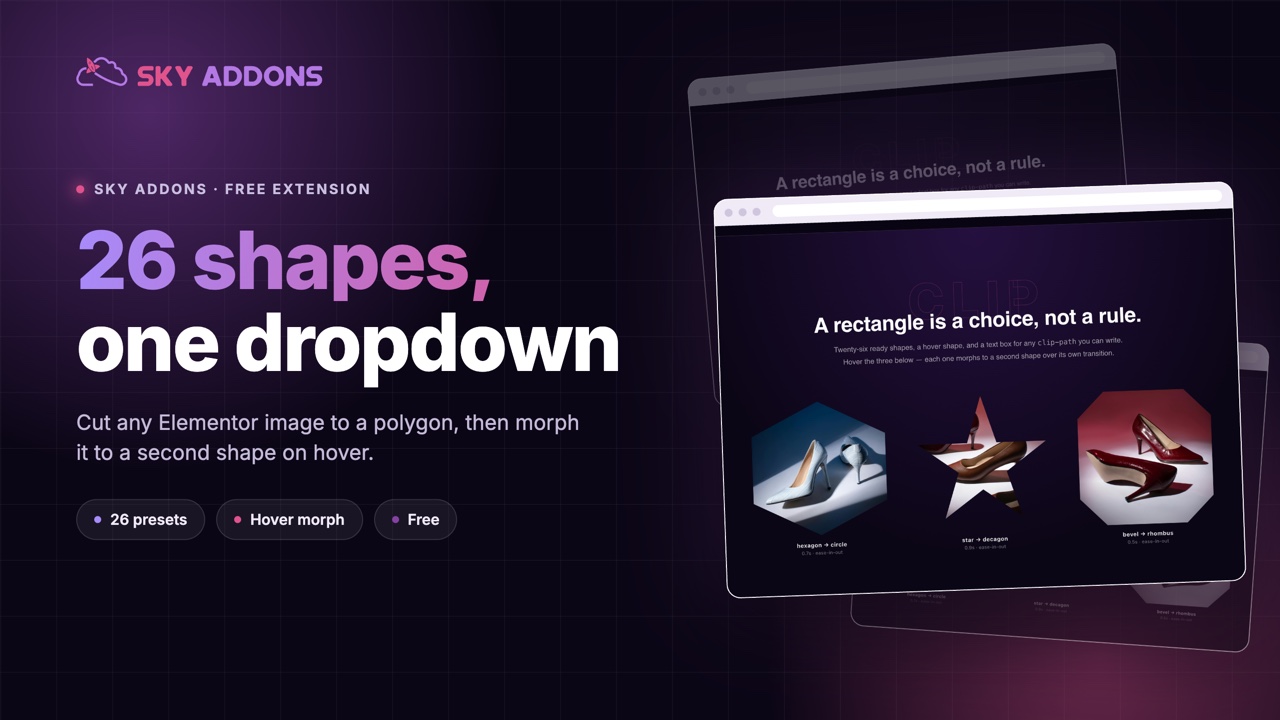
The Sky Addons Custom Clip Path extension for Elementor cuts your images into creative shapes (triangles, hexagons, stars, arrows, circles and more) using pure CSS clip-path. Pick from 26 ready-made shape presets or paste your own clip-path code, set a different shape for the hover state, and control the morph animation with duration, easing, and delay. It’s the fastest way to break out of the rectangle and give image sections a distinctive, modern look without editing the images themselves.
Key Features
- Works on the Elementor Image widget via a dedicated Style-tab section
- 26 shape presets: polygons, arrows, chevrons, star, cross, frame, circle, ellipse, and inset
- Custom CSS mode for any clip-path you can imagine
- Separate Normal and Hover shapes with smooth morphing transitions
- Transition controls: duration, easing curve, and delay
- Pure CSS: no images edited, no JavaScript, no speed penalty
Activate Custom Clip Path Module
Custom Clip Path is a core module in Sky Addons that comes pre-activated. However, if you need to verify its status:
- Navigate to your WordPress Dashboard and locate “Sky Addons” in the left sidebar menu
- Click on the “Modules” tab within the Sky Addons dashboard
- Find “Custom Clip Path” in the modules list
- Ensure the toggle switch is in the “On” position
- Save your changes if you made any adjustments
Using Custom Clip Path
- Open the Elementor Editor and select an Image widget
- Navigate to the Style tab
- Locate the Custom Clip Path section (marked with the Sky Addons icon)
- Toggle Enable to activate clipping for this image
- Choose a shape under the Normal tab, and optionally a second shape under Hover
Custom Clip Path Controls
The Normal and Hover tabs each carry the same set of controls, so the image can change shape when visitors hover it:
- Enable: Activates the clip-path effect on the selected image.
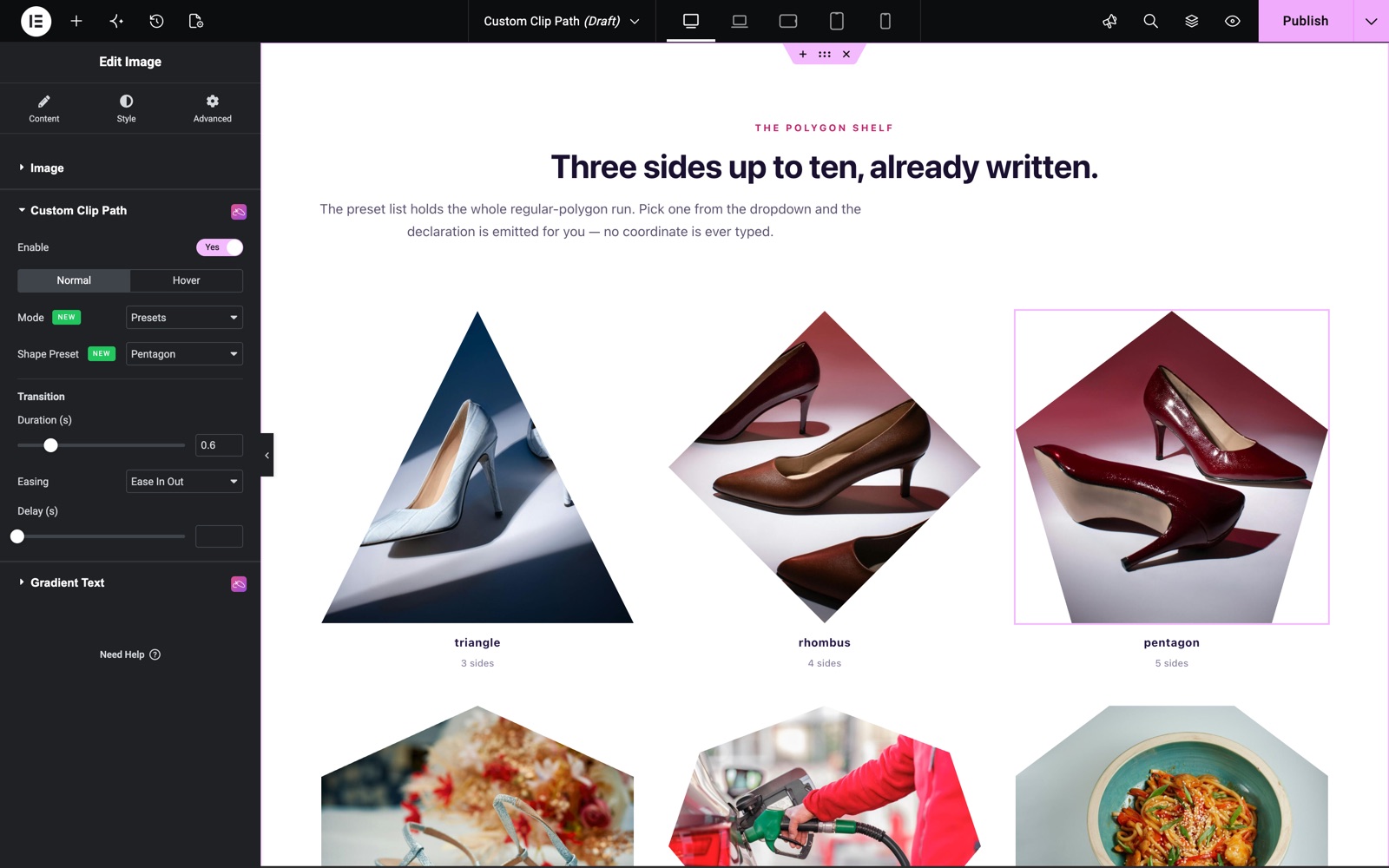
- Mode: Choose Custom CSS to write your own clip-path rule, or Presets to pick a ready-made shape.
- Shape Preset: 26 shapes: Triangle, Trapezoid, Parallelogram, Rhombus, Pentagon, Hexagon, Heptagon, Octagon, Nonagon, Decagon, Bevel, Rabbet, Arrow Left/Right, Point Left/Right, Chevron Left/Right, Star, Cross, Message, Close, Frame, Circle, Ellipse, and Inset.
- Clip-path: In Custom CSS mode, paste a full rule such as
clip-path: polygon(50% 0%, 100% 100%, 0% 100%);. A handy link to the Clippy generator is provided to create coordinates visually.
Here the image uses the Pentagon preset. In the Transition group, the shape changes over 0.6 seconds with Ease In Out.
Transition Controls
- Duration (s): How long the shape morphs between Normal and Hover (up to 3 seconds, 0.1 steps).
- Easing: Ease, Linear, Ease In, Ease Out, or Ease In Out.
- Delay (s): Wait time before the transition starts (up to 3 seconds).
Note: circle and ellipse shapes cannot CSS-interpolate with polygon shapes. If you mix the two types between Normal and Hover, the shape will snap instead of smoothly morphing. For a fluid morph, keep both states as polygons (or both as circle/ellipse).
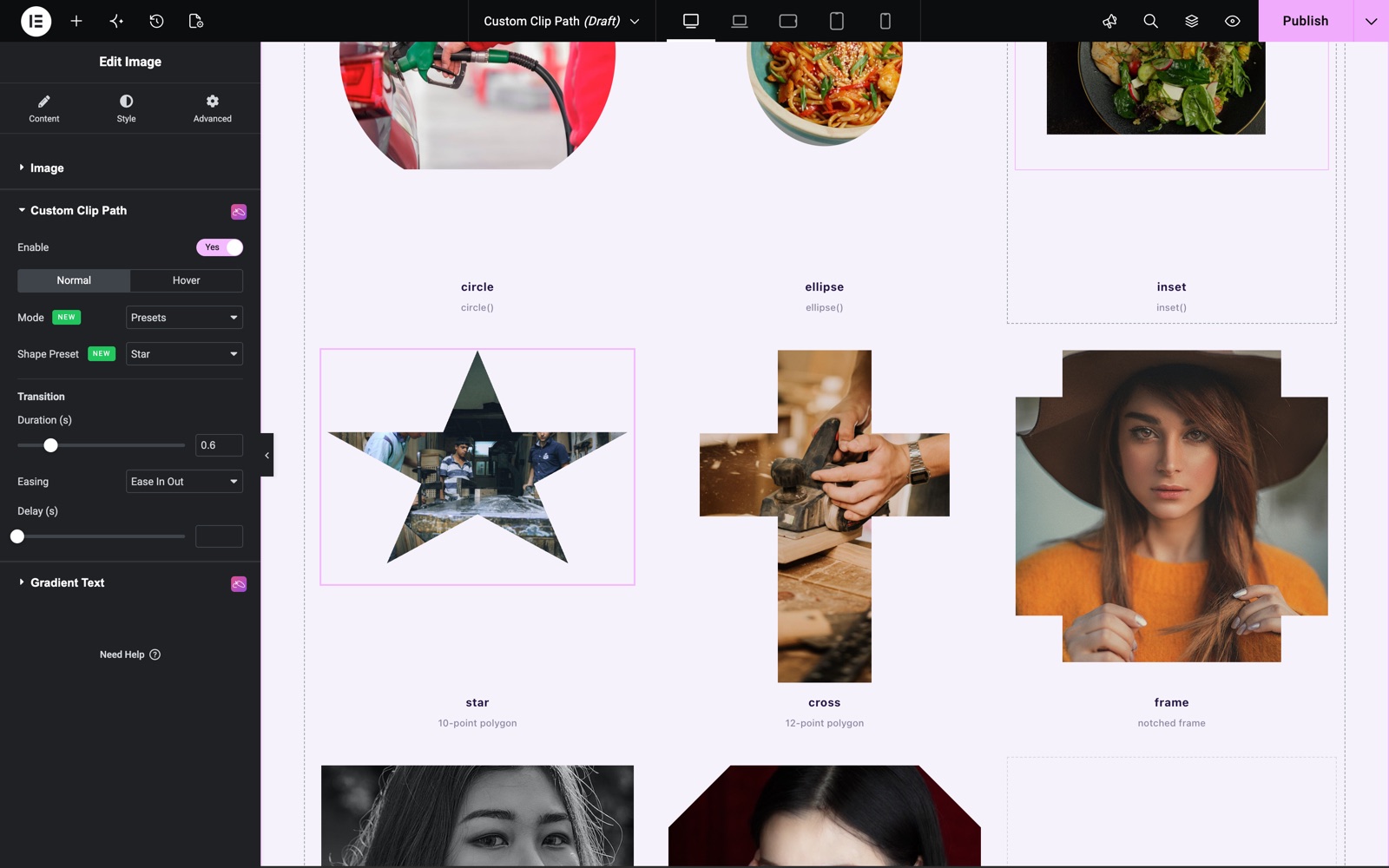
The same section works for any preset. This image is cut into a Star. Its neighbors use Cross and Frame.
Save and Preview
- Once you’ve configured your clip path, click “Publish” or “Update” to save your changes.
- Preview the page and hover the image to confirm the shape and transition look as desired.
Troubleshooting
- No effect visible: Confirm Enable is on and the widget is the Elementor Image widget. The section appears under its Style tab.
- Hover shape snaps instead of morphing: You are mixing circle/ellipse with polygon shapes. Browsers cannot animate between those types. Use the same shape family in both states.
- Custom CSS does nothing: The textarea expects the full rule starting with
clip-path:and valid coordinates. Re-copy from Clippy and ensure the semicolon and syntax are intact.
Frequently Asked Questions
How do I clip an image into a shape in Elementor?
Select an Image widget, open Style → Custom Clip Path, toggle Enable, set Mode to Presets, and pick one of the 26 shapes: hexagon, star, circle, arrow, and more. The image is clipped instantly with pure CSS.
Can the image change shape on hover?
Yes. The extension has separate Normal and Hover tabs. Set a different preset or custom clip-path in the Hover tab and tune the morph with the Duration, Easing, and Delay transition controls.
Why does my hover transition jump instead of animating smoothly?
Browsers can only interpolate between clip-path shapes of the same type. Circle and ellipse cannot morph into polygon shapes (or vice versa). The change snaps. Keep both states as polygons for a smooth morph.
How do I create my own custom clip-path coordinates?
Set Mode to Custom CSS and use the linked Clippy tool (bennettfeely.com/clippy) to draw a shape visually, then paste the generated clip-path: …; rule into the Clip-path field.
Does Custom Clip Path work on widgets other than Image?
The extension is built for the Elementor Image widget, where the section appears in the Style tab. For shaping other elements, a custom CSS snippet via the Custom Scripts CSS & JS extension is the way to go.
Related Documentation
- Backdrop Filter Extension
- Floating Effects Extension
- Custom Scripts CSS & JS Extension
- Animated Gradient Background Extension
Conclusion
The Custom Clip Path extension by Sky Addons for Elementor turns ordinary rectangular images into striking shapes with hover morphing, all in CSS and all inside the editor. Use it for portraits, feature images, and decorative sections where a distinctive silhouette makes the design. If you have any questions while using Custom Clip Path, the Sky Addons support team is happy to help.
Need help? Our team is happy to answer questions on the Sky Addons support page.