
Elementor Custom Hooks: Put a Section Anywhere on the Site
Custom hooks attach an Elementor template to a hook point, with display conditions deciding the pages and a priority deciding the order it renders in.
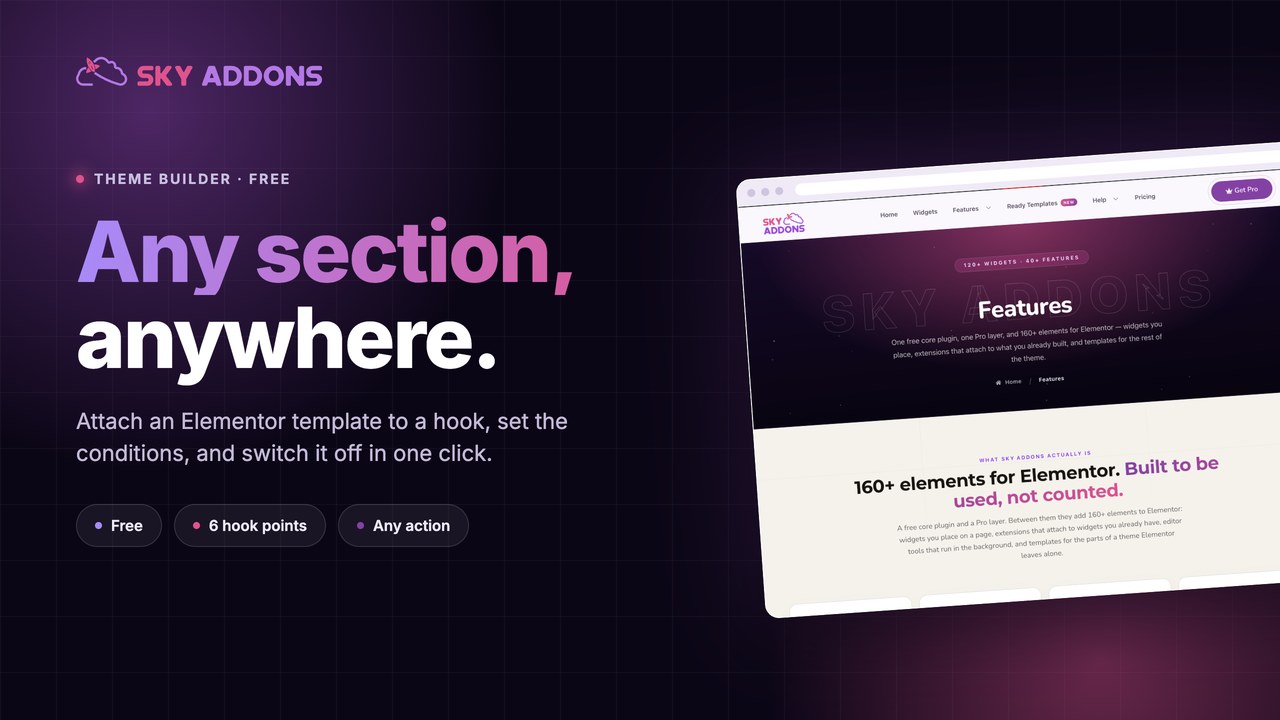
Every site ends up with a band that has to appear in the same place on a lot of pages. A newsletter strip above the footer. A notice under the header. A testimonial row before the call to action. A floating button on every page except the checkout.
There are two usual answers. Paste it into every page, and then update forty pages when the wording changes. Or write a PHP snippet that hooks it in, and then own a snippet you cannot edit visually.
Custom hooks are the third answer: build the band in Elementor, choose the hook it attaches to, and give it display conditions like any other template.
| What you want | PHP snippet | Custom hook template |
|---|---|---|
| Design it | Write markup by hand | Elementor canvas |
| Change the wording | Edit code | Edit the template |
| Show it on some pages | if statements | Display conditions |
| Turn it off for a week | Comment it out | One toggle |
| Hand it to a client | You cannot | You can |
| Control where it lands | Hook name and priority | Hook name and priority |
A band that repeats on many pages is a template, not content. The moment it is pasted twice, a change to it has become a chore nobody will do.
Six hook points are fired by the plugin itself. Before and after the header, before and after the footer, and before and after the main content. Those exist on every page of a site running the theme builder, whatever theme is underneath.
Any action hook works, not only those six. A hook template stores a hook name and a priority, and attaches to that action like any other callback. If your theme or a plugin documents an action hook, a template can render at it. The priority field is there for the same reason it exists in PHP: to decide what runs before what.
The header and footer points work across themes. The plugin ships compatibility for Astra, Kadence, GeneratePress, Neve, OceanWP, Storefront, Genesis and BuddyBoss, plus its own template files when a theme is not on that list. The hooks fire in the same places either way, so a template built on one theme lands correctly on another.
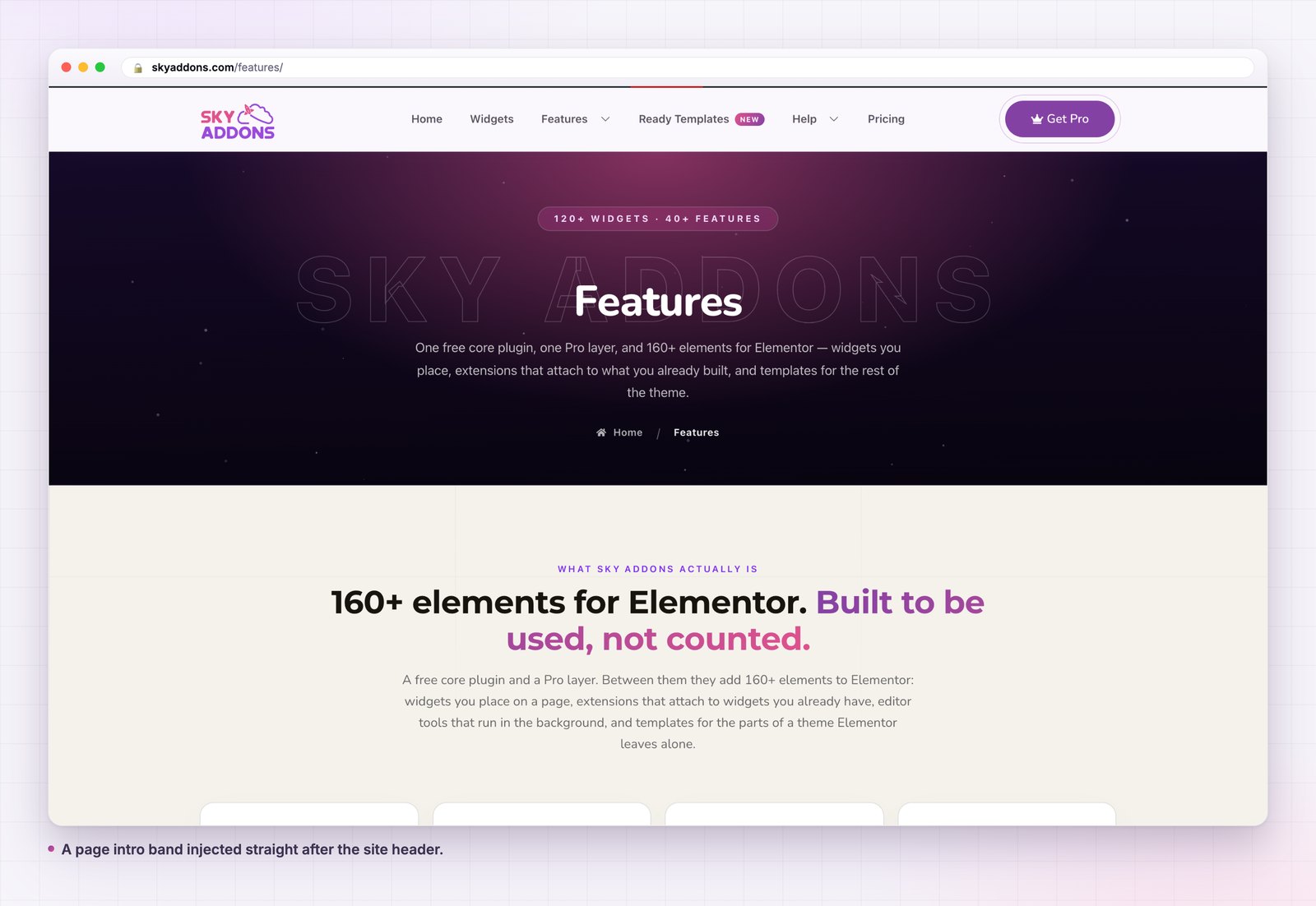
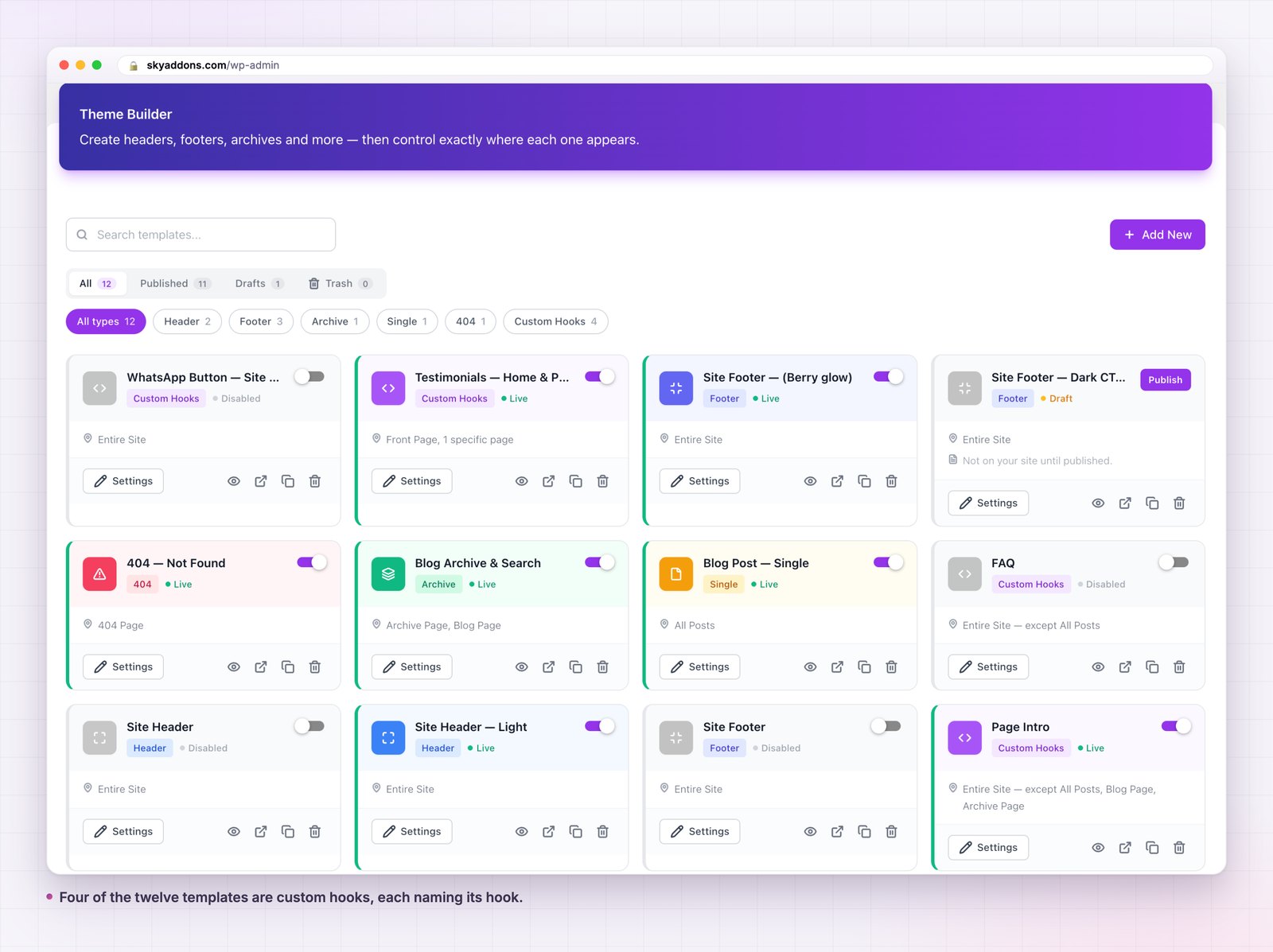
Conditions are the whole point. A hook decides where on the page the band appears. Conditions decide which pages. On this site, a page intro band runs on the entire site but is excluded from all posts, the blog page and the archive page, which is one template, one hook and three exclusions doing what would otherwise be a page by page edit.
The band above the footer. Newsletter, testimonials, or a last call to action. This is the most used hook on most sites and the reason the point exists.
The strip under the header. Announcements, a campaign bar, a breadcrumb row on a theme that has none.
Anything floating. A contact button, a back to top control, a cookie style notice. Attach it after the footer so it is outside the page flow.
A page intro. A consistent band under the header on pages, excluded from articles, so pages and posts read differently without two separate layouts.
Never the header or the footer themselves. Those have their own template types, with their own handling. Use header builder and footer builder for those, and keep hooks for the bands around them.
One more that is easy to miss: a band that only makes sense on one page is not a hook template. If it appears in a single place, build it into that page. Hooks earn their keep on repetition, and a hook template with a condition naming one page is a more complicated way of doing something simple.
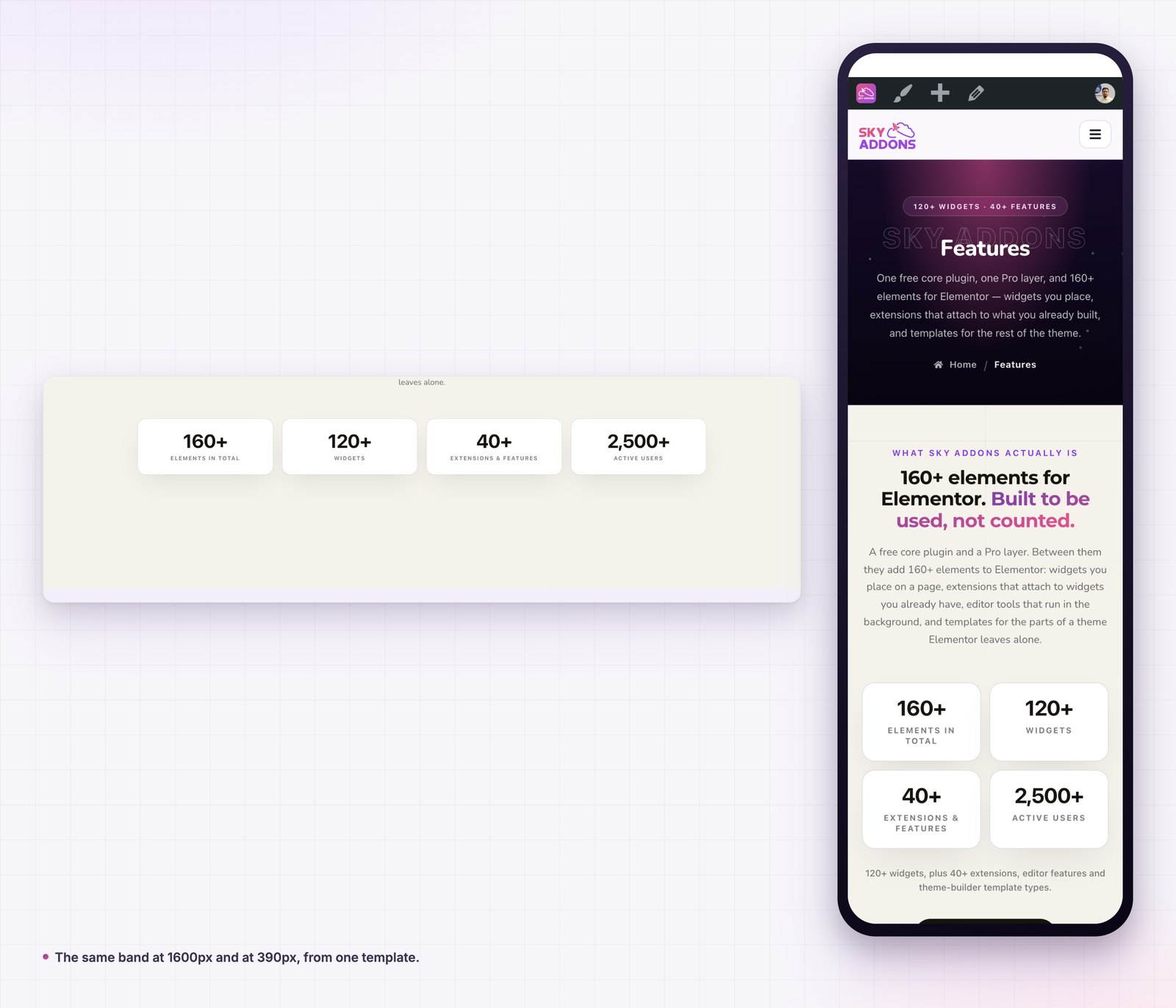
The band stops being content. That sounds like a technicality until the wording changes: one edit instead of forty, and no page left behind with the old copy.
The second reason is that a template can be switched off. Campaign work lives in the list permanently and runs for three weeks a year. Nothing is deleted, nothing is rebuilt, and next November is a toggle rather than a project.
The third is that it survives a redesign. Bands pasted into pages die with the pages; a hook template outlives the layout it was built for, because it was never part of it. The same is true of a theme change, since the hook points come from the plugin rather than from the theme’s own files, which the WordPress plugin handbook treats as the whole point of an action.
Most hook templates never need the priority field, and then one day two things render at the same point and the order is wrong. That is what it is for.
WordPress runs callbacks on a hook in priority order, lowest first, and 10 is the default everywhere. So a template at priority 5 renders before the theme’s own output at 10, and a template at 20 renders after it. If your band is appearing above something it should sit below, you do not need a different hook, you need a different number.
The same applies to two of your own templates on one hook. A notice bar and a breadcrumb row can both attach after the header; give them 10 and 20 and the order is fixed and readable, rather than dependent on which was saved last.
It is worth setting deliberately the first time a hook carries more than one thing. Working out later why a band moved is much slower than typing a number now.
Yes. Custom hooks are one of the six template types in the free Sky Addons theme builder. The free versus Pro page sets out what a Pro licence adds elsewhere.
No, free Elementor is enough.
The six the plugin fires around the header, footer and main content, plus any action hook your theme or plugins document.
The header and footer points ship with support for eight themes, and the plugin’s own template files cover the rest, so the hooks fire either way.
Yes. Give them different priorities and the order is yours.
A custom hook template puts an Elementor section at a chosen point on many pages at once, with display conditions deciding which pages and a priority deciding the order. Six hook points come from the plugin, and any documented action hook works as well.
It replaces both the paste it everywhere approach and the PHP snippet, and unlike either of them it can be switched off in one click.
The custom hooks documentation has the full detail. For the rest of the template types read Elementor Theme Builder, Elementor Single Post Template and Elementor Archive Template. Conditions are in the display conditions reference, and licences are on the pricing page.

Comments are closed.