
QR Code for Elementor: A Styled Code Your Brand Can Live With
Add a QR code to any Elementor page with six dot shapes, gradients, a logo in the middle and error correction you choose. No generator, no upload.
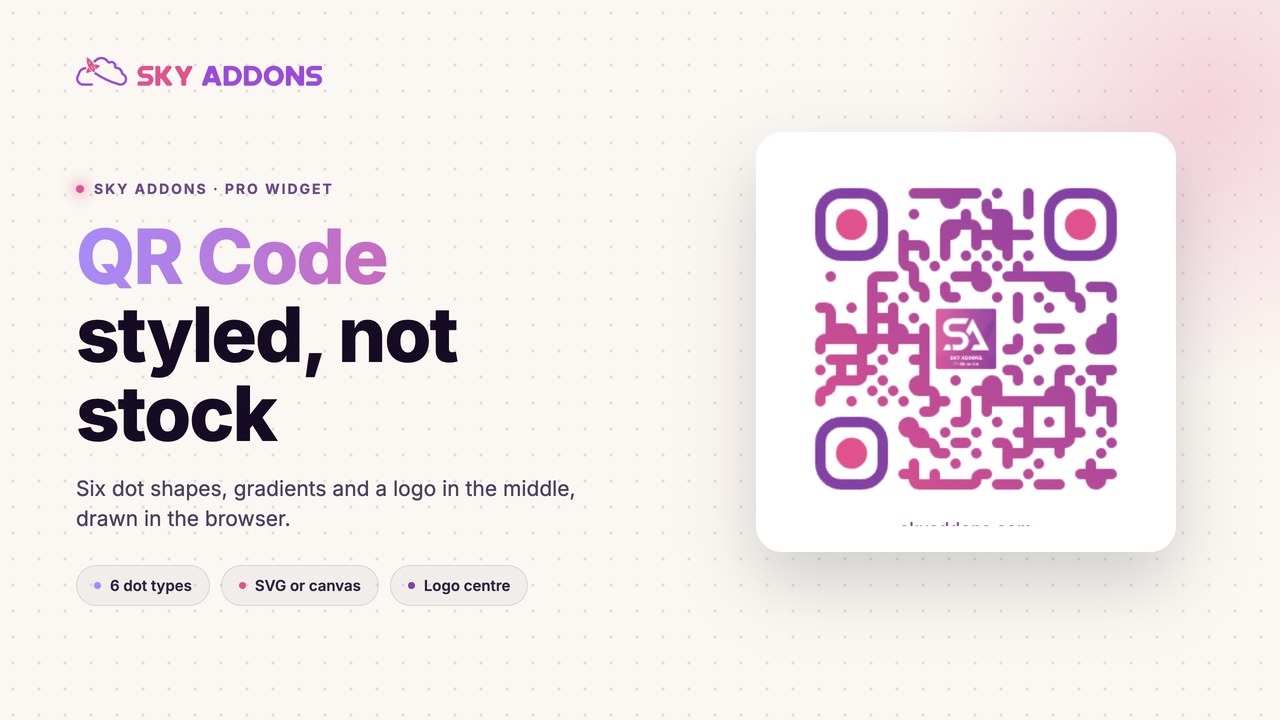
The usual way to put a QR code on a page is a detour. Open a generator, paste a URL, download a PNG, upload it to the media library, place it, and repeat the whole loop when the link changes. The result is a black and white square that matches nothing on the page.
A QR code widget removes the detour. The code is drawn in the browser when the page renders, using the URL you give it or the address of the page it sits on. It picks up your colours, your corner shapes and your logo, and it changes when the setting changes rather than when somebody remembers to regenerate a file.
| Approach | Updates when the link changes | Brand styling | Resolution | Work per code |
|---|---|---|---|---|
| Generator plus upload | No, regenerate by hand | Whatever the tool allows | Fixed by the export | Five minutes |
| Screenshot of a code | No | None | Poor | Two minutes and regret |
| Plugin that stores images | Sometimes | Limited | Fixed | Setup, then minutes |
| QR Code widget | Yes, it is drawn at render | Full control | Canvas or SVG | Seconds |
The most valuable row is the first. A code that points at the current page never goes stale, which means a template with a QR code in it works for every post that uses the template.
Three content sources. The code carries the current page URL, a URL you type, or free text. Current page is the one that makes templates work: build it once into a product or event layout and every item gets its own code.
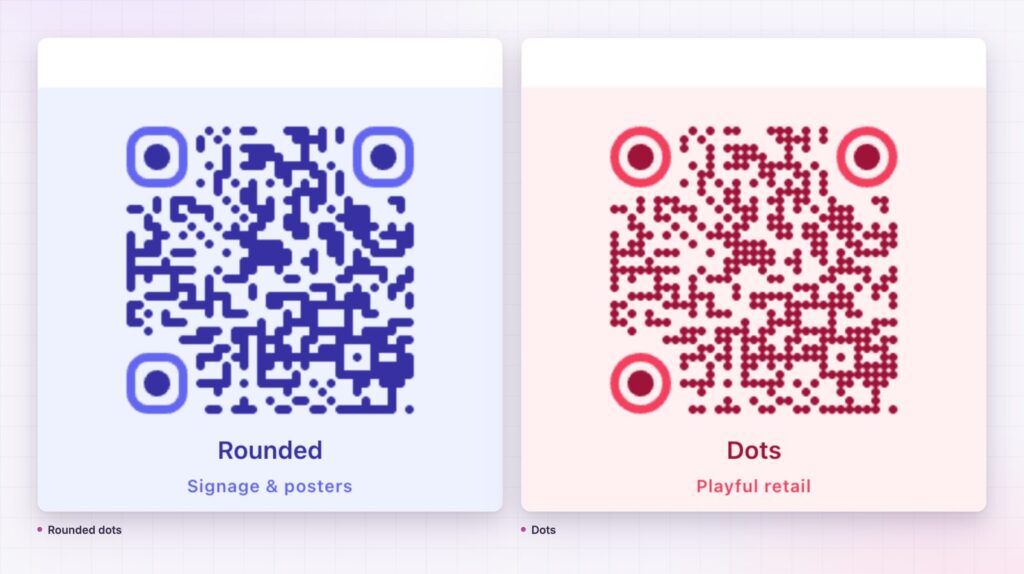
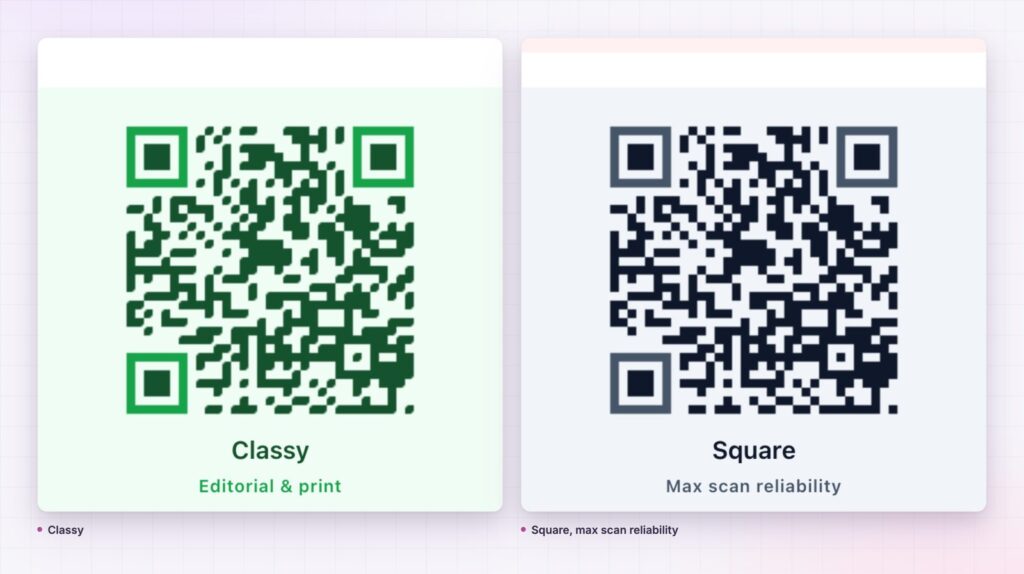
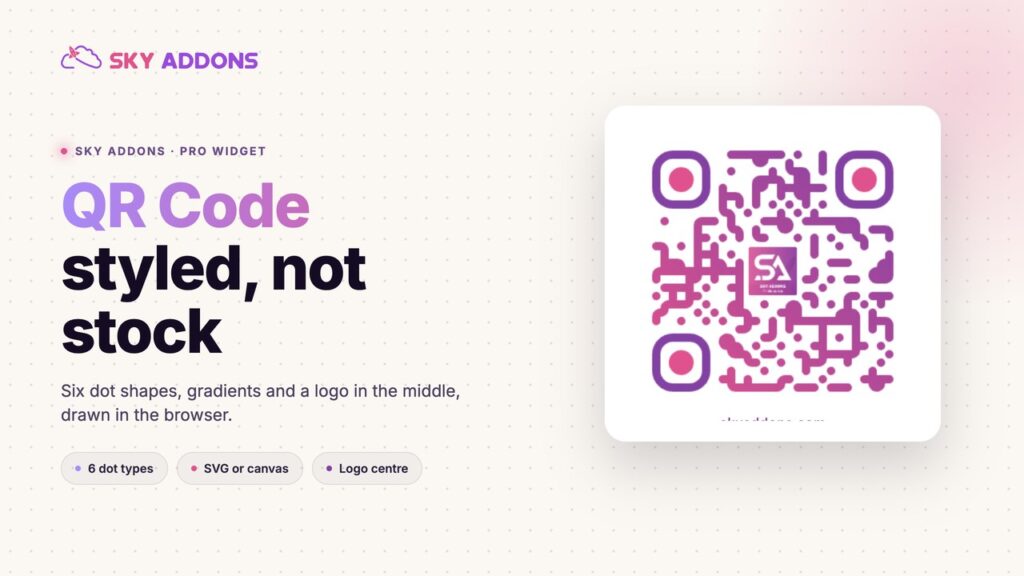
Six dot shapes. Rounded, dots, classy, classy rounded, square and extra rounded. Corner squares take square, extra rounded or dot, and the corner dots take their own shape, so the three anchor patterns can be styled separately from the body.
Solid or gradient colour, everywhere. Background, dots, corner squares and corner dots each have their own colour type: solid or gradient. That is four independently styled parts, which is what lets a code match a brand rather than approximate it.
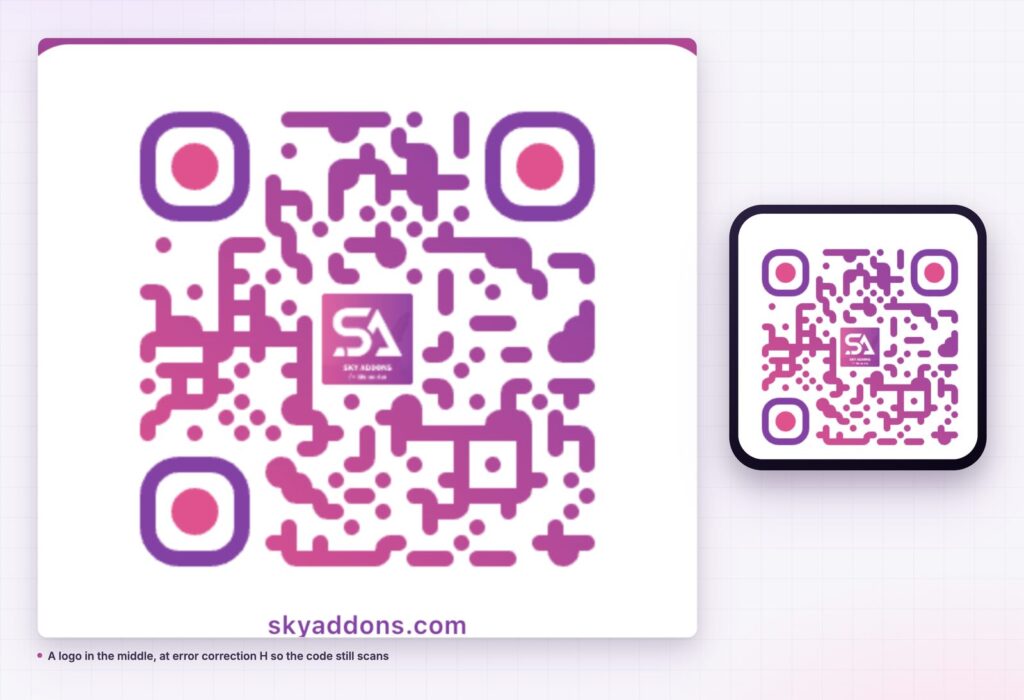
A logo in the middle. Add an image, set its size as a percentage of the code and give it breathing space with the logo spacing control. The image is drawn into the code, not laid over it.
Error correction you choose. Levels L, M, Q and H, with Q as the default. Higher levels add redundancy, which is what keeps a code with a logo in the middle readable. The QR code standard defines these levels; the widget just exposes them.
Canvas or SVG output. Canvas is the default and fine for the web. SVG is the one to pick when the page will be printed or the code needs to scale without softening.
A QR code is a bridge between a screen or a printed sheet and a phone. The friction it removes is typing a URL, which is exactly the moment most people give up. Putting the code on the page that already describes the thing means the bridge is built where the decision is being made.
The styling matters for a less obvious reason. A branded code signals that the code came from the business rather than from a sticker somebody applied to a table. That is a trust question, and trust is the thing that decides whether a stranger points a camera at a square.
A code nobody trusts is a square nobody scans. Colour, shape and a logo are not decoration here, they are provenance.
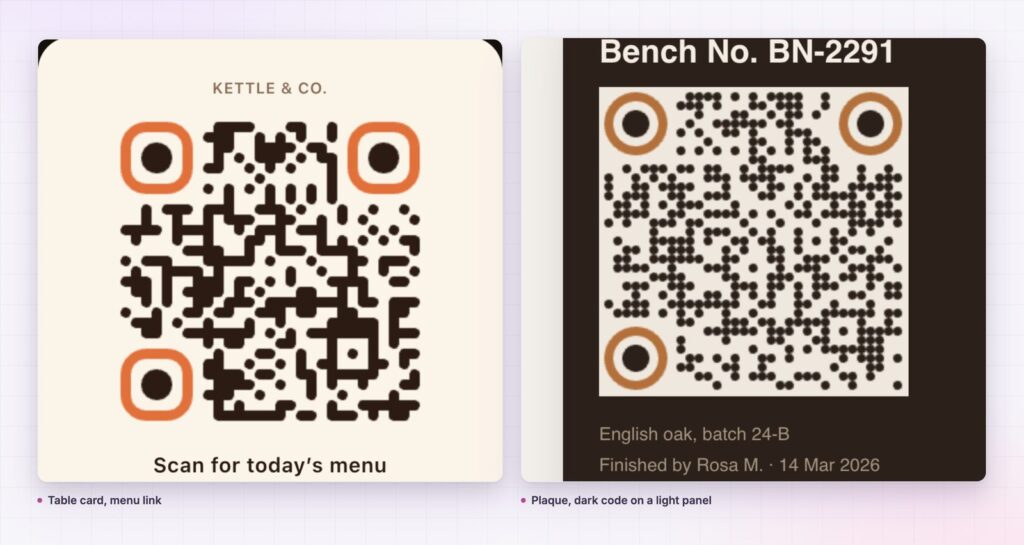
The custom text field means the code does not have to be a link. Plain contact details, a Wi-Fi network string, a short message, a reference number for a support queue: anything a camera app will show as text. A ticket page can carry a booking reference. A warranty page can carry a serial.
Inside a template, the current page setting turns into something more useful still. Every product, event, property or post gets a code pointing at itself, built once. That is the version of this widget that pays for itself, because nobody generates anything again.
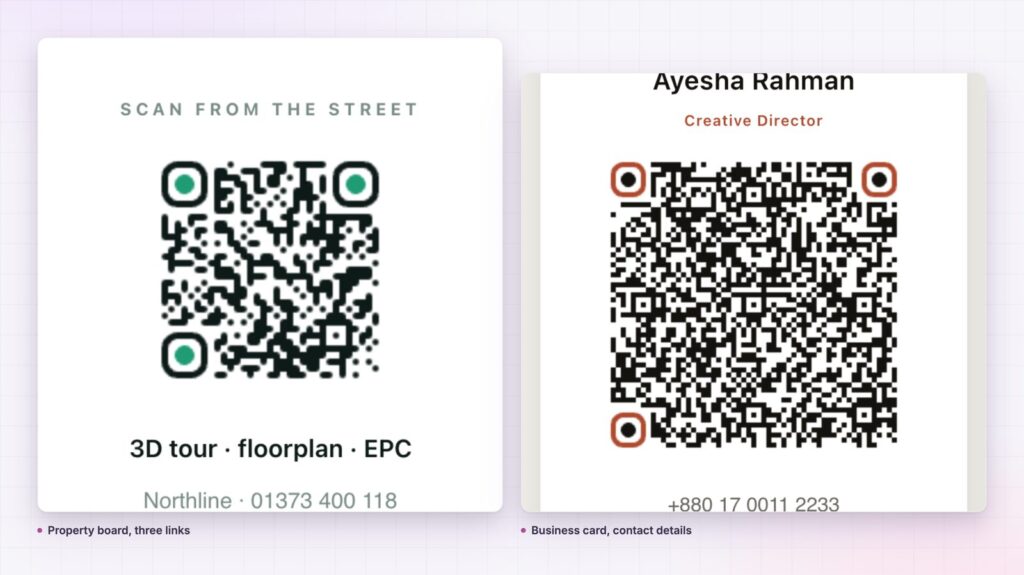
A QR code either scans or it does not, and the failure is invisible in the editor. Five checks catch almost every problem.
Scan it from two phones. Camera apps differ, and older Android cameras are less tolerant of low contrast and tight margins than a recent iPhone. If both read it at arm’s length, the code is sound.
Check the contrast. Dark pattern on a light background is the reliable direction. Inverted codes, light dots on a dark card, work on some cameras and fail on others, and there is no way to tell which visitor has which.
Keep the quiet zone. The margin control adds clear space around the pattern. Without it, a code that sits tight against a coloured section edge can fail on the first attempt and succeed on the third, which is worse than failing outright.
Match error correction to the logo. Level Q tolerates a small mark in the centre. A logo covering a quarter of the width needs level H, which adds redundancy specifically so that part of the pattern can be obscured.
Test at the size it will be used. A code that scans comfortably at 300 pixels on a monitor may fail on a printed card at 20 millimetres. If the page will be printed, switch the type to SVG, print a proof and scan the paper rather than the screen.
One more habit worth keeping: when the code points at the current page, test it on a real published URL rather than a preview. Preview addresses carry query arguments, and a code generated from one of them will point at a URL no visitor should ever be given.
No. It is part of Sky Addons Pro. The free plugin covers more than fifty widgets including Info Box and Advanced Slider; the free versus Pro page sets out the difference.
No. The code is generated in the browser by a bundled library, so nothing about your URL is sent to a third-party generator.
Yes, and that is the setting worth using inside templates. Choose Current Page and every page built from that template gets its own code.
Yes, if error correction is set high enough. Use level H, keep the logo to about a quarter of the width, and test on two phones.
Yes. Set the type to SVG so the code stays sharp when it is scaled up for a poster, shelf card or menu.
A QR code widget draws the code when the page loads, so it can point at the current page, carry your colours and corner shapes, hold a logo in the middle and never go stale. Six dot styles, four independently coloured parts, four error correction levels and canvas or SVG output cover both screen and print.
Try the QR code demo, read the QR Code documentation, or see the pricing page. For contact shortcuts there is the WhatsApp button, and for a page that needs a form beside the code, the form builder.

Comments are closed.