
Elementor Scroll Fill: Make One Sentence Carry a Whole Section
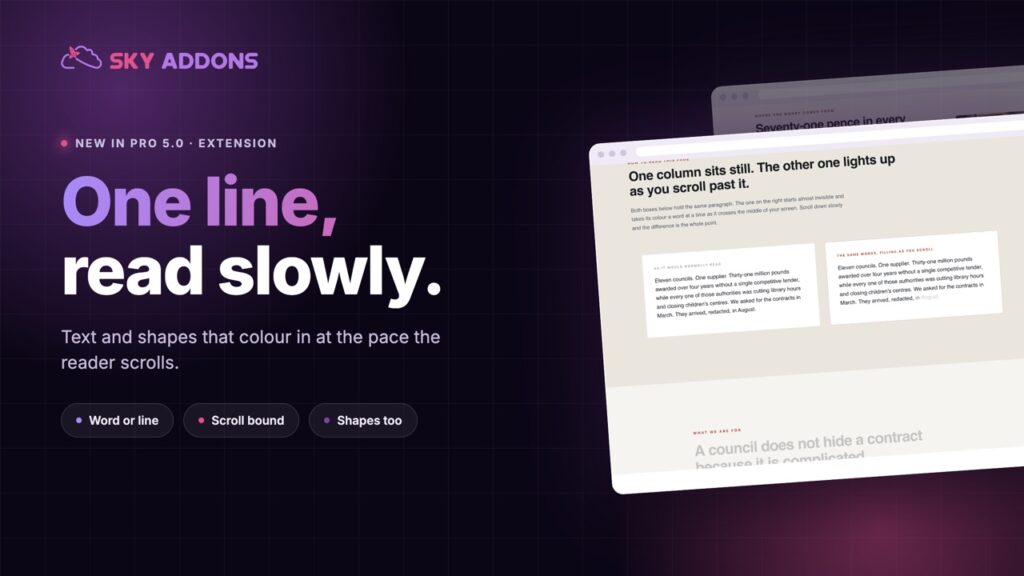
Elementor scroll fill colours a headline or a shape at the pace the reader scrolls, so one statement sentence holds a section on its own. No code needed.
Every brand has one sentence worth saying slowly. The promise, the position, the line the founder repeats in every meeting. On most websites that sentence gets the same treatment as a photo caption: set it large, centre it, move on.
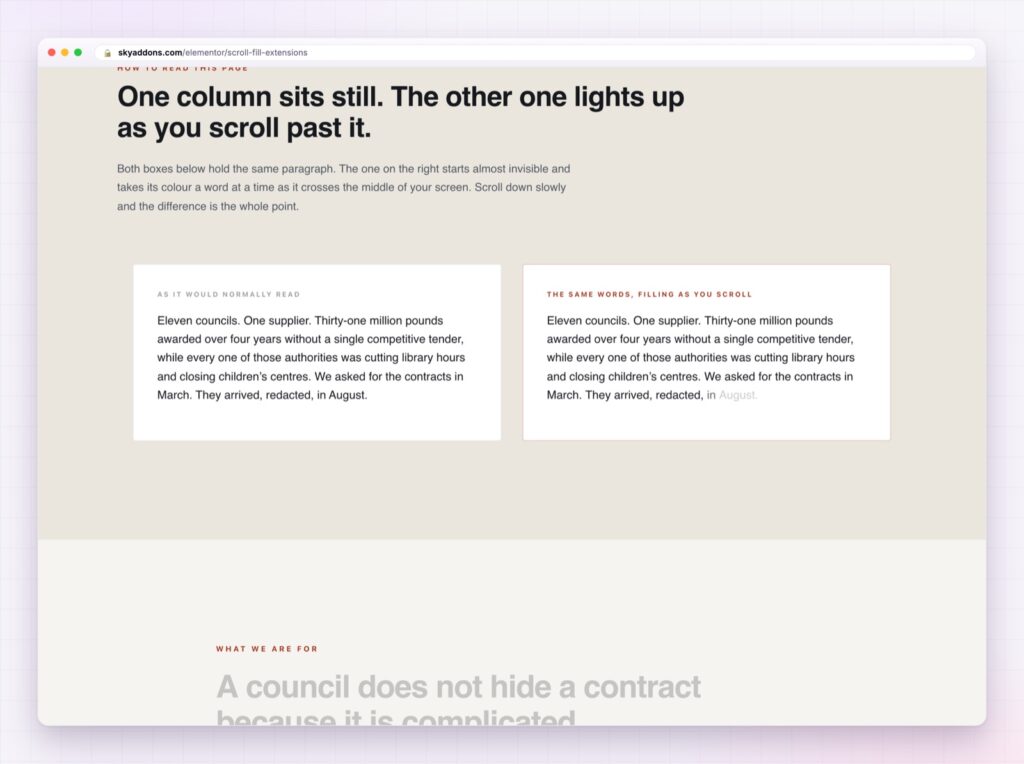
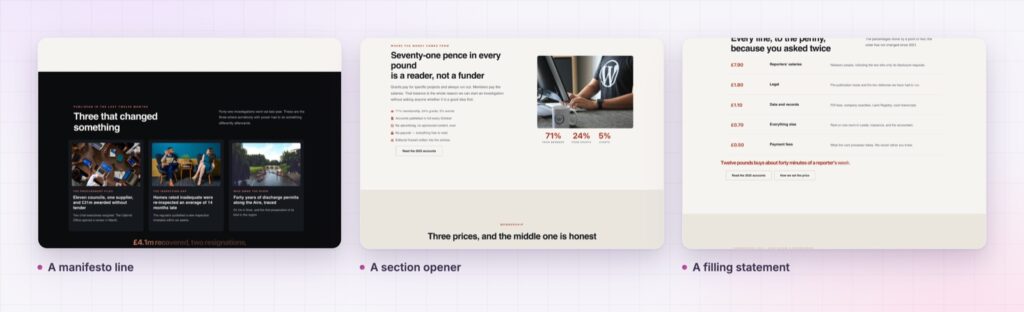
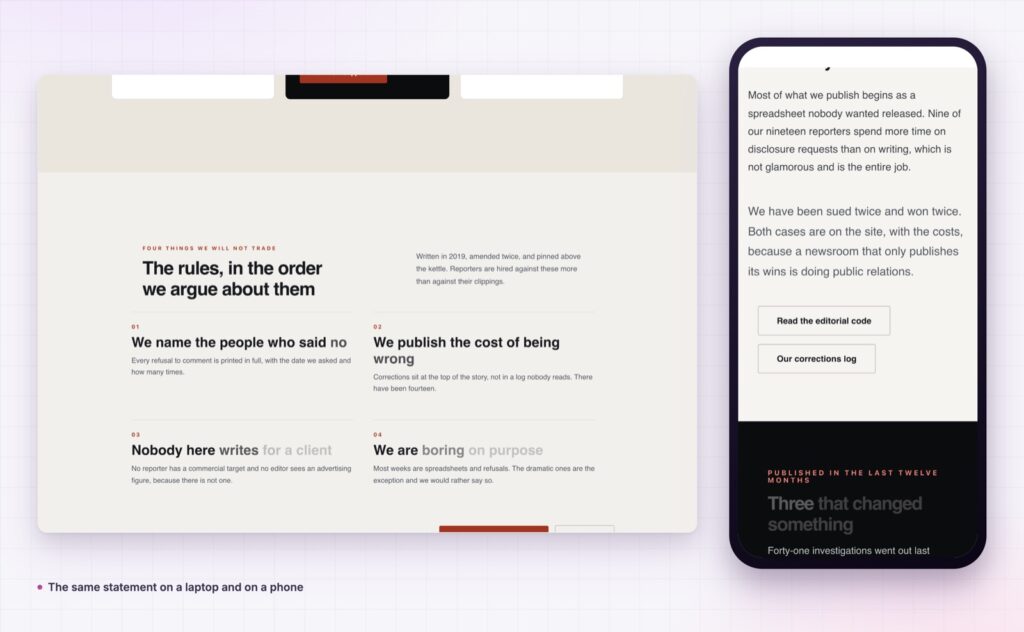
Scroll fill treats it as the section instead. The words start in a muted colour and fill with your brand colour as the reader scrolls, one phrase at a time, so the sentence is read at the pace you chose rather than skimmed in half a second.
The Elementor scroll fill in Sky Addons Pro 5.0 does that to any text or shape, tied to the scroll position rather than a timer.
| A large static headline | Elementor scroll fill |
|---|---|
| Read in one glance, then skipped | Read at the pace of the scroll |
| Size is the only emphasis | Colour, timing and progress carry the emphasis |
| Nothing marks the section | The fill marks it as the reader travels |
| Same for everyone | Responds to how each person scrolls |
Fill by word or by line. Word by word is slower and more deliberate, which suits short statements. Line by line suits longer sentences that would otherwise take too much scrolling to complete.
Two colours that do the work. The unfilled colour should be readable on its own, not a pale grey nobody can see. That is the most common mistake with this effect, and the one that costs the most.
Progress tied to scroll position. The fill advances with the page rather than on a timer, so it finishes exactly when the section is fully in view no matter how fast the visitor moves.
Start and end offsets. Decide where the fill begins and completes relative to the viewport, which is how you keep it from finishing before the sentence is even readable.
Shapes as well as text. An icon, a rule or a logo mark can fill in the same way, so a section can have a graphic element that completes with the sentence.
Reduced motion support. Visitors who ask for less movement see the finished, fully coloured text, which is the only sensible fallback.
If the sentence is not good enough to be read slowly, fix the sentence. The effect will only make a weak line more visible.
Reading pace is normally controlled by the reader, and almost nothing on a web page can change it. Scroll fill is one of the few techniques that can, because the sentence completes as the page moves, which means the reader gets the whole line rather than the first three words.
It also creates an unusual kind of anticipation. A partially filled sentence is an unfinished thing, and unfinished things hold attention until they resolve. That is the whole mechanic, and it is why the effect works far better on one line than on a paragraph.
Use it once per page. Its power comes entirely from being the only thing on the page that behaves that way.
The colour is painted through the letters rather than behind them, which is the technique described in the MDN background-clip reference.
Yes, by word or by line, and short statements read better word by word.
No. It follows the scroll position, so it always matches the reader’s pace.
Yes, so an icon or a rule can complete alongside the sentence.
It works, and it completes sooner because there is less scroll distance. Check the offsets there.
The text shows fully coloured, with no animation.
Elementor scroll fill takes the one sentence your brand actually depends on and makes the reader read all of it, colouring word by word at the pace of the scroll. It works on text and shapes, it needs no code, and used once per page it turns a headline into a section.
The Scroll Fill demo runs several statement sections at different speeds and splits, which is the only real way to judge the pacing. Every setting is in the Scroll Fill documentation.
For motion on the headline itself rather than its colour, see Elementor text animation. Both are part of the release described in Sky Addons 4.0 and Pro 5.0.
Scroll Fill is a Pro extension, included in every Sky Addons Pro plan, and the free versus Pro page shows what the free plugin covers.



Comments are closed.