
Glory Slider: Build a Video Playlist Page Without an Embed for Every Clip
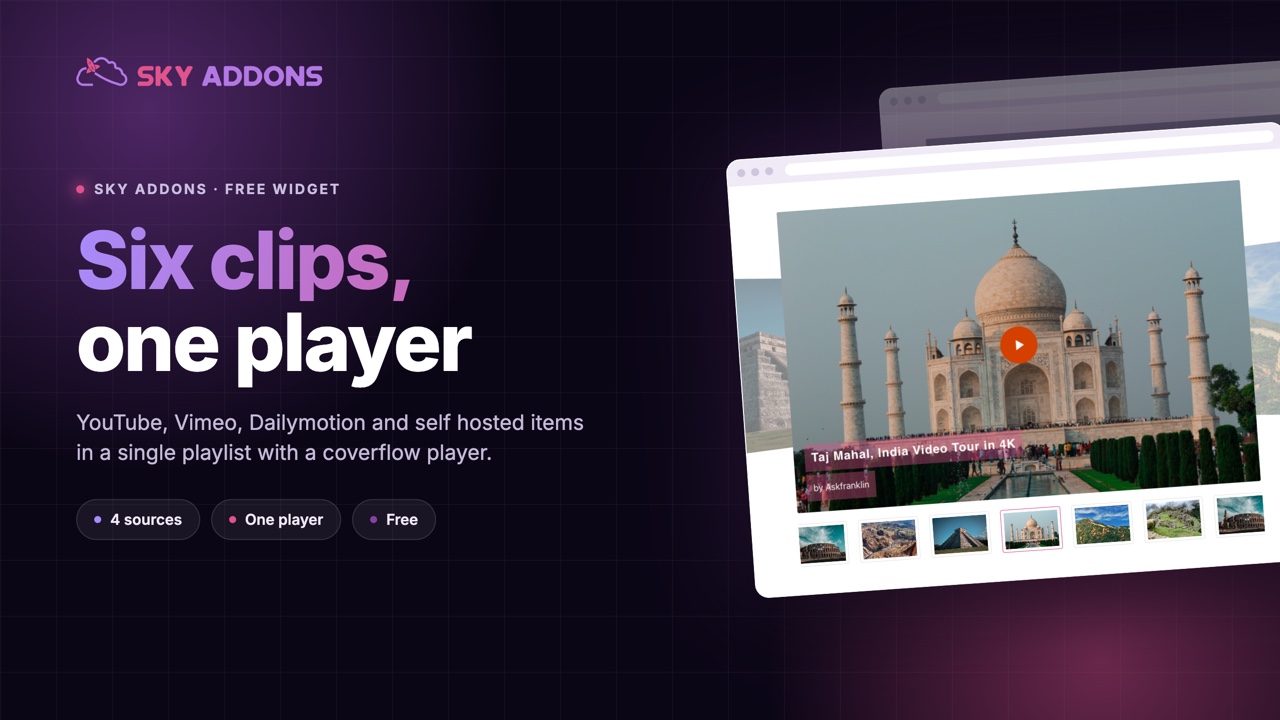
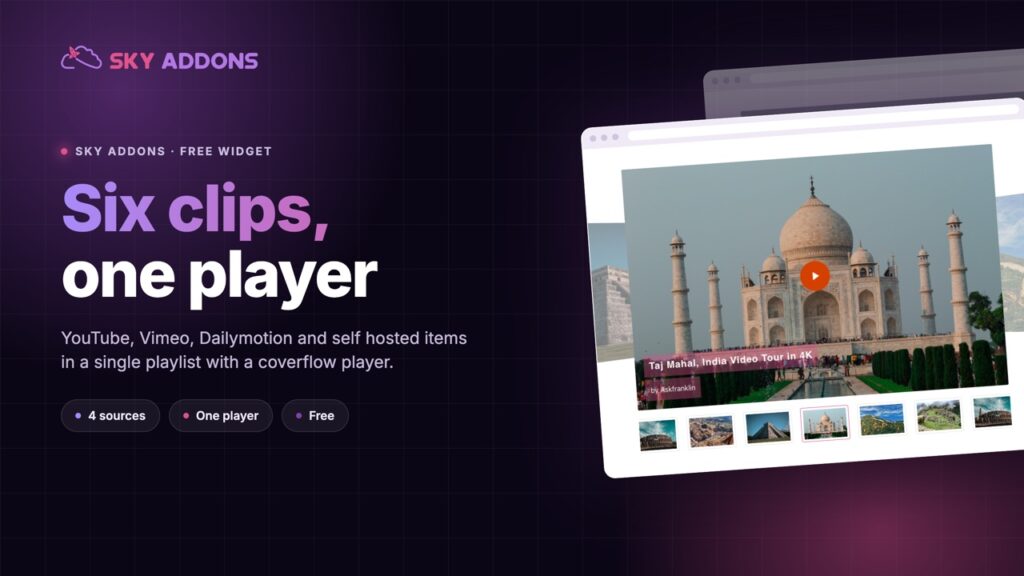
The Glory Slider turns YouTube, Vimeo, Dailymotion and self hosted clips into one Elementor video playlist with a coverflow player. It is free.
A page with six videos on it is usually six embeds stacked down a column. Each one loads its own player, each one is a separate decision for the visitor, and by the third the page has become a list of chores rather than a showreel.
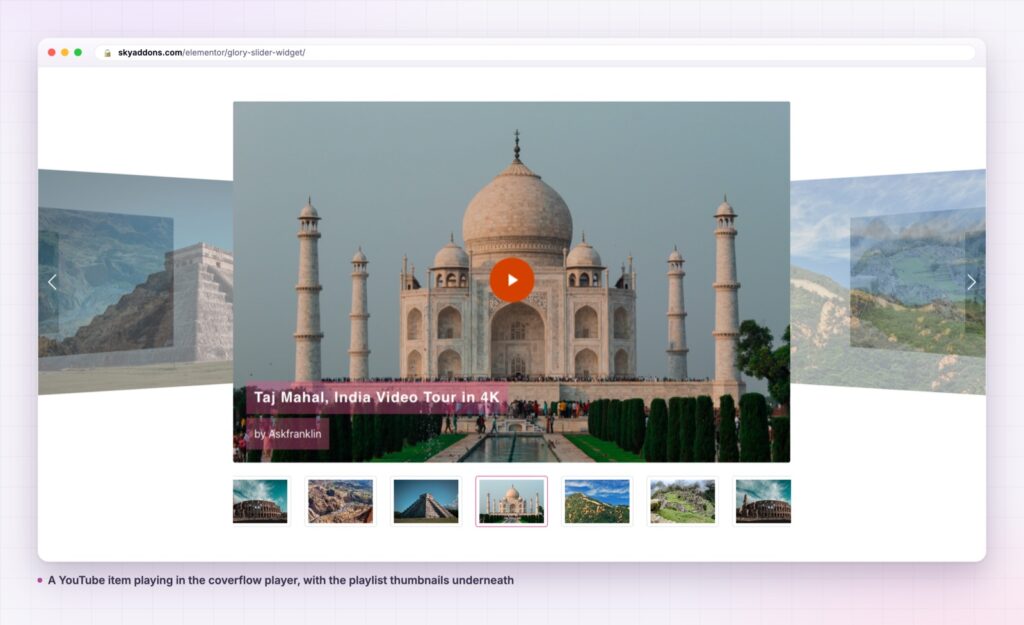
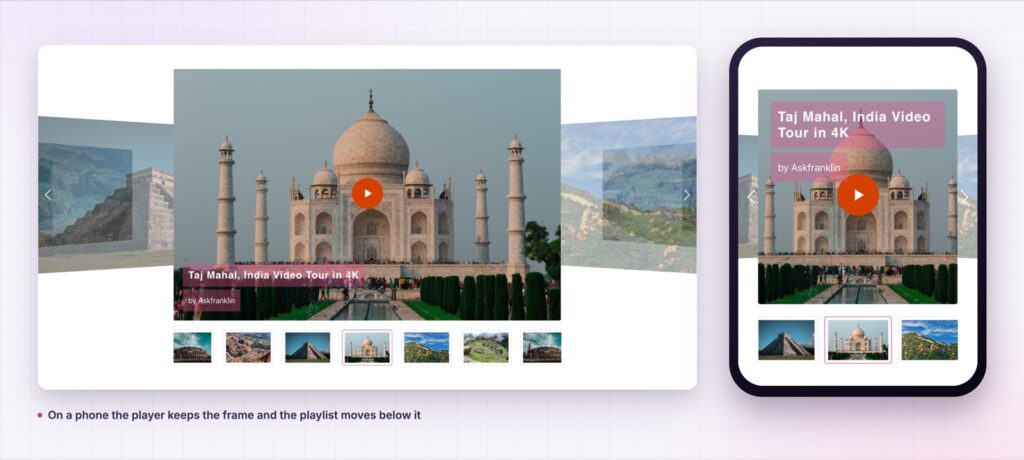
The glory slider treats the same six clips as one thing. There is a player, and there is a playlist beneath it. The visitor picks a clip, it plays in place, and the rest stay visible as thumbnails instead of scrolling away. It is the pattern every video platform uses, built from an Elementor repeater.
It is a free widget, and the sources can be mixed: a YouTube link, a Vimeo link, a Dailymotion link and a file from your own media library can all sit in the same playlist.
| Six stacked embeds | A gallery of thumbnail links | Glory slider | |
|---|---|---|---|
| Players on the page | One per video | One, after a click away | One |
| Mixing platforms | Six different embed blocks | Possible, by hand | Four sources in one repeater |
| Titles and credits | Whatever the platform shows | Built by hand | Fields on each item |
| Browsing while watching | No | No | Playlist stays visible |
| Layout work | Per embed | Per tile | One widget |
Four sources in one list. Each item picks YouTube, Vimeo, Dailymotion or self hosted. A self hosted item takes a file from the media library, and there is an external URL option for a clip that lives somewhere else entirely.
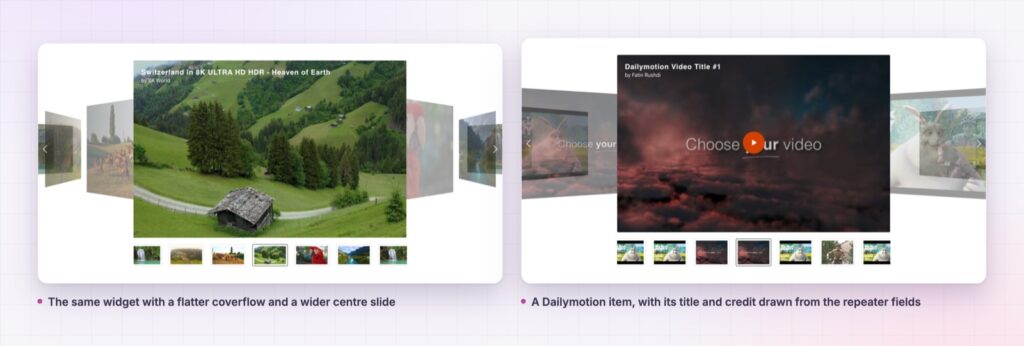
Every item carries its own title and credit. Title, credit or subtitle, and an optional credit link are fields on the repeater item, so the attribution belongs to the clip rather than to a caption you maintain separately.
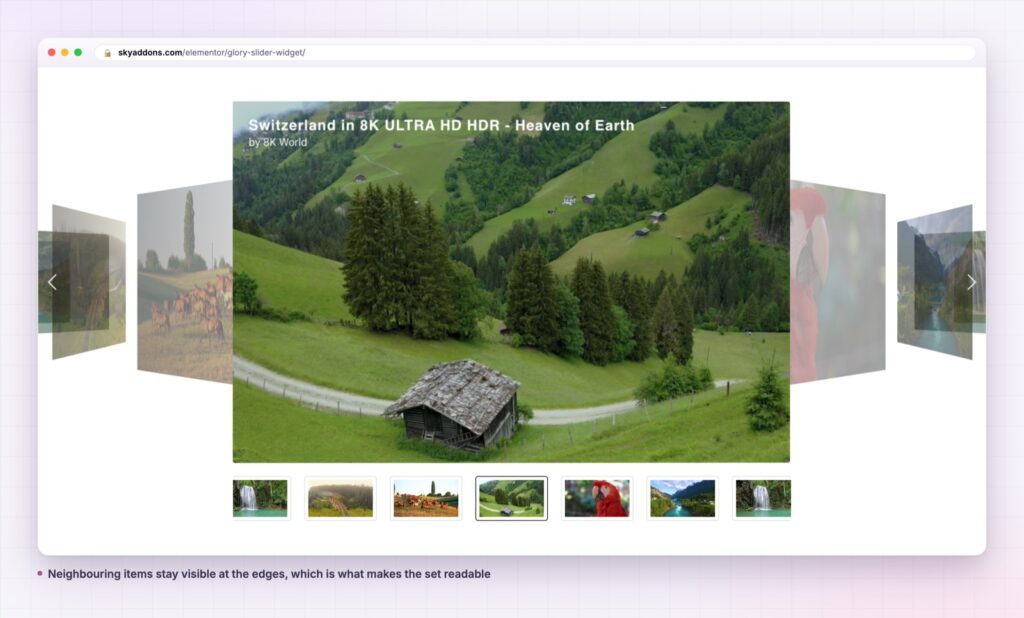
A coverflow player, or a flat one. Coverflow is a toggle, and when it is on you get depth, modifier, rotate and stretch as separate sliders. That is the difference between a subtle lean and a full carousel perspective.
The playlist is optional and tunable. Show playlist is a switch. Item gap sets the spacing, and a mouse wheel option decides whether scrolling over the list moves it.
Text position is a six-way choice. Top left through bottom right, per breakpoint, with alignment as a separate control. The title can sit out of the way of whatever the clip actually shows.
A play button that appears on hover. It is a switch, with its own icon size, padding, border and radius in the style tab, plus separate normal and hover states.
Each item is a link plus a small amount of text, not a separate player instance. The page carries one player frame and swaps what it points at, so the browser is not initialising a video widget for every clip you listed.
Thumbnails do the job the video files would otherwise do: they are what the visitor scans, they are ordinary images, and they load like ordinary images. The clip itself is only fetched when it is the one being watched.
The slide speed control is worth setting rather than leaving. It runs from 100 to 5000 milliseconds and defaults to 1200, and it changes the character of the whole widget. Under 500 the glory slider feels like a channel flick, which suits short loops. Around the default it feels like turning a page, which is right when each item carries a title and a credit worth reading. Above 2000 the movement itself becomes the effect, which is only worth it when coverflow is on and the depth is doing visible work.
A column of embeds asks the visitor to commit to one video at a time. A playlist lets them see the whole set and still be watching something.
Because titles and credits are fields rather than baked into thumbnails, a rename is a text edit rather than a trip back to an image editor.
Video is the obvious use, but the widget is really a picker with a media panel. A self hosted setup can hold short product loops with no audio at all, where the playlist becomes a set of angles on one item rather than a set of films.
It also works for a mixed archive. Old work may live on Vimeo while new work goes to YouTube, and the repeater does not care: the source is per item, so the migration you never finished is invisible to the visitor.
If the page needs more than a playlist, the surrounding widgets matter. A video player suits a single hero clip that deserves the whole width, and a modal popup suits a clip that should not take over the page at all. The glory slider is the one for a set.
Yes. It is a widget in the free Sky Addons plugin, including the coverflow player, the playlist and the per item titles and credits.
No. Elementor and Sky Addons are enough. YouTube, Vimeo and Dailymotion clips play through their own players, and self hosted files play through the browser’s own video element.
It is lighter than the same clips as separate embeds, because the page carries one player frame and a set of thumbnail images. Self hosted files are the one thing to watch: a large MP4 in the media library is still a large MP4.
Yes. The player and playlist stack, and it is worth setting the text position and item gap per breakpoint so the titles do not crowd the frame.
Yes. The source is chosen per item, so a single playlist can pull from all four options at once.
The glory slider turns a set of clips from four different sources into one Elementor video playlist, with a coverflow player, per item titles and credits, and a playlist that stays visible while something plays. It is free, and it replaces a column of embeds with one widget.
See it running on the Glory Slider demo, then read the control reference in the Glory Video Slider documentation. It is part of the free plugin: see what else is included on the free versus Pro page, and the plans on pricing.



Comments are closed.