
Fellow Slider: Put a Post Player and Its Playlist Side by Side
The Fellow Slider pairs a large post player with a scrolling playlist beside it, synced both ways. It runs on a query and ships in the free plugin.
A carousel of blog posts has one bad habit. It shows three cards, hides the rest, and gives the visitor no idea how much more there is. They either click the arrow repeatedly or they move on, and most of them move on.
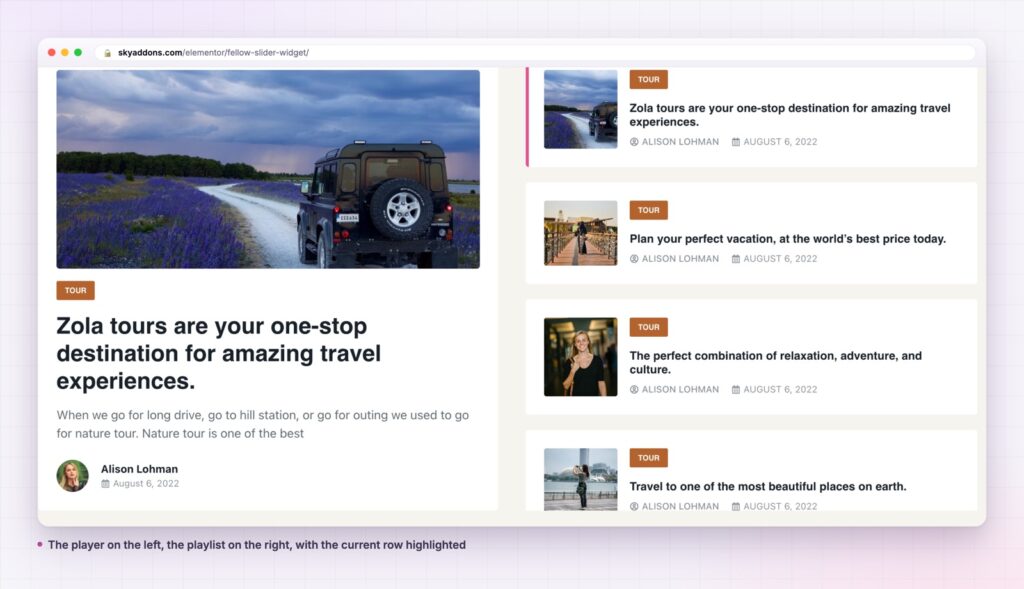
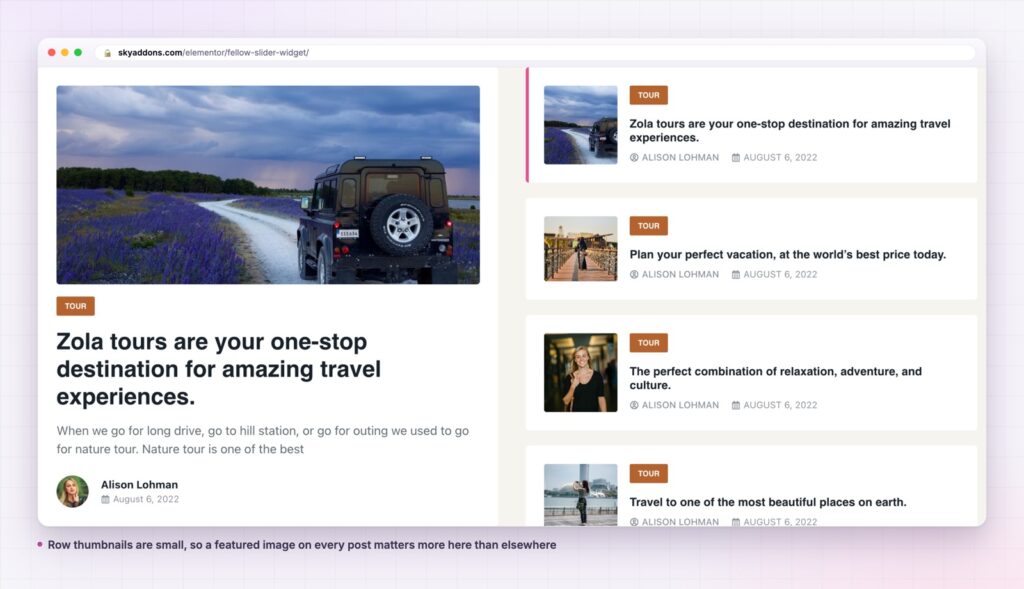
The fellow slider solves that by splitting the space. The left side is a player showing one post at full size. The right side is a playlist of the rest, scrolling in place. The visitor can see what is coming, click straight to it, and watch the highlight move as the player advances. Nothing is hidden behind an arrow.
It is a free widget that runs on a query, so the list is your actual posts rather than a set of cards you maintain.
| Standard post carousel | Post grid | Fellow slider | |
|---|---|---|---|
| How much of the set is visible | Three cards | All of it, at small size | One large plus a visible list |
| Finding a specific post | Click through | Scan the grid | Scan the rail, click once |
| Space used | One full-width band | Several rows | One band, two panes |
| Highlights a lead item | No | No | Yes, the player |
| Effort to keep current | Query | Query | Query |
The playlist is a real scrolling list, not a second carousel. That is a deliberate design decision. An earlier version used a vertical slider for the rail and it sliced rows in half at the top and bottom, because a vertical slider sizes its rows by writing a fixed height on each one. The list was rewritten as plain scrolling markup, so a row’s position on screen is simply where it is.
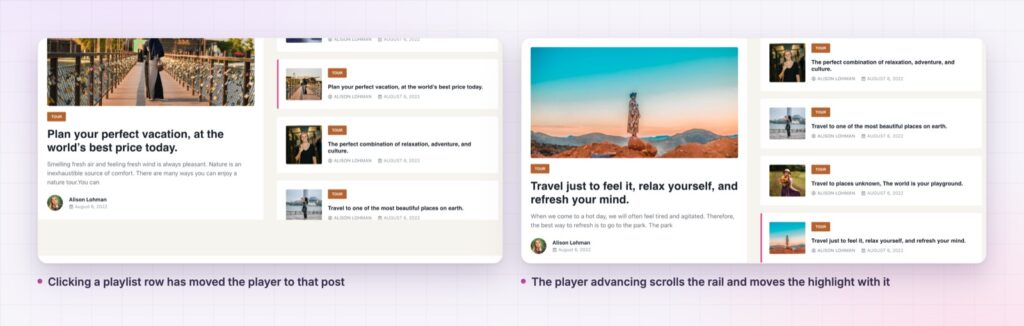
The sync runs both ways. Clicking a row moves the player. The player moving highlights the matching row and scrolls the rail to bring it into view.
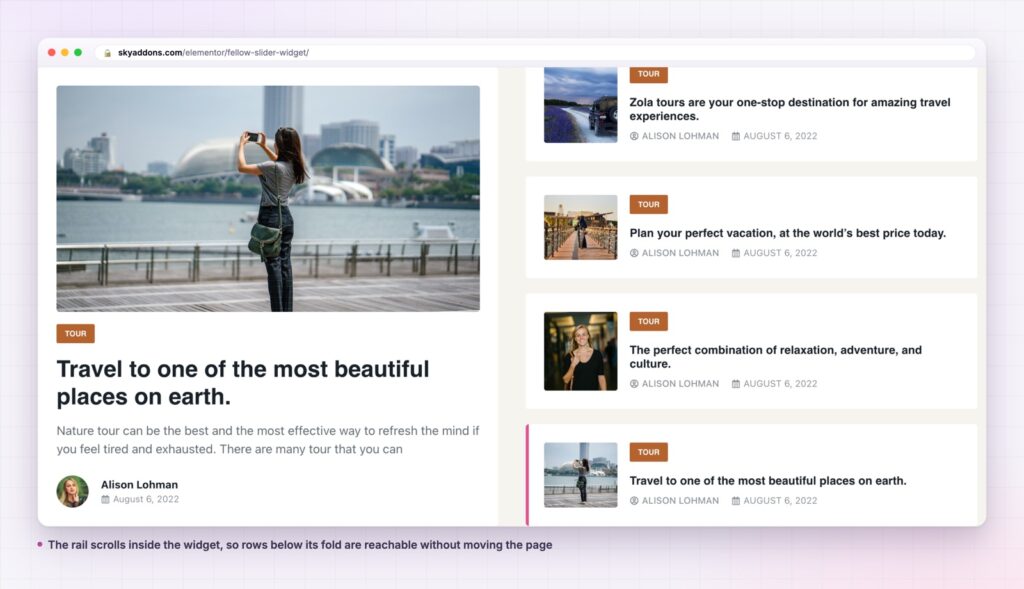
The rail scrolls itself, not your page. The sync writes the scroll position on the playlist element directly, rather than asking the browser to reveal the row. That distinction matters: the browser method walks every scrollable ancestor up to the document, so on a page with two sliders below the fold the page would appear to scroll by itself as each one advanced.
An active state you can style. The playlist rows get normal, hover and active styling tabs of their own, so the current item can be marked with a background, a border or a radius rather than just brighter text.
The scrollbar is yours. Size, track and thumb are controls, published as custom properties so the hide-until-hover behaviour still works. There is also a switch to hide the scrollbar completely.
The whole thing is one query. Post type, terms, order and offset come from the shared query builder, which is the same one behind the other post widgets in the plugin.
A visitor who can see what is next behaves differently from one who cannot. A rail of five readable titles is an invitation to pick, and picking is a much smaller decision than clicking an arrow to see whether there is anything worth seeing.
The layout also solves a real problem with post titles. Carousel cards force a title into two or three cramped lines. A vertical row gives a title the full width of the rail, which is why editorial sites have used this shape since long before WordPress existed.
A carousel hides its contents and asks for a click. A playlist shows its contents and asks for a choice. The second one is a much easier thing to say yes to.
Because looping is on by default, the widget uses the loop-aware slide methods rather than raw indices. Duplicate slides in a looping slider make raw index numbers disagree with post order, and using the wrong one is how a playlist ends up highlighting the wrong row.
The styling controls follow the same logic. Spacing, padding, border and radius apply to the playlist rows, and the tabs that only make sense for the rail hide themselves when the playlist is switched off, rather than sitting in the panel doing nothing. The scrollbar is styled through custom properties instead of direct rules, which is what lets the rail keep its hide-until-hover behaviour while still taking your colours.
The query builder means this is not limited to blog posts. Point it at a case study post type and the player becomes a project viewer. Point it at events and the rail becomes a schedule where the highlighted row is the next session.
With the playlist hidden, the widget collapses into a clean single-post slider, which is useful in a narrow column or inside a two-column section where the copy lives beside it.
On a busy landing page, it works well above the widgets that handle volume. A showcase flow can carry the wider set underneath, and a video player covers the case where the lead item is a film rather than an article.
Yes. It is a widget in the free Sky Addons plugin, including the playlist, the two-way sync and the active row styling.
No. Elementor and Sky Addons are enough. It reads the posts already in your WordPress install.
It loads one thumbnail per playlist row and the featured image of the current slide, which is the same work as a post carousel of the same length. There is no second slider instance for the rail, because the rail is not a slider.
Yes, with the panes stacked. Check the height there, since a rail that shows five rows on a desktop shows fewer on a phone.
Yes. Turning the playlist off leaves a single-post player, and the playlist-only styling tabs hide themselves rather than showing empty.
The fellow slider puts a large post player and a scrolling playlist side by side, synced in both directions, driven by a query. The rail is real scrolling markup rather than a second carousel, which is what keeps the rows whole and the page still. It is free.
See it running on the Fellow Slider demo, then read the control reference in the Fellow Slider documentation. It is part of the free plugin: see what else is included on the free versus Pro page, and the plans on pricing.



Comments are closed.