
Post Comments for Elementor: Style the Discussion Instead of Hiding It
The post comments widget drops native WordPress comments into an Elementor template and gives you 8 style sections to make them match the design.
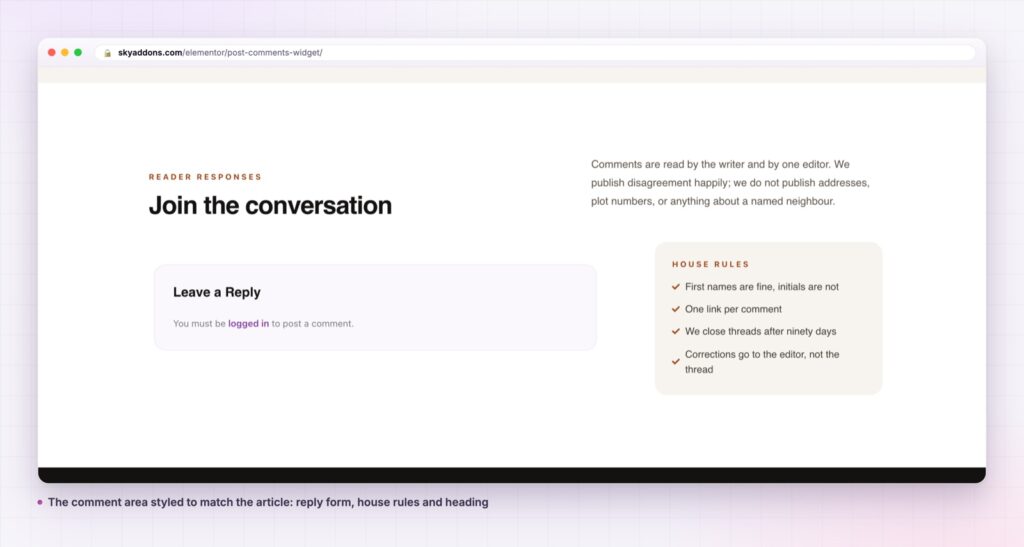
You build a single post template in Elementor. Title, featured image, content, author box, related posts. Then you reach the comments and the design stops. Whatever the theme decides appears, in the theme’s fonts, with the theme’s grey boxes, under a heading you did not write.
Most people respond by turning comments off. That is a real loss on a blog that earns links and repeat readers, and it is an odd decision to make for a styling reason.
The post comments widget renders WordPress’s own comment system inside your Elementor template and hands you eight style sections for it. The functionality is the platform’s, tested and familiar. The appearance is finally yours.
| Approach | What you get |
|---|---|
| The theme’s default comments | Whatever the theme decided. Rarely matches an Elementor built template |
| Turning comments off | The styling problem is solved, and so is the community |
| A third party comment service | An external script, an external account, and your discussion on someone else’s server |
| Custom CSS for theme comments | Fragile selectors, and a fresh round of work at every theme update |
| Post comments widget | Native WordPress comments, rendered in place, with eight style sections in the panel |
It is genuinely the WordPress comment system. The widget calls the platform’s own comment template. Threading, moderation, notification emails, spam plugins and the comment form all behave exactly as they always did, because nothing has been reimplemented. Turn off the widget and the comments are still there.
Eight style sections. Wrapper, comments title, comment item, author, meta, comment content, reply link and comment form each get their own section. That means the card behind a comment, the avatar size and shape, the author name colour and its hover, the timestamp, the body text, the reply pill and the entire form are all panel controls.
A form you can actually design. The form section covers the background, padding and radius of the form panel, the reply title, every input’s text, background and border colour, a separate focus border colour, and the submit button in both normal and hover states. The comment form is where most themes look worst and where most of the friction sits.
Avatars that match the design. Size, corner radius from circle to square, and a border colour. A 48 pixel circle with a brand coloured ring is the default, and it is one slider away from anything else.
It can show another post’s comments. The source control takes the current post or a specific post ID. Useful for a landing page that surfaces the discussion from a cornerstone article, or a template that always shows one pinned thread.
No JavaScript of its own. The widget ships a stylesheet and nothing else. Whatever comment scripts WordPress already loads are the only scripts involved.
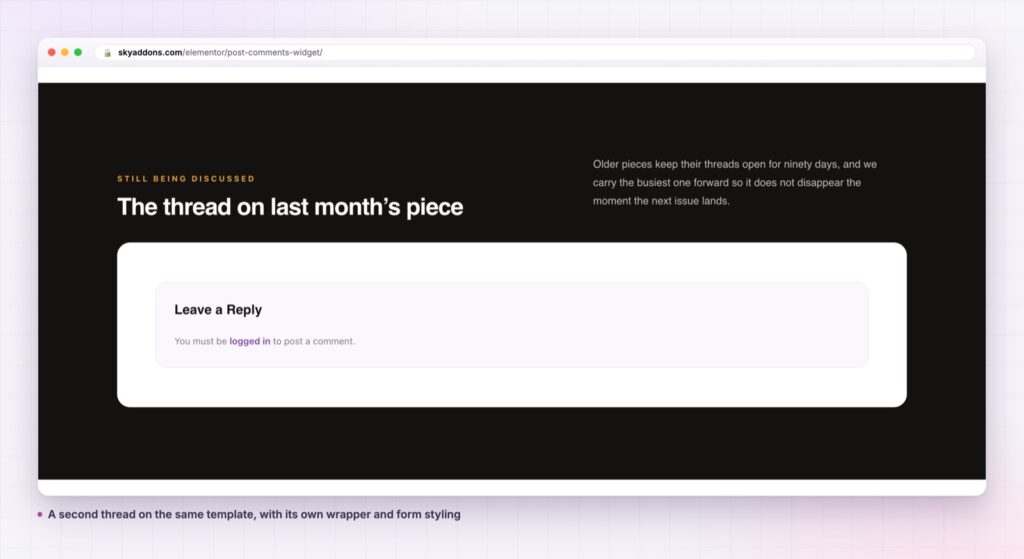
Rendering the platform’s own comment template rather than rebuilding it is the important decision. Comment systems look simple and are not: threading depth, moderation states, pagination, the reply form moving into the thread when you click reply, cookie consent checkboxes, and every anti spam plugin hooking into the process. A reimplementation gets most of that wrong.
Styling is layered on top through standard WordPress comment classes, which is why it works across the templates that follow the platform’s conventions. The result is a discussion that looks designed and behaves exactly as every WordPress user expects, including the plugins already running on the site.
Comments are not a design problem to be removed. They are the only part of a blog post the reader can add to, and the reason some articles keep earning traffic years later.
experience on a post with no replies yet, which on most blogs is the majority of posts. A title that invites a reply reads better than one that reports a count of zero.
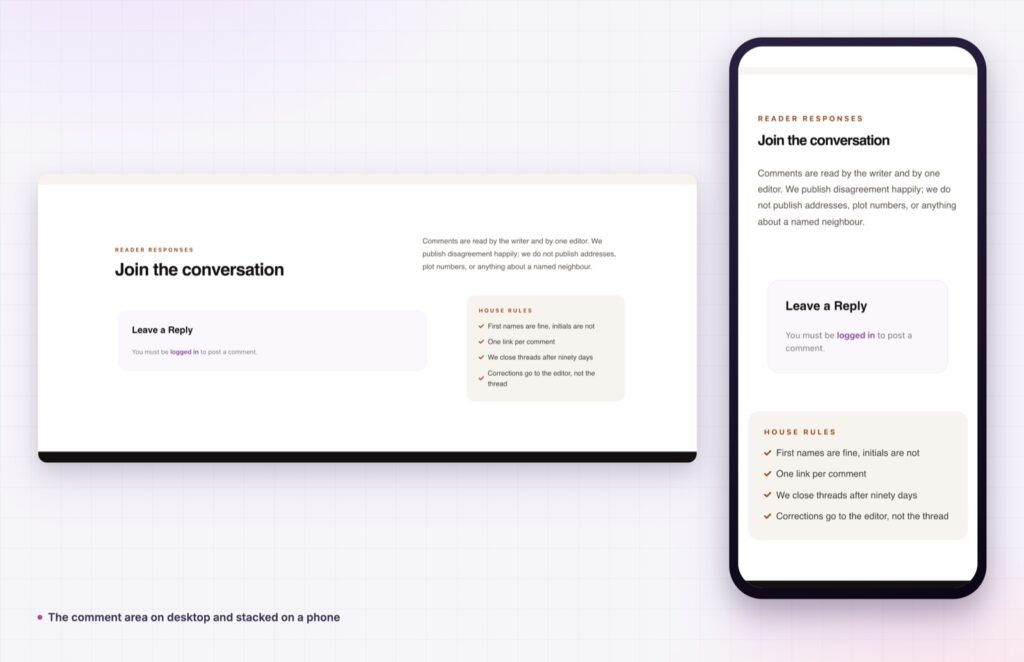
Anywhere WordPress supports comments, the widget follows: posts, pages, products, portfolio items, documentation entries, custom post types. Because the source can be a specific post ID, you can also surface one discussion in a place it did not originate, such as an FAQ page pointing at the thread where the question was actually answered.
It also fits the theme builder pattern properly. One styled template, and every post on the site gains a designed comment area at once, with no per post work and nothing to redo when the article count grows.
For the underlying template function, what it loads and how themes override it, the WordPress developer handbook entry on comments_template() is the reference.
There is also a moderation angle worth planning for. A styled comment area makes the discussion look like part of the site, which raises the standard readers hold it to. Deciding in advance whether comments are held for approval, and saying so in the form area, costs one sentence and saves a lot of cleanup later.
Because the widget is a normal Elementor element, everything else in the builder still applies to it. Give it a container with a background and it becomes a distinct band under the article. Put it inside a two column layout and it sits beside a subscribe box. Wrap it in a conditional rule and it appears only on posts of a certain category. None of that is a feature of the comment widget, which is the point: it behaves like the rest of the page rather than like a plugin’s output.
Yes. The widget and all eight style sections ship in the free Sky Addons plugin. Free versus Pro covers what the licence adds elsewhere.
No. It needs Elementor and Sky Addons. It uses WordPress’s built in comment system, so no comment plugin is required either.
It adds one stylesheet and no JavaScript. The comment queries are the same ones WordPress runs for the theme’s own comment area.
Yes. Padding, avatar size, item spacing and the form controls are responsive, so the list can be tighter on a phone than on a desktop.
Yes. Because this renders the native comment template and form, plugins that hook into comment submission and moderation continue to work unchanged.
The post comments widget renders WordPress’s own comment system inside an Elementor template and gives you eight style sections covering the wrapper, title, comment card, author, meta, content, reply link and the whole form. Nothing about the comment functionality is replaced, so moderation, threading and anti spam plugins keep working.
See it in place on the post comments demo, then read the post comments documentation for every control. For the rest of a single post template, reading progress and post list cover the parts above and below it. Licences are on pricing.




Comments are closed.