
Elementor Cursor Effects: The Detail That Makes a Site Feel Built
Elementor cursor effects swap the pointer for a ring, a word, an icon, an image or a video, with a follow speed you set and sensible defaults on mobile.
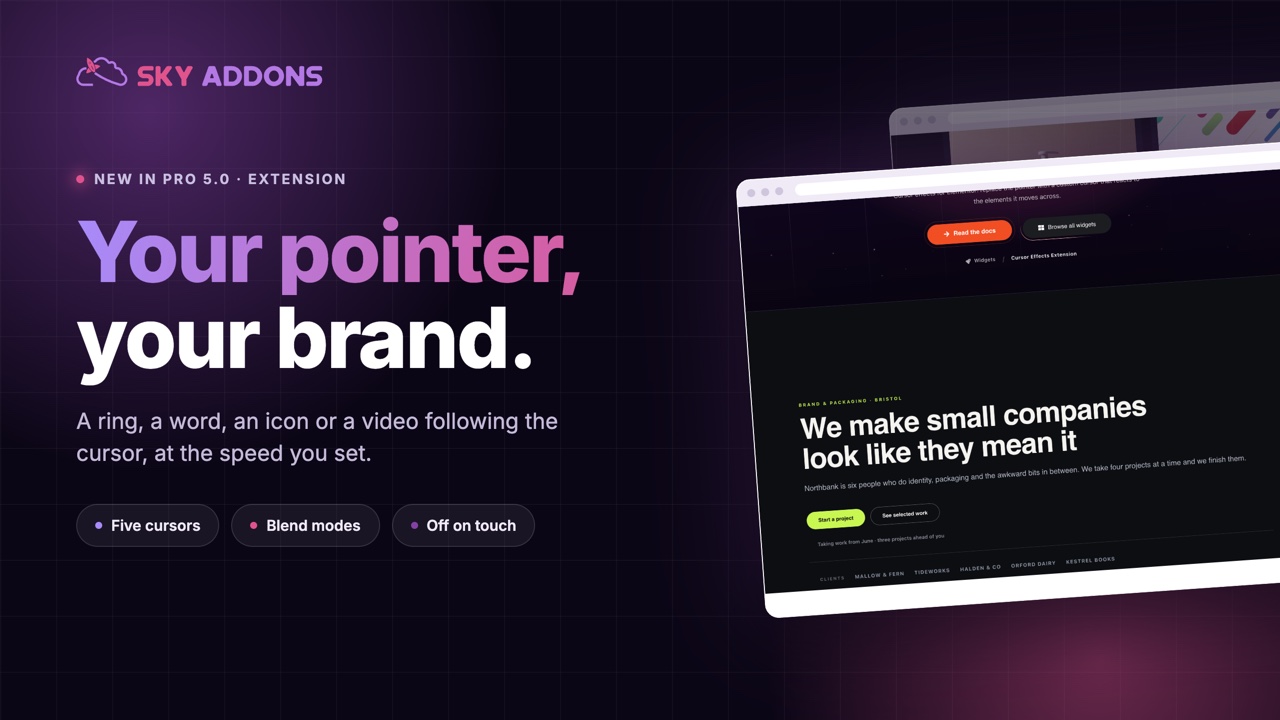
Look at the agency sites people send each other as references. Underneath the typography and the imagery, one detail appears again and again: the pointer is not the operating system’s pointer. It is a ring, or a word, or a small picture that follows your hand around the page.
It is a tiny thing. It is also the difference between a site that feels made and a site that feels filled in, which is exactly what a studio is selling.
Elementor cursor effects in Sky Addons Pro 5.0 add that without a developer, page wide or section by section, and they get out of the way on phones.

| A default pointer | Elementor cursor effects |
|---|---|
| Nothing to notice | A detail people remember |
| Links look like links | The cursor can say “view”, “drag” or “play” |
| The same on every site | Part of your brand’s personality |
| No feedback on hover | The cursor reacts to what is under it |
Five kinds of cursor. A ring, a word, an icon, an image, or a short muted video looping inside the pointer. A word like “View” or “Drag” is the most useful of the five, because it tells people what to do.
A follow speed you control. The trail can stick tight to the pointer or lag behind it. Lower is lazier, and lazy usually feels more expensive.
Blend modes. Difference on a light dot gives the classic colour-inverting cursor that reads on any background, which saves you designing two versions.
Page-level and section-level use. Set it site wide in Site Settings, or override it per page, or apply it to one container so the cursor only changes over your portfolio grid.
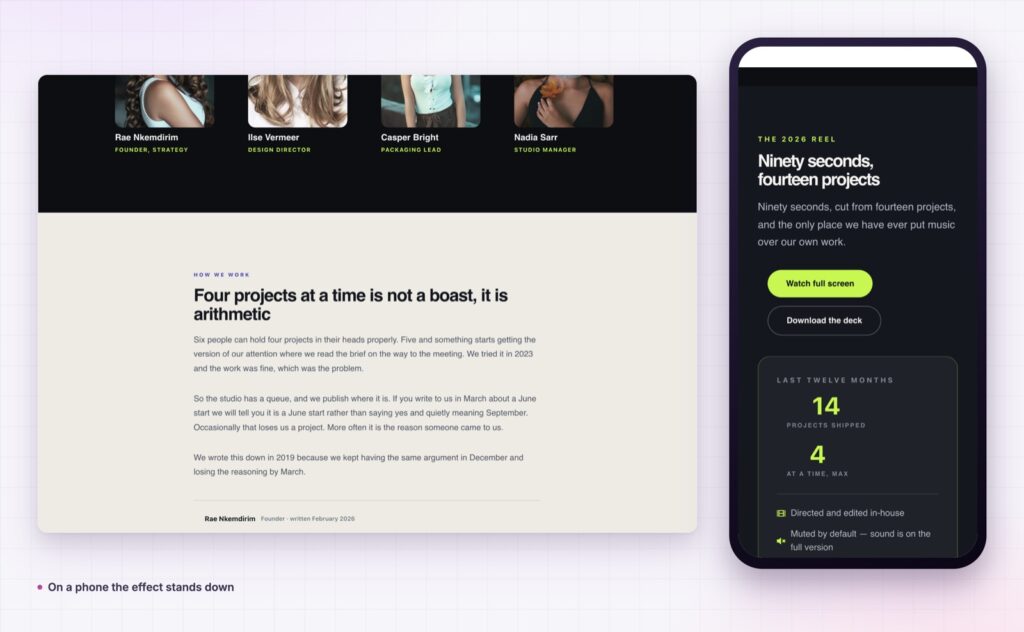
It disables itself where it should. Hidden automatically on touch devices and for visitors who ask for reduced motion, so you are not shipping a broken experience to half your audience.
The native cursor stays optional. Hide it for the full effect, or keep it for usability while the trail decorates.
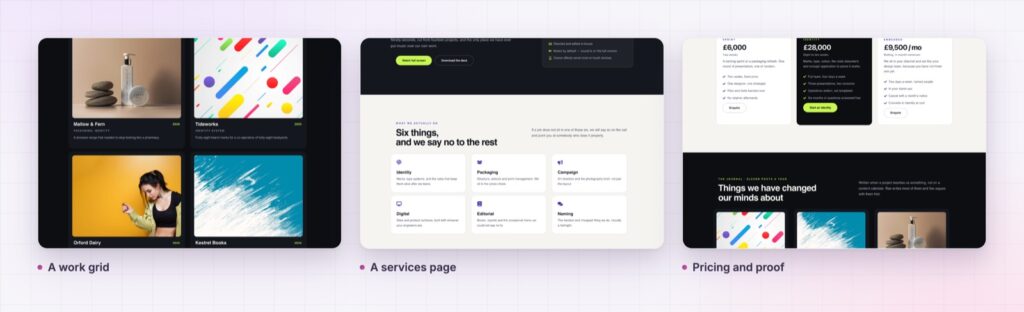
A cursor that says “View” over a portfolio does more for usability than a row of buttons underneath the thumbnails.
Two reasons. The first is signalling: people read the cursor constantly without thinking about it, so changing it over an interactive area is the fastest way to tell someone something is clickable or draggable.
The second is craft. A custom cursor is a decision nobody makes by accident, and visitors, particularly the ones hiring a studio, read it as evidence that everything else was considered too. That is the whole argument for spending ten minutes on it.
Keep the restraint, though. A video cursor downloads with the page, and a cursor that lags too far behind becomes annoying on a long page of links.
A custom cursor replaces something the operating system already designed, so the MDN cursor reference is worth skimming for which states you still need to signal.
No, and that is deliberate. It hides on touch devices, where there is no pointer.
Yes, along with a ring, an icon, an image or a looping video.
Yes. Apply it to a container and it changes only over that area.
It stands down for visitors who prefer reduced motion, and you can keep the native cursor visible.
A ring or a word costs almost nothing. An image or a video is a download, so keep it small.
Elementor cursor effects are cheap craft: a ring, a word or an image that follows the pointer and makes a portfolio feel considered. Set it site wide or over one grid, control how closely it follows, and let it disable itself on touch screens and for anyone who prefers less motion.
The Cursor Effects demo is a full agency site rather than a settings list, which is the only fair way to judge an effect like this. Move the pointer across the work grid and then over the pricing table. Every setting is in the Cursor Effects documentation.
If you are building that kind of site, the Elementor showcase wall and the Elementor text animation belong on the same page. All three arrived in Sky Addons 4.0 and Pro 5.0.
Cursor Effects is a Pro extension, included in every Sky Addons Pro plan, and the free versus Pro page shows what the free plugin covers.

Comments are closed.