
Confetti Effects: Give an Elementor Page a Moment Worth Celebrating
Confetti Effects fires six kinds of celebration on an Elementor page, on load, on view, on click or after a form sends. Five triggers, no code needed.
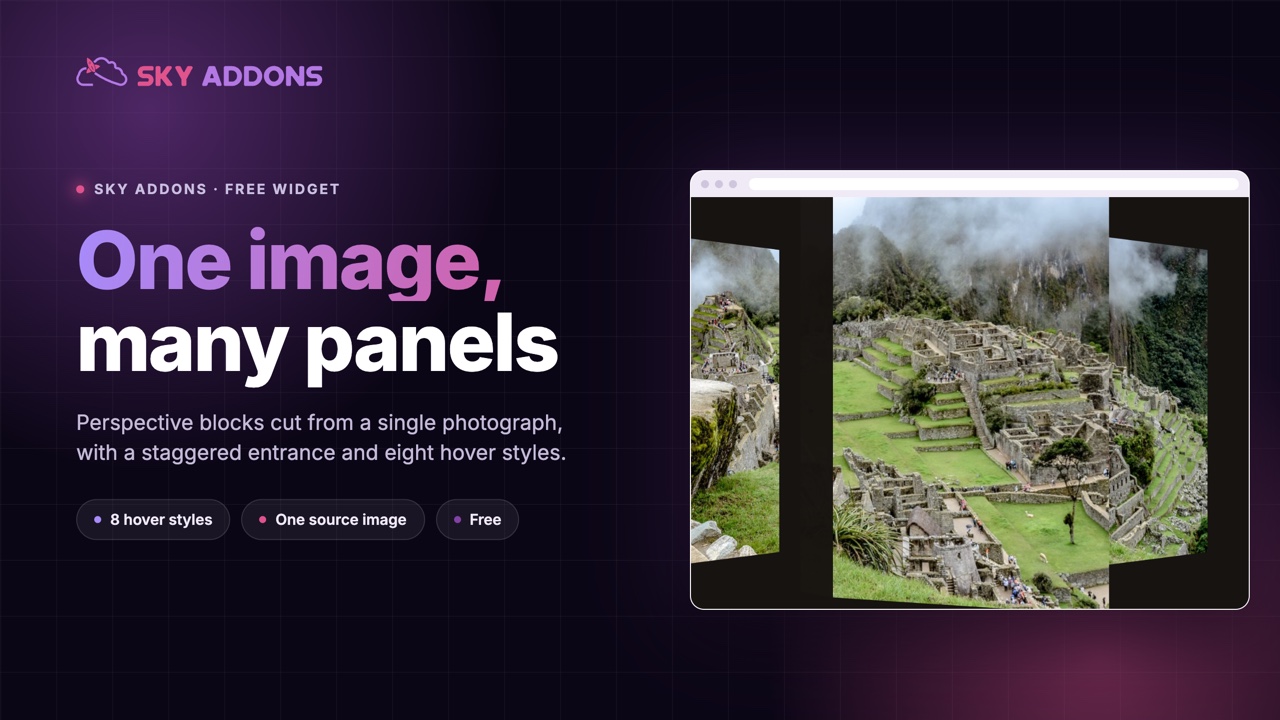
Every agency site eventually needs a hero image that is not a rectangle. The usual answers are a collage built from five separate crops, or a designer’s mockup that nobody can update without reopening the source file. Both cost real time, and both break the first time somebody swaps the photograph.
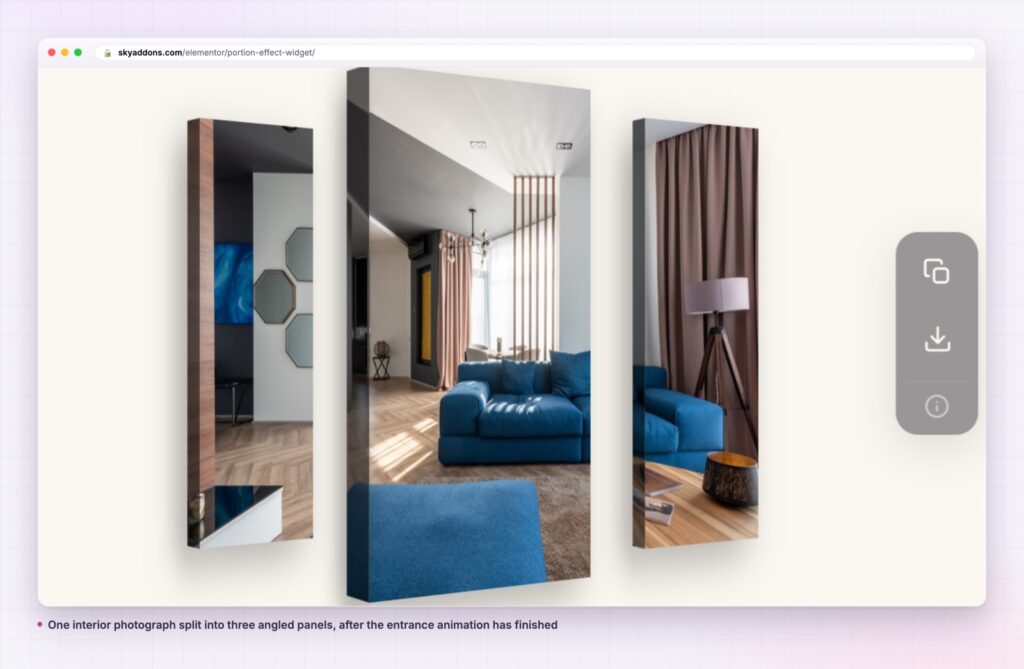
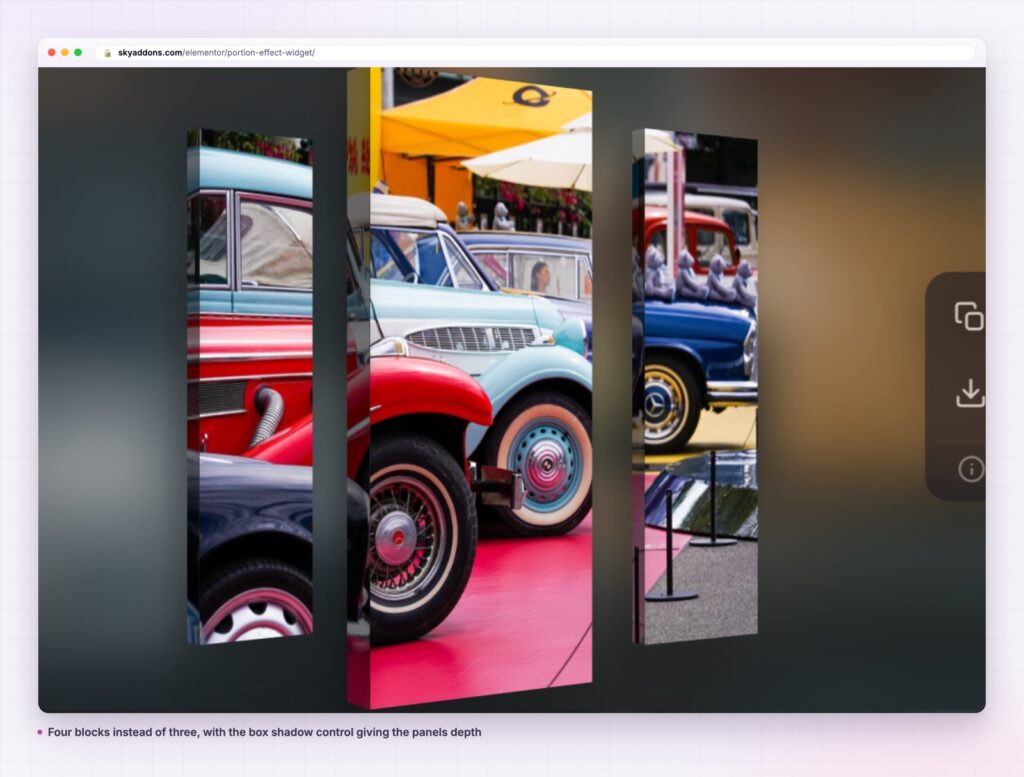
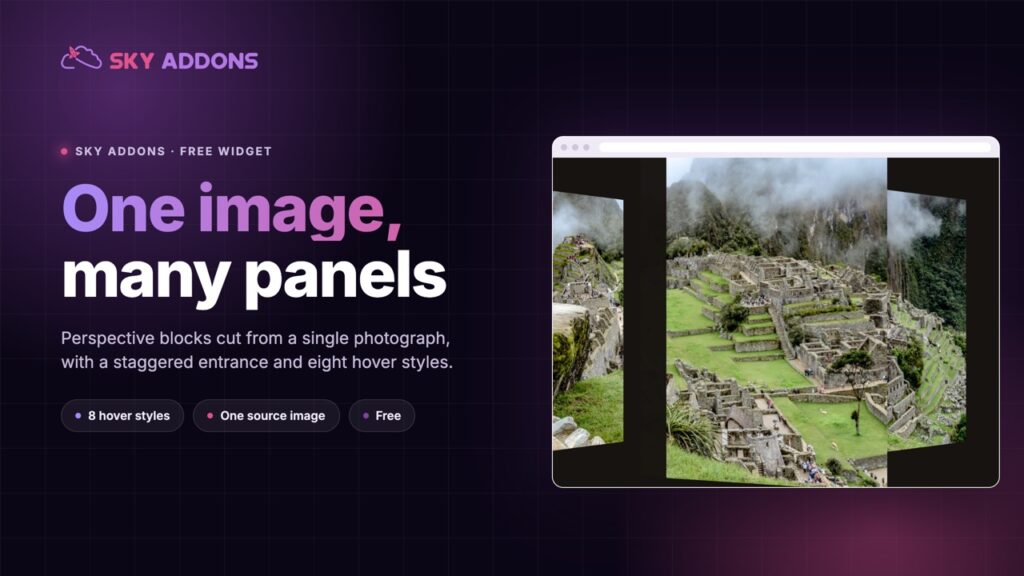
The portion effect takes the opposite route. You give it one image. It builds the composition out of that single file: a set of blocks, angled in perspective, each showing its own slice of the picture. Change the image and the whole arrangement updates, because there was only ever one image to change.
It is a widget in the free Sky Addons plugin, and it arrives with a staggered entrance animation and eight hover styles already built.
| Hand-built collage | Static mockup image | Portion effect | |
|---|---|---|---|
| Images to prepare | One per panel | One flattened export | One |
| Swapping the picture | Re-crop every panel | Rebuild in the source file | Change one media control |
| Entrance animation | Build per element | None | Built in, staggered |
| Hover response | Build per element | None | Eight styles |
| Responsive control | Per panel, by hand | Scales as one flat image | Per block, per breakpoint |
The collage row is the honest comparison. It is what most people build when they want this look, and it is why the look usually survives exactly one content update.
One image drives every block. The widget injects the chosen picture onto each panel, so the blocks read as pieces of a whole rather than a row of unrelated thumbnails.
Presets give you a starting arrangement. Each block in the repeater takes a preset: auto, left-small, centre-large, right-small, far-left or far-right. The presets deliberately sit at a lower specificity than the sliders, so anything you set by hand always wins.
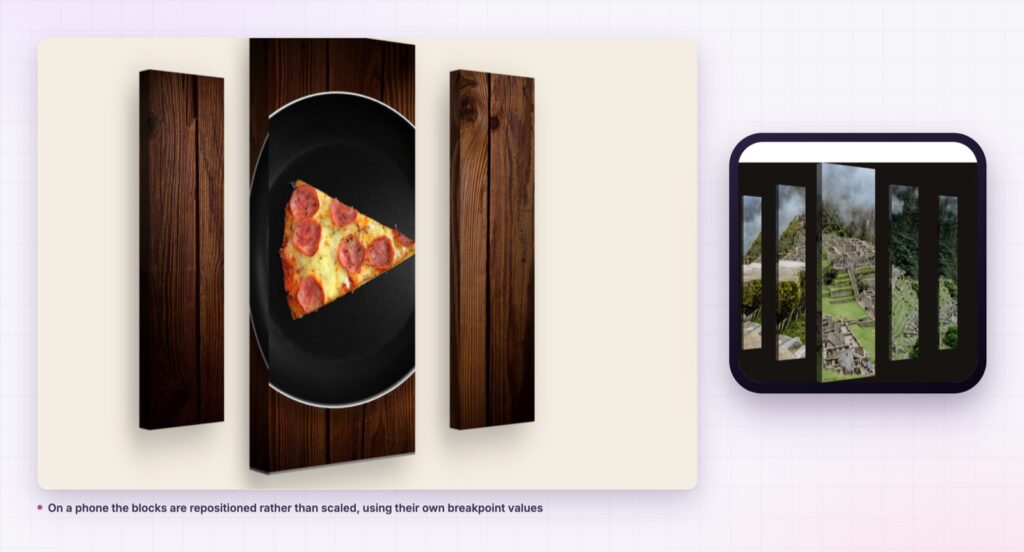
Every block has its own position and size, per breakpoint. Height, width, top and left are responsive sliders on each repeater item. A composition that works at 1440 pixels can be rearranged rather than merely shrunk on a phone.
The entrance is staggered, not simultaneous. Panel cascade runs 0 to 500 milliseconds in steps of 25 and defaults to 150, so the blocks arrive one after another. Speed covers 100 to 3000 milliseconds and defaults to 600.
It waits until the section is actually on screen. The entrance watches visibility and fires at a threshold you set, 0 to 100 percent, defaulting to 40. There is an option to repeat it every time the section returns to view, or to play it once.
Eight hover styles, one dropdown. Float, unfold, zoom, spread, swing, tilt, shutter and lean. Lift amount is a separate responsive slider, 0 to 40 pixels, so the same style can be a whisper or a jump.
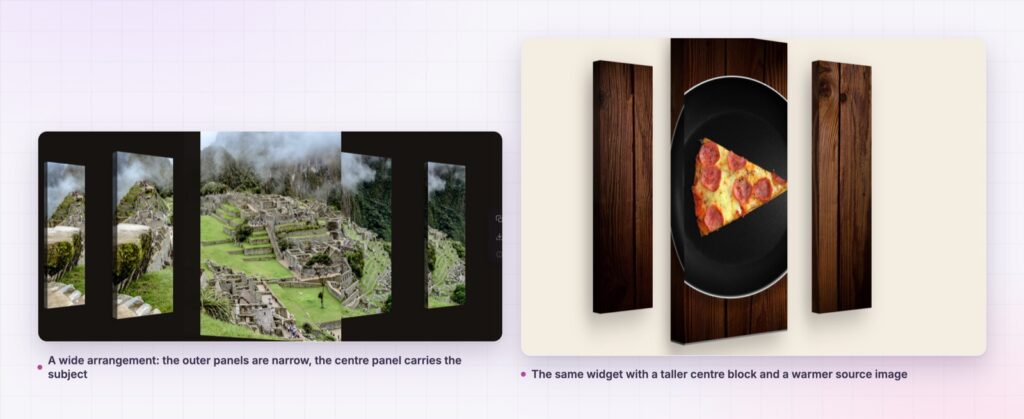
The composition is CSS perspective applied to real elements, not a baked image. That means the panels stay sharp at any display density, the text beside them keeps its own flow, and the whole thing weighs whatever your single photograph weighs.
The entrance animation is driven by visibility rather than a timer, so a visitor who lands halfway down the page does not arrive after the animation has already finished playing to nobody.
A collage built from five crops is a design decision you have to re-make every time the content changes. A composition built from one image is a design decision you make once.
The hover styles are class-driven rather than per-instance JavaScript, which is why switching from float to shutter is a dropdown change and not a rebuild.
The style controls are worth a slower pass than the animation ones. The angle slider runs between 30 and 50 degrees and sets the perspective the whole piece is built on. The left panel has its own width and its own rotation, between 50 and 70 degrees, plus a brightness control that can push the outer blocks back into shadow. Those four values are what separate a composition that looks folded from one that looks fanned out, and they are the ones to settle before you spend time positioning blocks.
The widget is not limited to a hero. At a reduced portion height it works inside a two-column row, with copy on one side and the composition on the other, which suits a feature block halfway down a service page.
It also works as a section divider. A wide, short arrangement with a low lift amount and the float hover style gives a band of movement between two text-heavy sections without introducing a new colour or a new heading.
If you are building a gallery-led page, the portion effect pairs naturally with the widgets that handle the rest of the set. An image stack can carry the sequence while the portion effect carries the single statement image, and a showcase wall can take the long tail of work underneath.
Yes. It is a widget in the free Sky Addons plugin, and the presets, the responsive block controls, the entrance animation and all eight hover styles are in the free version.
No. Elementor and Sky Addons are enough. There is no image editing step and no separate animation library to install.
It loads one image and animates real elements with transforms, which is the cheap kind of animation for a browser. A hand-built collage of five crops downloads five images to do less.
Yes, and it should be rearranged there rather than scaled. Height, width, top and left are all responsive, so the phone layout can use fewer, larger blocks.
No. The widget is built around one source image shared across the blocks, which is exactly what makes it survive a content change. For genuinely different pictures per panel, a gallery widget is the right tool.
The portion effect turns one photograph into an angled, multi-panel composition with a staggered entrance and a choice of eight hover styles. Every block has its own size and position at every breakpoint, and swapping the picture updates the whole arrangement. It is free.
See it running on the Portion Effect demo, then read the control reference in the Portion Effect documentation. It is part of the free plugin: see what else is in the box on the free versus Pro page, and the full plans on pricing.


Comments are closed.