
Elementor Audio Player: Put the Track on the Page, Not on Another Site
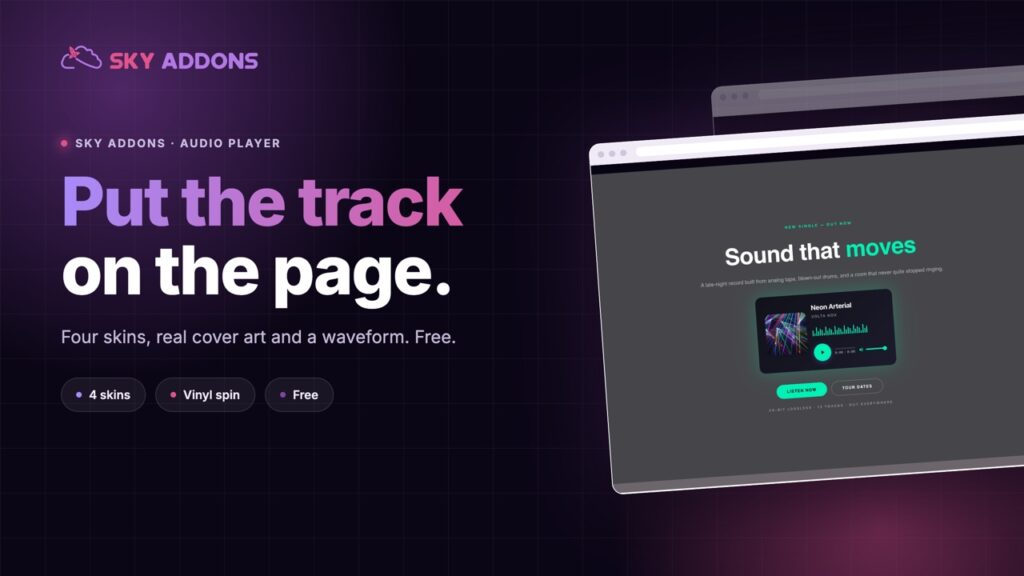
The Elementor audio player styles every part of the player: four skins including a spinning vinyl, cover art, waveform and a remote or hosted file. Free.
Audio on a website is usually an afterthought. A podcast episode arrives as a grey browser player with a play button the same size as everything else, or it gets pushed off to Spotify and the visitor leaves.
That is a strange outcome for a page whose whole purpose is to get somebody to listen. The one element that should look designed is the one that looks like a browser default.
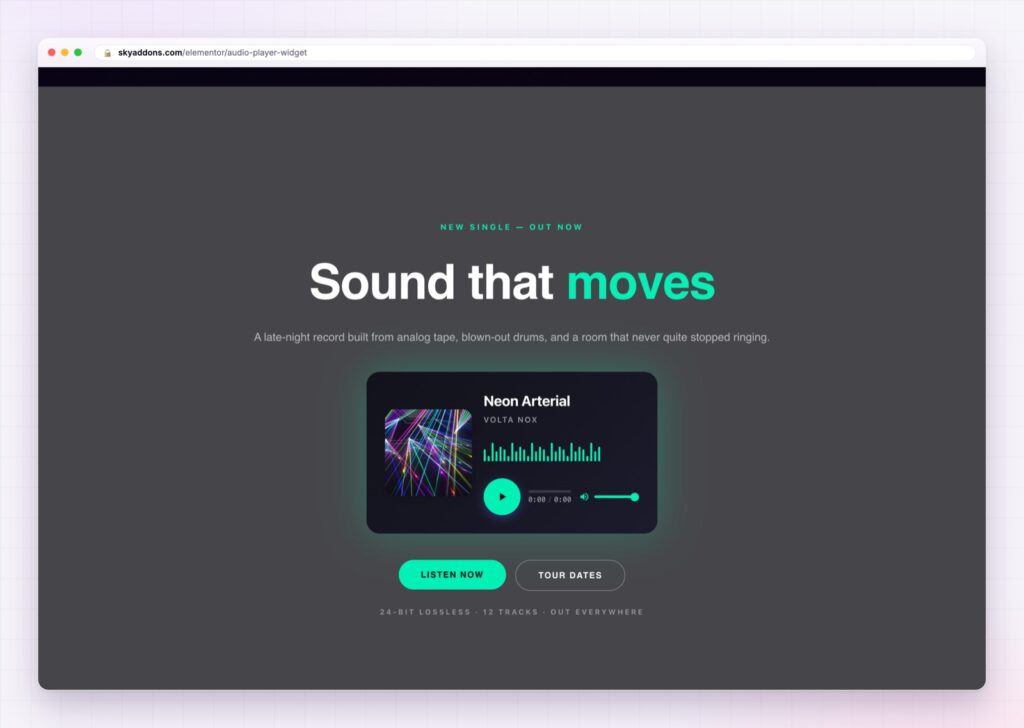
The Elementor audio player fixes the mismatch. Four skins, real cover art, a waveform, and every colour and size under your control, so the player belongs to the page instead of to the browser.
| A browser or platform embed | An Elementor audio player |
|---|---|
| Grey bar, no styling at all | Four skins, every colour and size controlled |
| No cover art | Cover image beside or above the player |
| No track or artist information | Title and artist as real text |
| Volume slider crowds a phone | Volume can be hidden on mobile only |
| Sends visitors to another site | Plays in place, on your page |
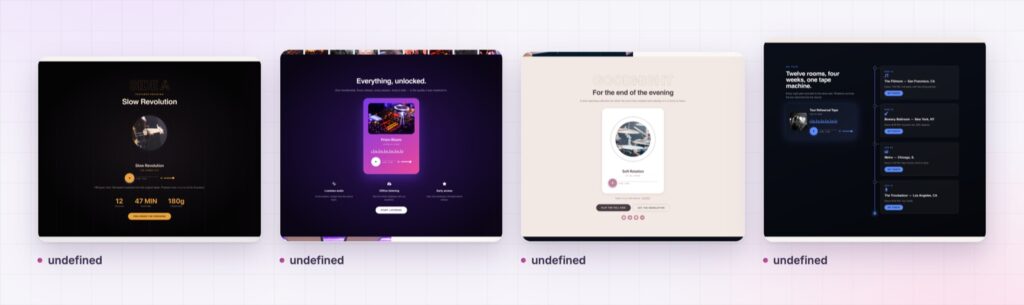
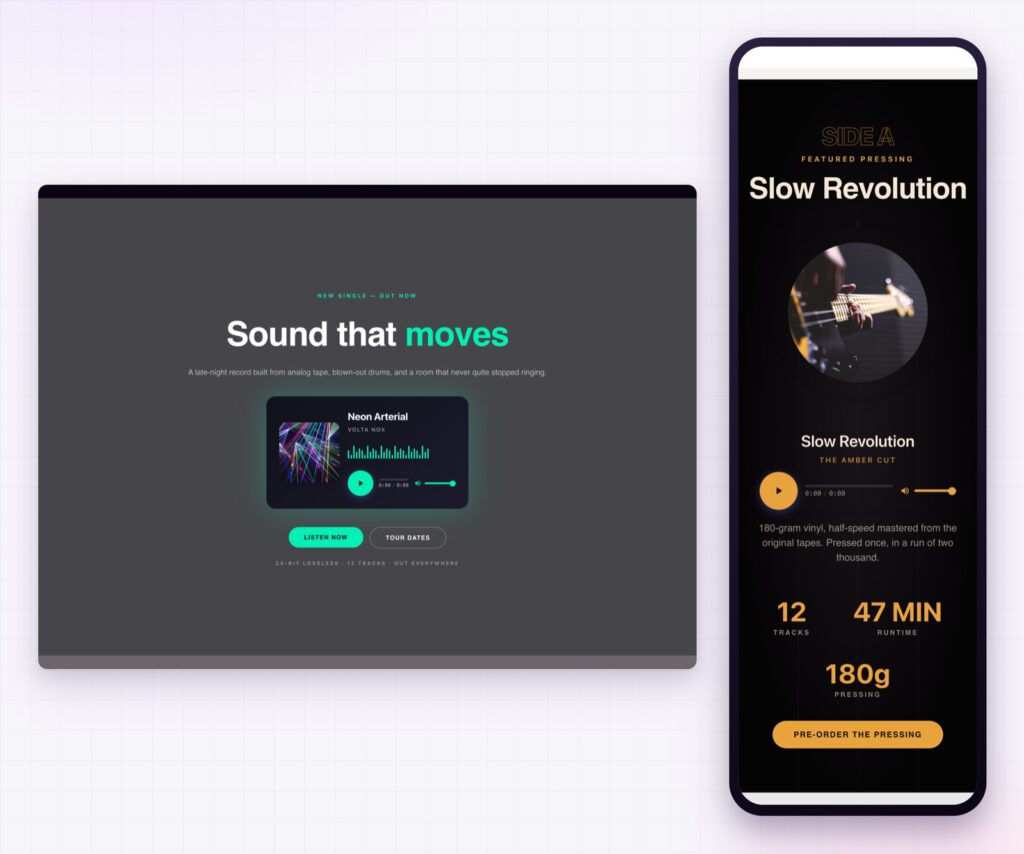
Four skins, not one. Modern, NextGen, Card and Vinyl. Modern is the everyday choice, Card suits a grid of episodes, NextGen is the wider layout, and Vinyl draws a record that turns while the track plays, with the cover image at its centre. The vinyl is the one people remember, and it is a genuinely good fit for a music page.
Cover art, positioned. Put the image to the left of the controls or above them, and set its alignment and size. On the vinyl skin the same image becomes the record label, with a ring gap you can widen.
A waveform, when it helps. A thirty bar wave sits behind the controls and gives the player the visual weight a plain bar never has. Turn it off for a quiet, minimal design.
Volume that knows about phones. The volume slider can be hidden on mobile only, which is the right behaviour: phone users control volume with the hardware buttons and the slider is just crowding the layout.
Local file or remote URL. Point the widget at an upload in the media library, or at a URL hosted anywhere else, including a podcast host’s own file. MP3, OGG, WAV, WebM and M4A all work.
Every part styled separately. Card, cover, play button with a hover state, progress bar, time display, volume and wave bar each have their own controls. This is what lets one player look like a record sleeve and another look like a clean product page component.
Leave autoplay off. Sound that starts without being asked for is the fastest way to make somebody close a tab, and most browsers will block it anyway.
A play button is a request. How it looks decides whether people accept it. A grey browser bar communicates “this is a file”; a designed player with cover art communicates “this is a thing worth listening to”. The audio is identical and the response is not.
There is a practical reason as well. Sending people to a platform to listen means sending them somewhere with a feed, a queue and an algorithm, all competing for the attention you just earned. Playing in place keeps them on the page that has your signup form on it.
The format list matters more than it looks. MP3 plays everywhere, but M4A and WebM are common exports from modern recording tools, and having them supported means you are not converting files before every upload. The MDN guide to media types on the web is a useful reference if you are deciding what to publish.
This widget is in the free plugin, so styling your audio properly costs nothing.
Yes. The audio player is in the free Sky Addons plugin.
MP3, OGG, WAV, WebM and M4A, hosted in your media library or at a remote URL.
Yes. Switch the source to a remote URL and paste the link, which is how most podcast hosts expect to be used.
Yes. The record turns while the track plays and stops when it is paused, and the cover image sits at the centre.
Yes, and the volume slider can be hidden on mobile so the controls have room.
The Elementor audio player takes a file and makes it look like part of your page: four skins including a spinning vinyl, real cover art, a waveform, and colour control over every element down to the time display. It plays local or remote files in five formats, it hides the volume slider on phones where nobody needs it, and it is free.
The Audio Player demo runs eleven players on one page, including the vinyl skin, a dark neon card and a minimal light layout. Every control is in the Audio Player documentation.
If the content is video rather than audio, the Elementor video player is the matching widget, and the Elementor video gallery handles a playlist of them.
The audio player costs nothing. Sky Addons Pro adds the motion, store and social widgets, and the free versus Pro page shows where the line falls.

Comments are closed.