
Elementor SVG Support: Upload Logos and Icons That Stay Sharp
Turn on SVG support in Sky Addons to upload vector logos and icons to WordPress, with uploads restricted to administrators and correct dimensions.
You export the logo, drag it into the media library, and WordPress tells you the file type is not permitted for security reasons. So you export a PNG instead, and from that moment the logo is slightly soft on every retina screen, and the file is twelve times larger than it needed to be.
WordPress blocks SVG by default, and the reason is real. An SVG is XML, not a picture, and XML can carry script. Allowing anyone who can upload a file to upload arbitrary XML is genuinely a bad idea.
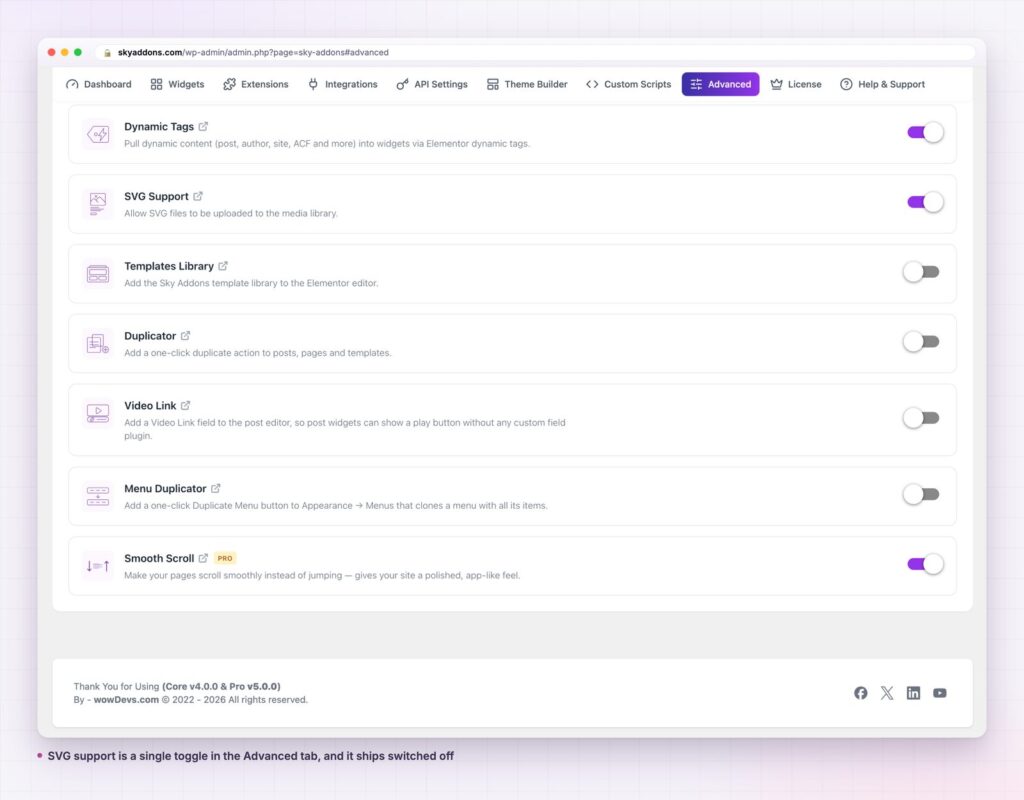
SVG support in Sky Addons enables the format while keeping the part that matters: only administrators can upload one.
What SVG is not for: photographs. A photograph is pixels, and forcing it into a vector format produces a huge file that looks worse. Keep using JPEG or WebP for anything from a camera.
| PNG or JPEG | SVG | |
|---|---|---|
| Sharp at any size | No, fixed resolution | Yes |
| Retina screens | Needs a 2x file | One file |
| Typical logo size | 40 to 200 KB | 2 to 20 KB |
| Styling with CSS | No | Yes, when inline |
| Photographs | Yes | No |
| Allowed by WordPress | Yes | Only once enabled |
An SVG logo is usually smaller than the PNG it replaces and sharper on every screen. The only reason it is not the default is that the format can hold more than a picture.
Uploads are restricted to administrators. The feature adds the SVG mime types only when the current user is an administrator. An editor, an author or a contributor still cannot upload one. This is the whole security model, and it is a sound one: SVG uploads are limited to the people you already trust with the entire site.
Dimensions are read from the file. WordPress works out image sizes by reading pixels, which an SVG does not have, so an SVG normally lands in the library with no width or height and breaks layouts that expect them. The feature reads the width and height attributes out of the SVG itself and stores them, so the file behaves like a normal image in widgets and controls.
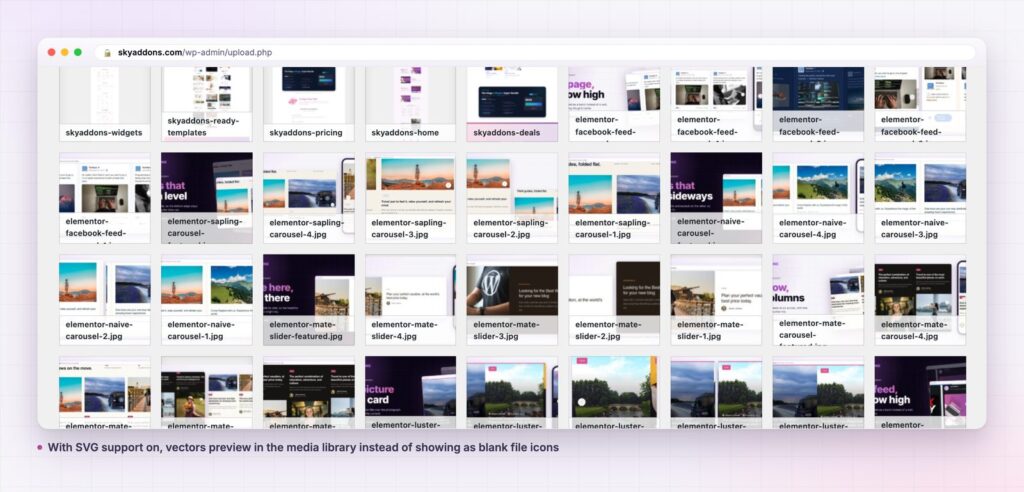
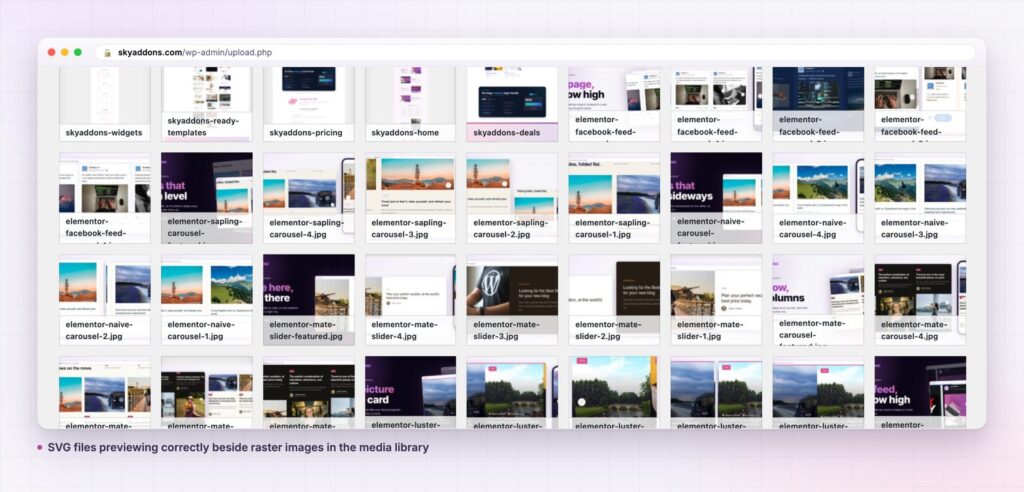
Previews work in the media library. Without this, SVGs show as a generic file icon and picking the right one becomes guesswork. On this site 91 of the 1,291 files in the media library are SVGs, which would be unusable as a wall of identical icons.
It is off until you turn it on. The feature ships disabled by default. That is deliberate: enabling an upload format is a decision the site owner should make, not something a plugin should do quietly on activation.
The feature restricts who can upload. It does not rewrite or clean the file.
That distinction matters, so it is worth being direct about what it means in practice. An SVG can contain a <script> element or event attributes, and if one is served inline it can execute in the context of your site. Restricting uploads to administrators handles the common risk, which is a lower privileged account uploading something hostile. It does not help if an administrator uploads a file they did not make and did not inspect.
So the rule is simple. Upload SVGs you produced, or that came from your designer, or that came from a source you would trust with an administrator password. Do not upload an SVG you found on a random download site, and do not paste one from an email attachment without opening it in a text editor first. An SVG is a text file, and looking at it takes ten seconds.
For anything where untrusted people need to upload images, do not enable SVG at all. Use PNG, which cannot execute anything.
The logo is the most repeated image on a site. It is in the header on every page, often in the footer, and frequently in the favicon and the share images. Replacing a soft 120 KB PNG with a sharp 6 KB vector improves the most visible element you have and removes bytes from every single page view.
It also removes an entire category of fiddling. No more exporting at 1x and 2x, no more deciding whether the header logo needs a different file from the footer logo, no more finding out that the logo looks blurry on a screen you do not own.
Two minutes of preparation prevents most of the problems people blame on SVG support afterwards.
Decide who actually needs it. If you are the only administrator, this is trivial. If you have several, everyone with that role gains the ability to upload vectors, so it is worth knowing who they are before enabling the feature rather than after.
Get your logo exported properly once. Most SVG complaints trace back to a bad export rather than to WordPress or to SVG support itself. Outline the text, remove the editor metadata, set explicit width and height, and keep the result somewhere you can find it. A clean logo export is a file you will reuse for years.
Know your fallback. Email clients, some feed readers and a few older integrations do not render SVG. Keep a PNG of the logo for those, not because the site needs it, but because something adjacent to the site eventually will.
Check your security plugin. Some hardening plugins block SVG independently of WordPress, so enabling SVG support here and still seeing the upload refused usually means a second gate is closed somewhere else. That is worth knowing before you spend twenty minutes suspecting the wrong thing.
None of this is difficult, and none of it is required. But doing it in advance turns SVG support into a setting you switch on once and never think about again, which is what it should be.
Yes, it is part of the free Sky Addons plugin, in the Advanced tab. The free versus Pro page covers what Pro adds elsewhere.
Because an SVG is XML that can carry script, so allowing every uploader to add one is a real risk. MDN’s SVG documentation covers what the format can contain.
Administrators only. Other roles are unaffected and still cannot upload the format.
No. It controls who may upload, not what the file contains, so only upload vectors from sources you trust. WordPress explains the general thinking in its file upload guidance.
Yes. Because dimensions are read from the file, an SVG behaves like a normal image in image widgets, site logo controls and backgrounds.
SVG support lets you upload vector logos and icons to WordPress, restricted to administrators, with dimensions read from the file so they behave like ordinary images. It is free, it is off until you enable it, and it usually makes your most repeated image both smaller and sharper.
It controls who can upload, not what the file contains. Upload vectors you trust, and leave the feature off if untrusted people need upload access.
Full detail is in the secure SVG support documentation. For the setting alongside it, see Elementor Asset Manager, and for putting a vector logo into a site wide header read Elementor Header Builder. Licences are on the pricing page.


Comments are closed.