
Mate Carousel: A Post Row That Still Reads at Six Across
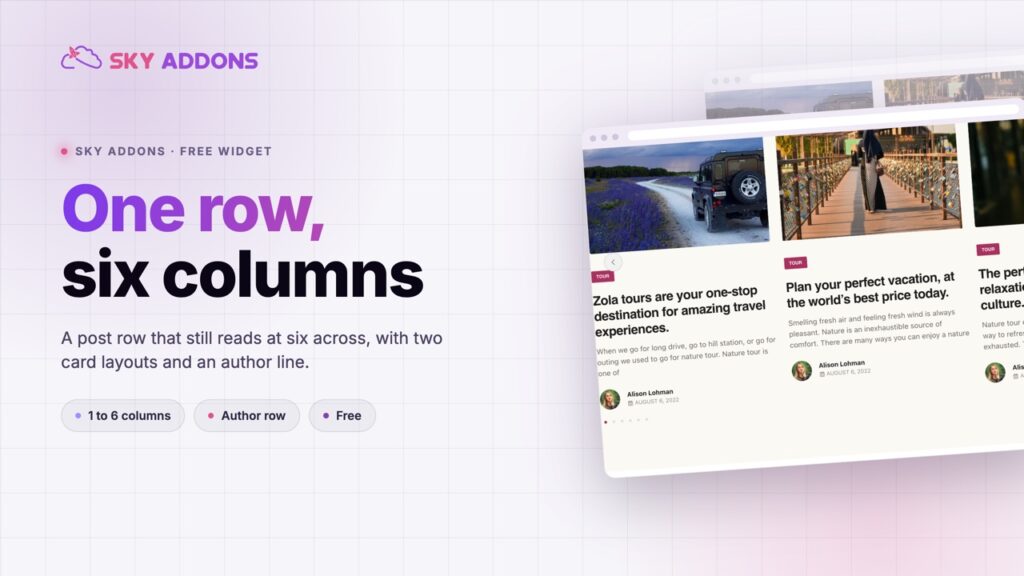
The Mate Carousel runs a post row at one to six columns with two card layouts, driven by a query. Free, responsive per breakpoint, and no hand editing.
A stacked post card gives the title about two lines. The image takes the top, the category takes a line, the date takes another, and whatever is left is where a real headline has to fit. Anything longer wraps to three lines and the row goes ragged.
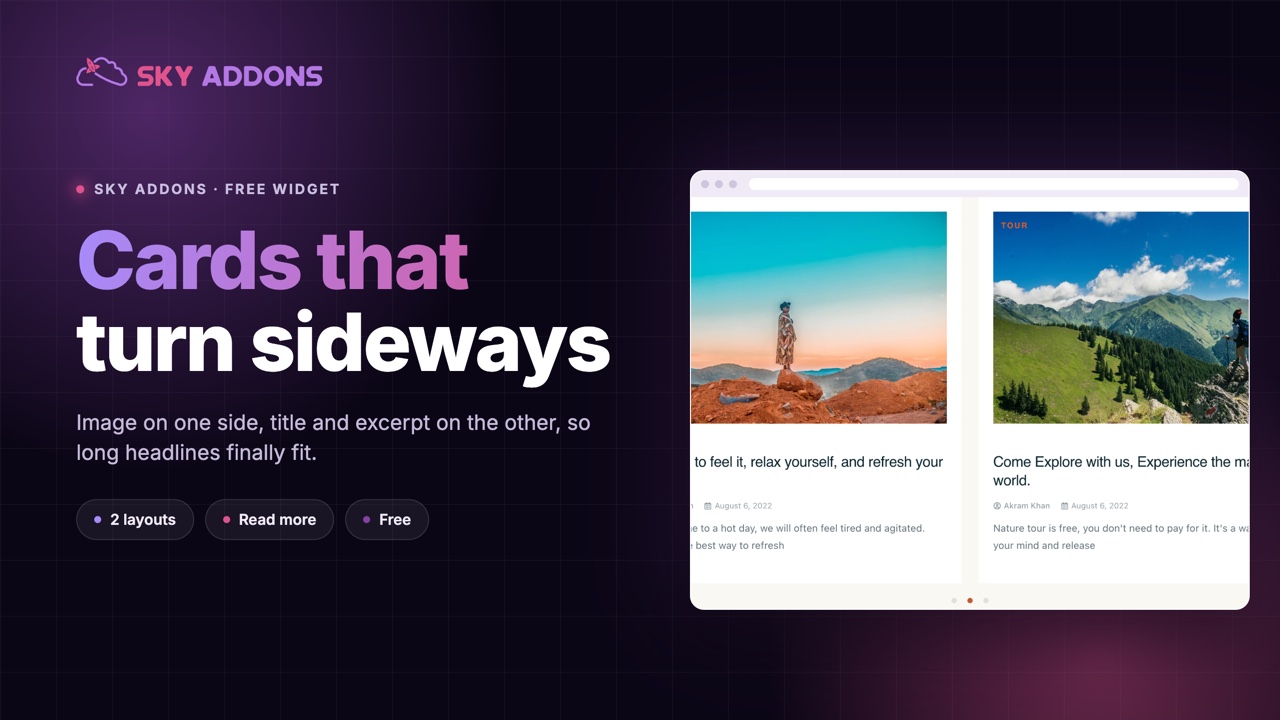
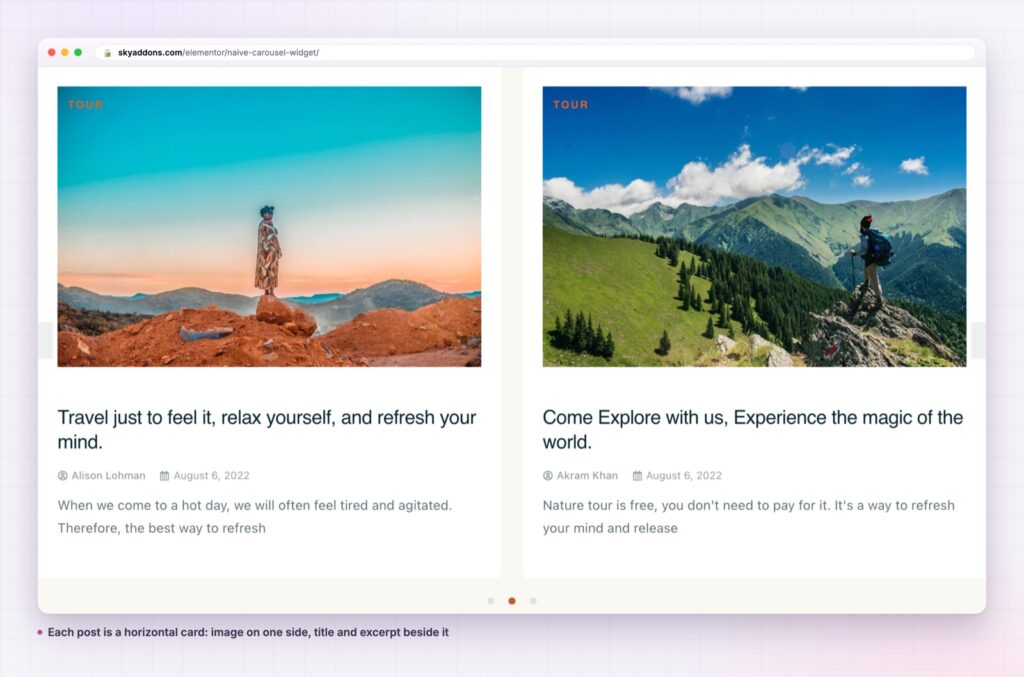
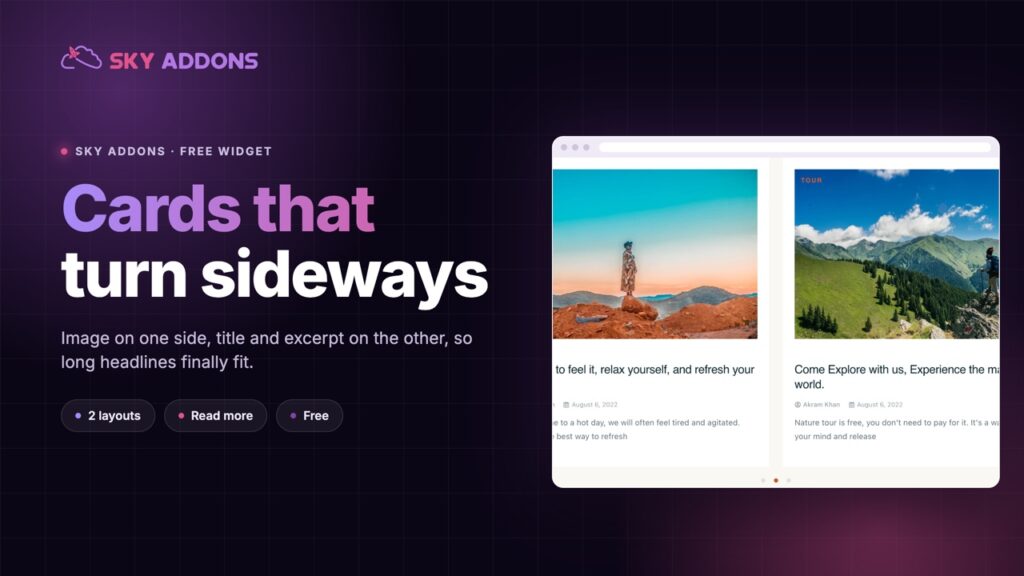
The naive carousel turns the card on its side. The image sits on one side, the text on the other, vertically centred against it. That single change gives the title the full height of the card to use instead of the strip under a photograph, which is why long editorial headlines survive here and get truncated elsewhere.
It is a free widget on the shared query builder, so the row is your real posts and it stays current on its own.
| Stacked post card | A plain link list | Naive carousel | |
|---|---|---|---|
| Room for the title | Two lines under the image | All of it | The full card height |
| Image size | Full card width | None | Half the card |
| Reads at two columns | Cramped | Fine | Designed for it |
| Excerpt space | Little | None | Real |
| Call to action | Rarely | No | A read more button |
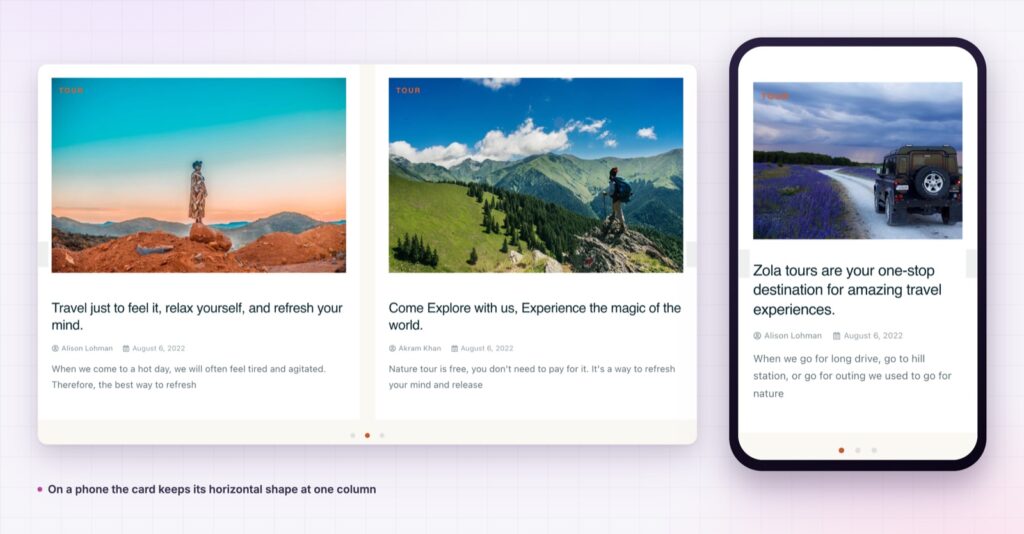
The card is horizontal by design. Image beside content, with the text block vertically centred against the picture, so a short title and a long one both sit correctly rather than one floating at the top.
Two content layouts. The layout switch changes the card structure, which is what lets the same widget work at one wide column and at three narrower ones.
A read more button with its own section. Unlike the plainer post cards in the plugin, this one has a dedicated read more control group, so the card can carry a real call to action rather than relying on the title being clickable.
The author has a place. The card can show an author thumbnail and name beside the date, which matters on a multi contributor blog.
Columns are per breakpoint. The column control feeds the slider directly, so desktop, tablet and phone are three separate decisions rather than one number scaled down.
The item is genuinely unpadded by default. There is no baked in inset fighting your spacing, so the padding control starts from zero and does exactly what it says.
The shape follows the content. Editorial titles are long, and a layout that gives them two lines under a photograph is a layout that will truncate half of them. Turning the card sideways trades image area for text area, which is the right trade whenever the words are doing the selling.
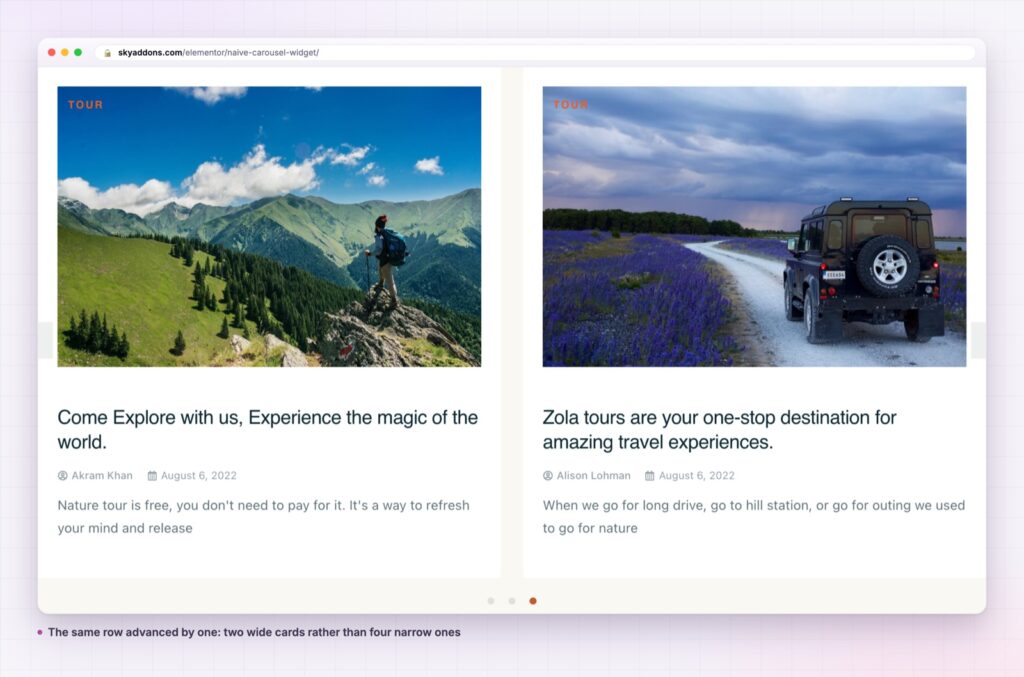
Two wide cards also beat four narrow ones for scanning. A reader takes in a row by reading titles, and two readable titles are worth more than four clipped ones.
The card shape should follow the content, not the other way round. If your titles are long, stop making the title box smaller.
Every slide is a permalink to a real post, so the row adds internal links rather than decoration, and the read more button gives the card a second, explicit target.
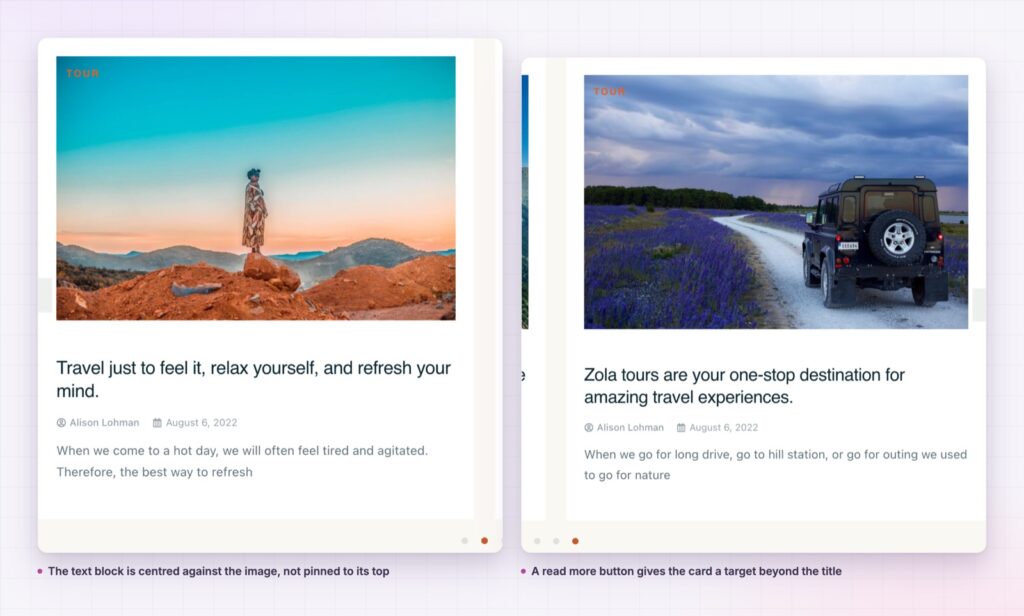
Vertical centring is the detail that makes the shape work. The text block is centred against the image rather than pinned to the top, so a two line title and a six line title both sit correctly beside the picture instead of one floating at the top with a gap beneath it. It is the difference between a card that looks designed and one that looks like two columns that happen to be next to each other.
The read more section is worth using rather than switching off. A horizontal card is wide enough that the title alone is a small target, and an explicit button gives the reader something to aim at. It has its own text and styling controls, so it can say what the link actually leads to rather than repeating the widget’s default.
The card is post shaped rather than blog shaped, so a jobs post type renders with a photograph, the department as the label, the role as the title and a short summary beside it. A property type renders the same way with the area as the label.
It also works as a compact archive row in a sidebar or a narrow column, where a grid would produce cards too small to read and a plain list would lose the images entirely. A naive carousel at one column in a 400 pixel sidebar still shows a usable thumbnail and a full title, which is the combination that a stacked card in the same space cannot manage.
The video settings group extends it further. With the play overlay on, a mixed archive shows at a glance which entries are films and which are articles, and the horizontal card gives the title beside the thumbnail enough room to say which is which.
For the same content in a static layout, the plugin ships list and grid siblings on the same query builder, so a landing page row and an archive can share one design. Alongside those, a showcase flow suits a feature strip and a timeline suits content where the order is the story.
Yes. It is a widget in the free Sky Addons plugin, including the query builder, both content layouts and the read more section.
No. Elementor and Sky Addons are enough. It reads whatever post types your site already registers.
It loads one image per visible card and uses the slider library shared across the plugin, so a second carousel on the same page costs almost nothing extra.
Yes. Columns, alignment and spacing are per breakpoint. Check the sideways card at 390 pixels, since that is where the two halves are tightest.
Yes. The card can carry an author thumbnail and name next to the date, alongside the category label and the read more button.
The naive carousel lays each post out sideways, image beside text, with the content vertically centred and a read more button of its own. It gives long titles the room a stacked card never has, it runs off a query, and it is free.
See it running on the Naive Carousel demo, then read the control reference in the Naive Carousel documentation. It is part of the free plugin: see what else is included on the free versus Pro page, and the plans on pricing.

Comments are closed.