
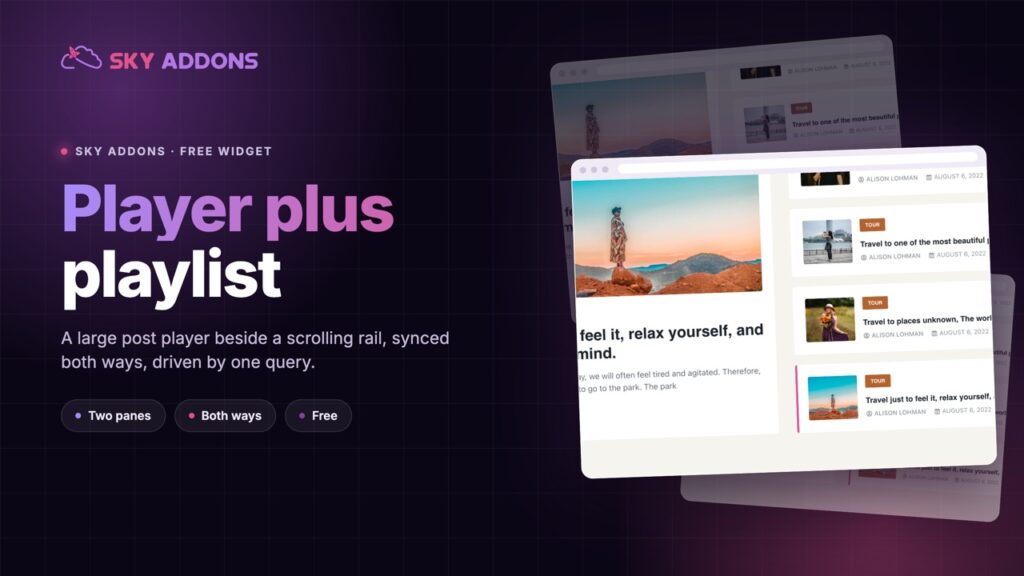
Fellow Slider: Put a Post Player and Its Playlist Side by Side
The Fellow Slider pairs a large post player with a scrolling playlist beside it, synced both ways. It runs on a query and ships in the free plugin.
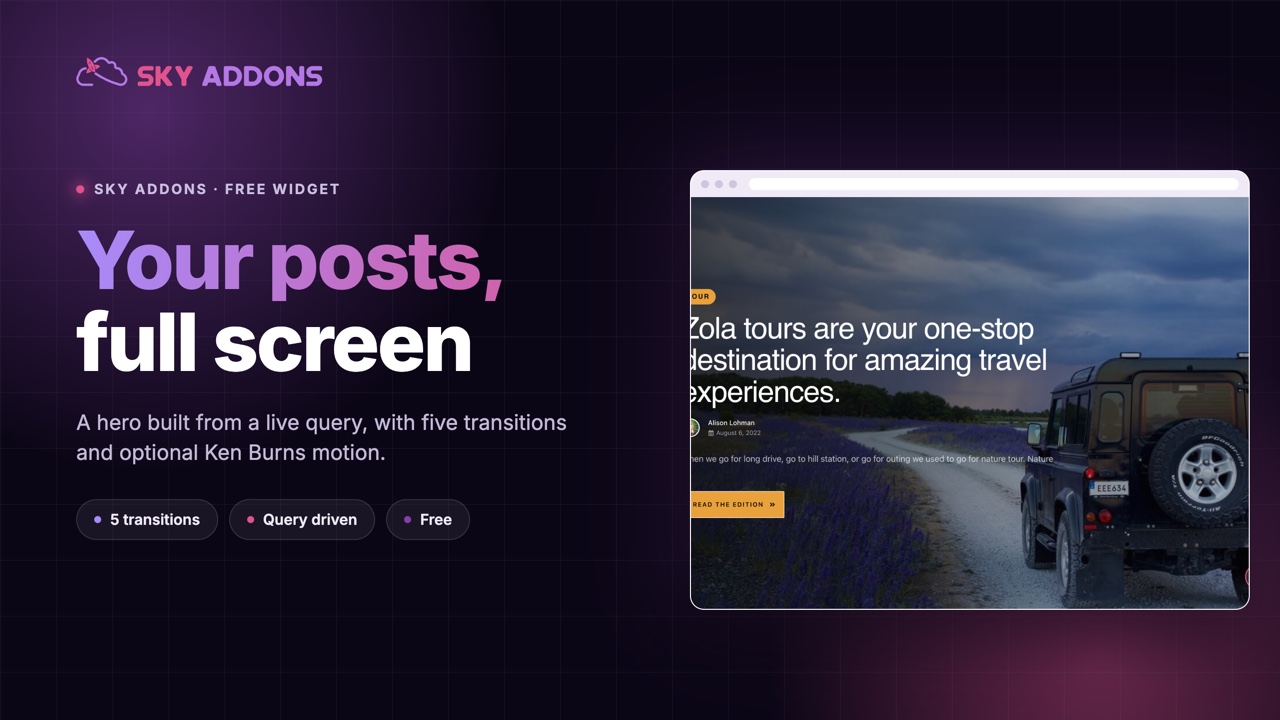
Most blog home pages open with a static image and a headline that has not changed since launch. Underneath sits a grid of recent posts, which is where the actual news is. The most valuable space on the page is showing the least current thing on it.
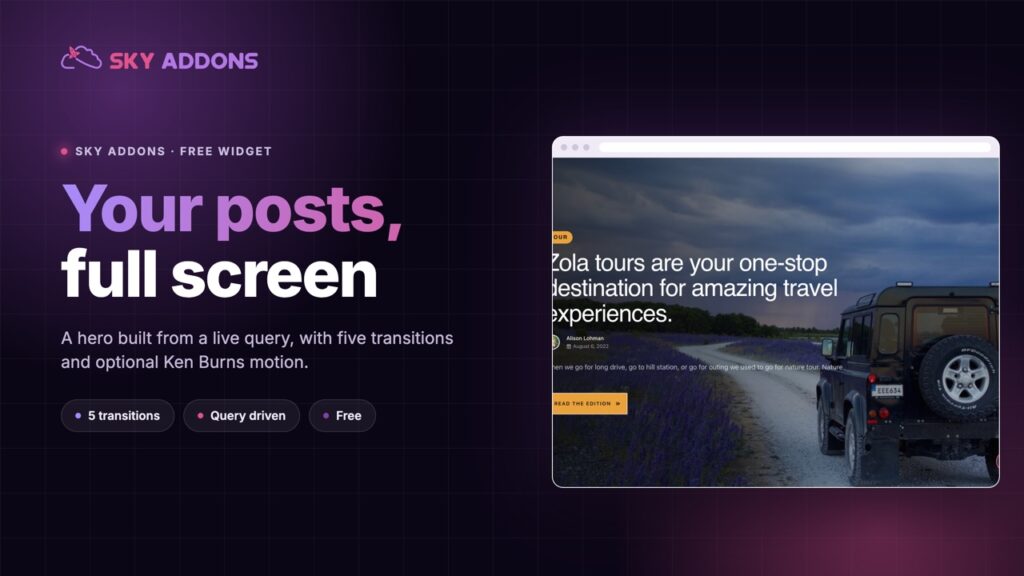
The stellar slider fixes that by making the hero the posts. It queries your blog, takes the featured image of each result as a full-screen background, and lays the category, title, author, date, excerpt and a read more button over it. New post published, new hero, with nobody editing the page.
It is a free widget, and since version 4.0 it also carries optional Ken Burns motion on the image and a staggered entrance on the text.

| Static image hero | Manual featured-post block | Stellar slider | |
|---|---|---|---|
| Stays current | Never | Until someone forgets | Automatically, by query |
| Editing per new post | Rebuild the hero | Swap the ids by hand | None |
| Shows category and date | By hand | By hand | From the post itself |
| Motion | None | None | Ken Burns plus staggered text |
| Effort after setup | Ongoing | Ongoing | None |
The middle column is where most sites land: a hand-picked featured block that was accurate in March. The stellar slider removes the maintenance rather than making it prettier.
It runs on the query builder, not a list of post ids. Post type, terms, order and offset are all controls, and the posts per page default is 4. Point it at a category and it stays pointed.
Five transitions. Slide, fade, coverflow, flip and cube, with fade as the default and a cross-fade switch that makes the blend cleaner between two photographs.
Ken Burns motion is opt-in. Image animation offers zoom-in and zoom-out with its own duration. The default is none, so upgrading an existing page does not change how it looks until you ask.
The text can enter on its own schedule. Content animation offers fade-up or slide-up, with duration, stagger and easing as separate controls, so the category, title and excerpt arrive one after another rather than together.
A vertical social strip, with a sensible breakpoint default. The icon list sits at the left edge, and its visibility control defaults to visible on desktop and tablet and hidden on mobile, where that rail would eat the width.
Height or aspect ratio, your choice. Set a responsive height, or pick an aspect ratio from 1:1 to 9:16 and let the slider size itself. The panel warns you when both are set.
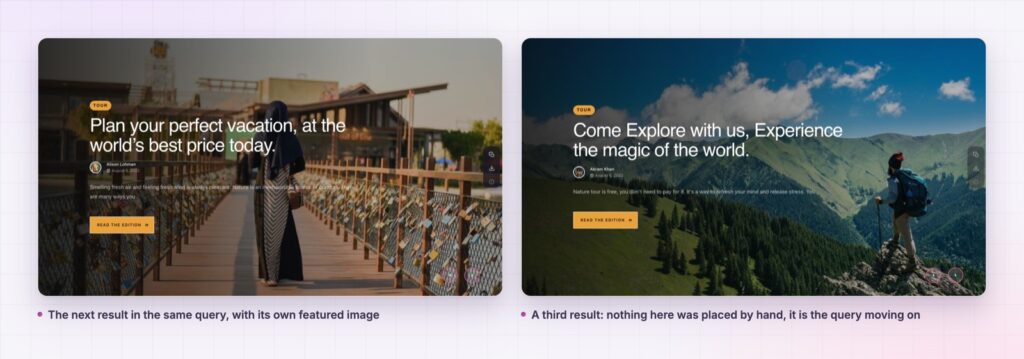
The slider is one Swiper instance reading a normal WordPress query, so every slide is a real post with a real permalink. Search engines see links to your articles, not a decorative carousel of images.
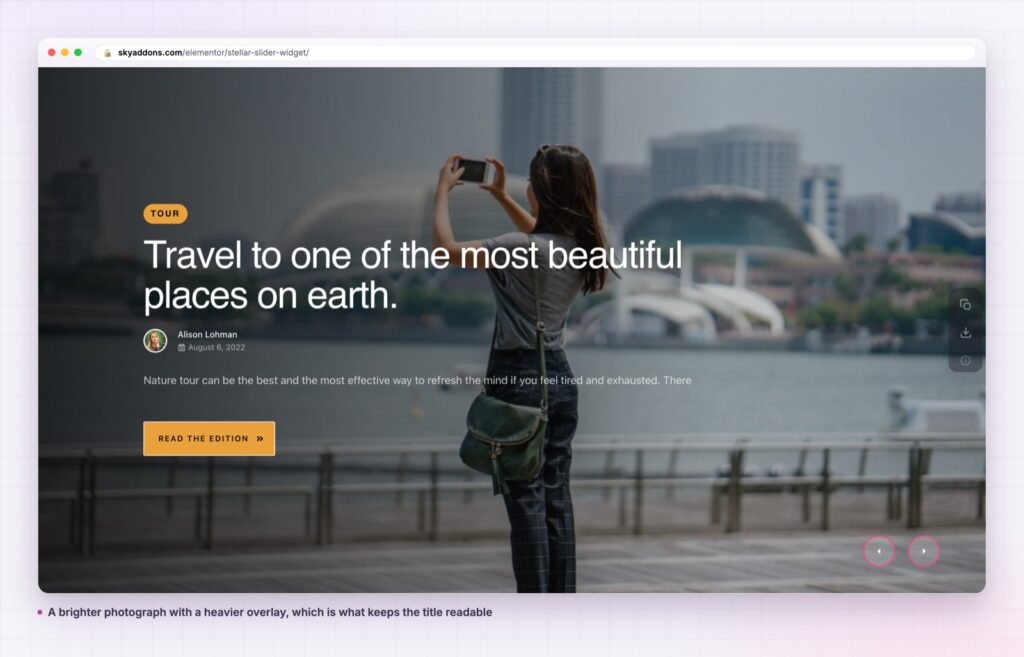
Because the featured image is used as the slide background rather than as an inline image, the text sits in its own layer with its own controls, and an overlay colour keeps the title readable over a bright photograph. That overlay is a background control with a default already set, so a new install is legible before you touch it.
A hero that needs editing is a hero that goes stale. A hero that is a query is one less thing on the publishing checklist.
The two motion systems are deliberately exclusive: the parallax option is conditioned on the content animation being off, because both write to the same transform property and running them together would make each fight the other.
The read more button follows the same thinking. It takes its own text, its own icon and a hover animation, and the icon is rendered in both a leading and a trailing slot so the button reads correctly whichever direction the design points it. Leave the icon empty and the widget falls back to its own inline arrow, which means a fresh install never shows an empty button while somebody hunts for an icon set.
The query builder is what makes this more than a blog widget. Point it at a custom post type and the hero becomes a property list, a job board or a case study reel, with the category field carrying whatever taxonomy that type uses.
The read more button is the animated dual-arrow pill shared with the other sliders in the plugin, with its own text, icon and hover animation, so it can read “Read the story”, “See the project” or “Book a viewing” without looking bolted on.
For a full blog front page, it pairs with the widgets that handle the rest. A showcase flow can carry the section under the fold, and a timeline suits an archive page where chronology is the point.

Yes. It is a widget in the free Sky Addons plugin, including the query builder, all five transitions and the motion controls.
No. Elementor and Sky Addons are enough. It reads the posts already in your WordPress install.
It loads one image per slide, and those are your featured images at the size you choose through the image size control. Keep the slide count low and the featured images sensibly sized and it is no heavier than the hero photograph it replaces.
Yes. The height and aspect ratio controls are responsive, and the social strip hides itself on mobile by default so the content keeps the full width.
Yes. The query builder takes any post type, so products, projects, properties or events all work the same way.
The stellar slider builds a full screen hero out of a live query: featured image as the background, category, title, meta and excerpt over it, five transitions, optional Ken Burns and a staggered text entrance. Publish a post and the hero updates itself. It is free.
See it running on the Stellar Slider demo, then read the control reference in the Stellar Blog Slider documentation. It is part of the free plugin: see what else is included on the free versus Pro page, and the plans on pricing.


Comments are closed.