
Real Estate Website Template: Win the Valuation Before the Portals Do
A free real estate website template for independent agents: 6 ready pages, a valuation form and plain answers on fees. See every page of Rowanreid here.
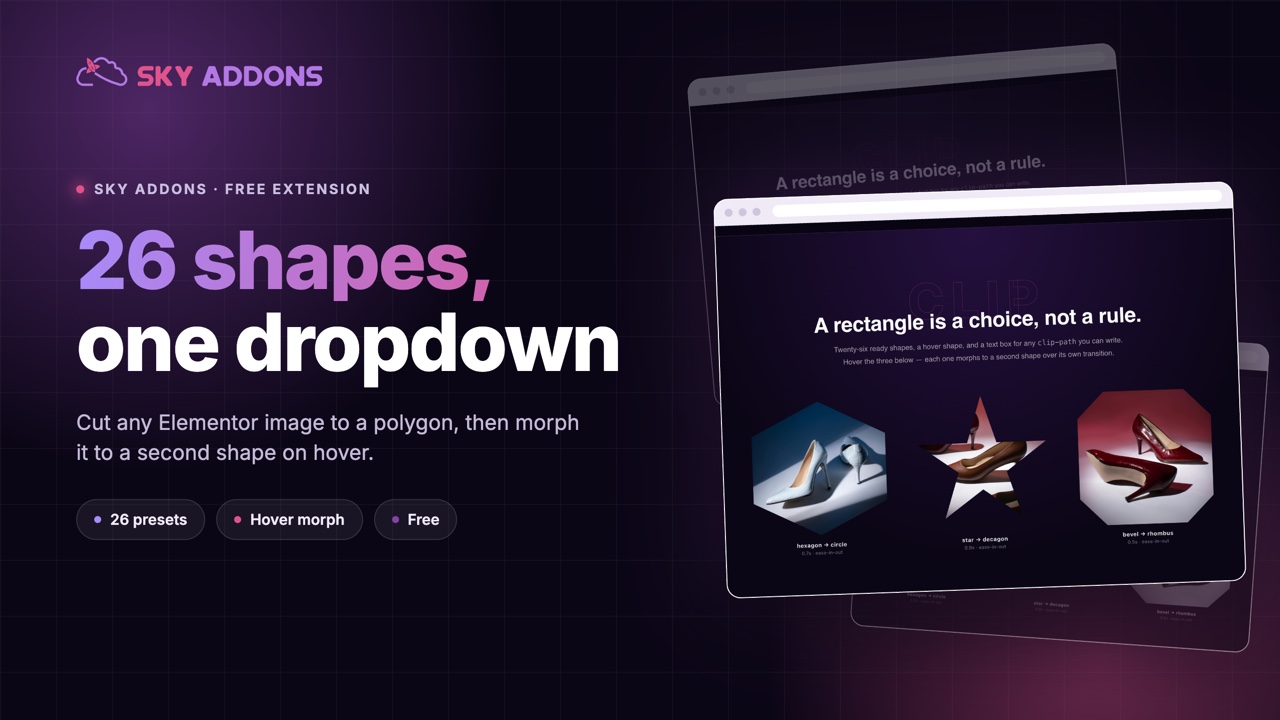
Every image in Elementor is a rectangle. You can round the corners, and that is the end of the built in options. The moment a design calls for a hexagon grid, an angled photo edge or a team portrait cut to a diamond, you are exporting transparent PNGs and hoping nobody asks for a different crop later.
That approach costs twice. The shape is baked into the file, so changing it means a new export for every image, and a transparent PNG is usually several times the weight of the JPEG it replaced.
Custom clip path is a Sky Addons extension that adds the CSS clip-path property to Elementor’s own image widget. The photograph stays a plain JPEG. The shape is a setting, changeable in a second, and it can be a different shape on hover.

| Approach | What it costs |
|---|---|
| Transparent PNG exports | A new file per shape, per crop. Several times the file size of the JPEG |
| An SVG mask in custom CSS | Works, but needs a code block per image and breaks when the widget changes |
| Rounded corners only | The only native option, and it cannot make a hexagon |
| Custom clip path extension | One dropdown on the image widget. 26 shapes, a hover shape, and a transition |
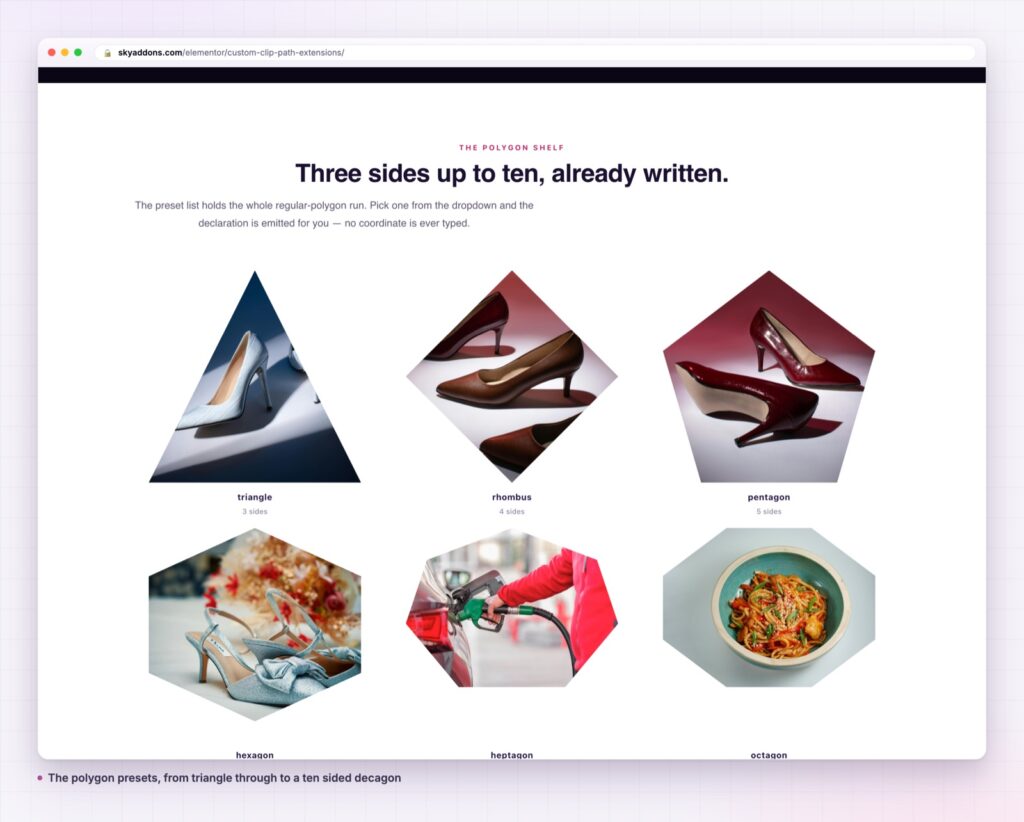
Twenty six shapes, ready to pick. Ten regular polygons run from triangle through decagon. Two modified rectangles give you bevel and rabbet. Six arrows and points cover left and right arrows, points and chevrons. Five decorative shapes add star, cross, message, close and frame. Two curves give circle and ellipse, and an inset shape completes the set. Every one uses the exact coordinates from Clippy, the reference tool designers already use.
A second shape on hover. Normal and hover are separate controls. An octagon that becomes a circle, a rectangle that bevels as the pointer arrives. This is where the extension stops being a crop tool and starts being an interaction.
A real transition, with easing. Duration in seconds, a delay, and five easing curves covering ease, linear, ease in, ease out and ease in out. The transition is written as a single CSS declaration driven by custom properties, so changing the duration does not disturb the shape.
Raw CSS when you need it. A custom mode takes any clip-path value you paste, for normal and hover independently. The panel links out to Clippy when that mode is active, so a shape you draw there can be pasted straight in. Anything the property supports is available, including polygons with as many points as you like.
It rides on the native image widget. No new widget to learn, no migration. Every alignment, caption, link and size control you already use stays exactly where it was, with the clip path section added to the Style tab.
Clip path is a browser level property, not an image edit. The file on the server is untouched, so it stays the small JPEG you uploaded and the browser does the cutting at paint time. Change your mind about the shape and you change a dropdown, not twelve exported files.
It also scales properly. The preset coordinates are expressed in percentages, so the same hexagon is correct at 200 pixels wide and at 800, and correct again on a phone. A baked PNG has one resolution and one aspect ratio, and every layout change is a fresh round of exports.
The reason designers keep reaching for odd image shapes is that a rectangle is invisible. The reason they stop is the export queue. Take away the export queue and the decision becomes purely visual again.
rectangular click area, so a triangle can still be clicked in the corners where nothing is drawn. Where that matters, size the widget to the shape rather than leaving a large transparent margin.

Anything the image widget can hold. Logos cut to a badge shape, category tiles in a shop, author portraits in a blog grid, screenshots with a bevelled corner, map thumbnails in a store locator. The extension does not care what the picture is of.
Custom mode opens it further. A polygon with a dozen points can trace a brand shape, a soft organic blob, or a diagonal edge matched exactly to the section above it. Draw it once, paste the value, and reuse it across the site.
For the property itself, the shape functions it accepts and how they interpolate, the MDN reference on clip-path is worth reading before designing a morph that depends on it.
One practical use is matching a photograph to a section edge. If the section above ends on a diagonal, a custom polygon on the image can continue that exact angle, so the two read as one shape rather than as a picture placed near a slope. That is the kind of detail that normally needs a designer and an export, and here it is a pasted value.

Yes. All 26 presets, the hover shape, the custom CSS mode and the transition controls ship in the free Sky Addons plugin. See free versus Pro for what the licence adds elsewhere.
No. Elementor and Sky Addons only. It extends Elementor’s own image widget rather than adding a new one.
No. It ships no JavaScript and no extra assets. The shape is a CSS declaration, and it lets you keep normal JPEGs instead of heavier transparent PNGs.
Yes. The preset coordinates are percentage based, so the shape holds at any width. Check aggressive shapes at phone size, where a triangle can crop more of the subject than you expected.
Because one of the two shapes is a circle, an ellipse or an inset. Those cannot interpolate with a polygon. Use two polygon shapes for a smooth morph.
Custom clip path adds the browser’s clip-path property to Elementor’s native image widget, with 26 exact Clippy presets, a separate hover shape, five easing curves and a raw CSS mode. The image file stays a plain JPEG, the shape is a setting, and changing it takes a second rather than an export round.
See every shape on the custom clip path demo, then read the custom clip path documentation. For the layer behind a shaped image, backdrop filter pairs well, and reveal effects covers bringing it onto the screen. Compare licences on pricing.




Comments are closed.