
Backdrop Filter for Elementor: Real Frosted Glass Without a Line of CSS
Backdrop filter brings frosted glass to Elementor. Nine filter controls, a hover state, and an automatic overlay mode on any section or widget.
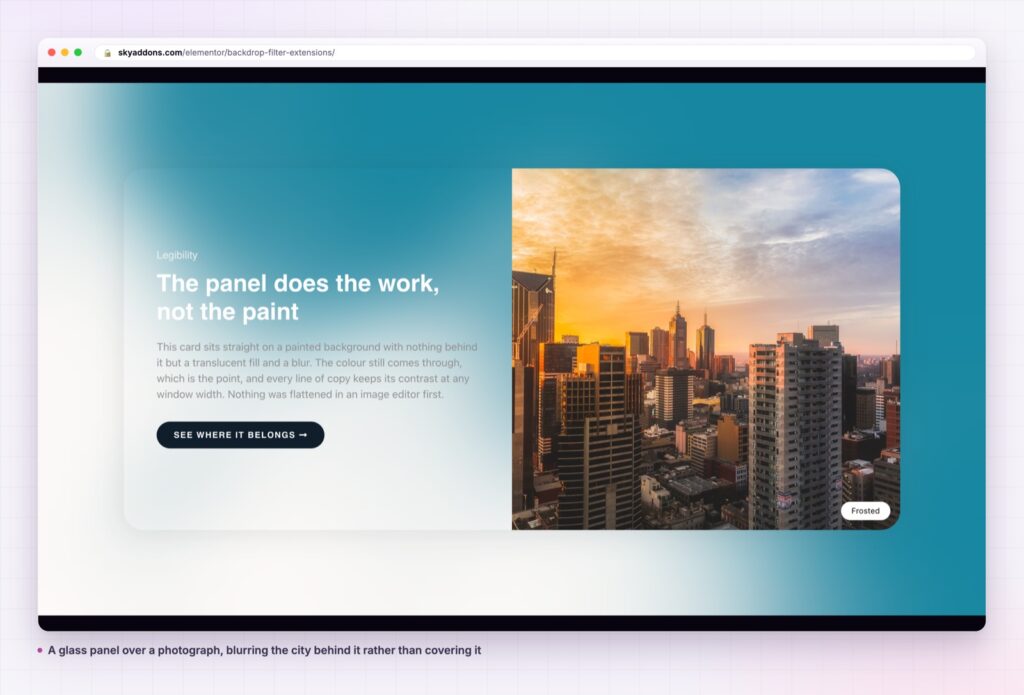
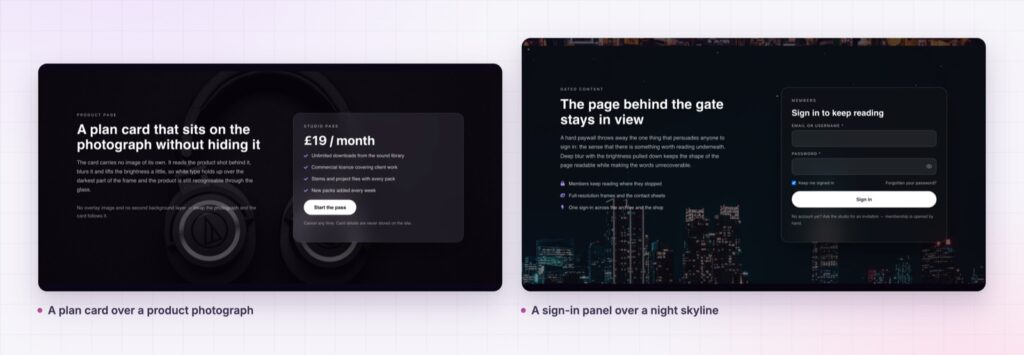
Frosted glass looks expensive and is cheap to get wrong. Most Elementor builds fake it with a semi transparent white panel, which flattens whatever is behind it into a milky rectangle. The real effect blurs and reworks the actual pixels behind the element, so the background stays alive and the panel reads as glass rather than paint.
The browser has had a property for this for years. Reaching it from Elementor normally means a custom CSS block, a guess at the right inner selector, and a second guess when the panel has a background image of its own and the filter silently disappears.
Backdrop filter is a Sky Addons extension that puts the whole property in the panel. Nine filters, a hover state, a transition, and an overlay mode that handles the awkward cases for you.
| Approach | What you get |
|---|---|
| Semi transparent background colour | A milky rectangle. The background behind it is flattened, not blurred |
| A pre blurred image in Photoshop | Fixed forever. Breaks the moment the layout, the crop or the copy moves |
| Hand written CSS backdrop-filter | Works, until the element has its own background and the filter vanishes behind it |
| Backdrop filter extension | Nine filters in the panel, a hover state, and an overlay mode that fixes the occlusion case |
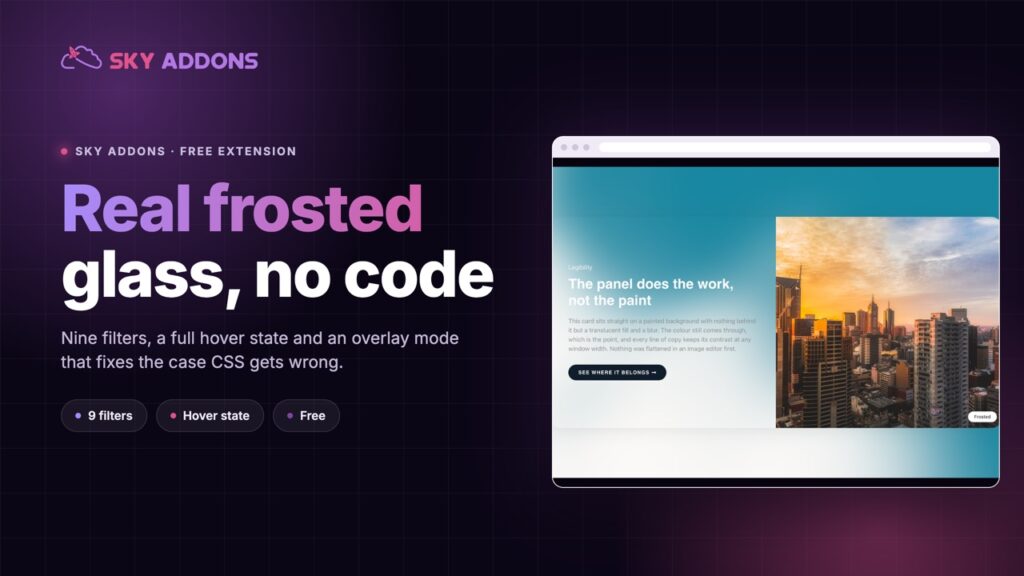
Nine filters, not just blur. Blur runs 0 to 200px in half pixel steps. Alongside it sit brightness, contrast, grayscale, hue rotate across the full 360 degrees, invert, opacity, sepia and saturate. A drop shadow group with horizontal, vertical, blur and colour is stacked on top. Glass is rarely only blur, and a little added saturation is what separates a convincing panel from a grey smear.
A full hover state. Every filter has a matching hover slider. The two states share one set of CSS variables, so the hover value simply overrides the normal one and everything downstream follows. Pair it with the transition control, which runs 0 to 3 seconds, and a card can sharpen or dissolve under the pointer.
An overlay mode that does the hard part. Setting a backdrop filter on an element that has its own background image does nothing visible, because the background sits between the filter and the page. The Creative Selector control has a Background Overlay mode that injects a dedicated overlay layer, lifts your content above it, and inherits the corner radius so the glass matches your rounded card instead of rendering as a square behind it.
It reaches every element type. Sections, columns, containers and individual widgets all get the panel. On sections, columns and containers it sits on the Style tab. On widgets it sits on Advanced, and comes with its own border radius control, because a widget’s visible radius usually lives on an inner element the overlay cannot read.
It is built on CSS custom properties. Each slider writes a variable rather than a finished declaration, which is why hover inheritance is free and why the effect survives Elementor’s optimized markup mode.
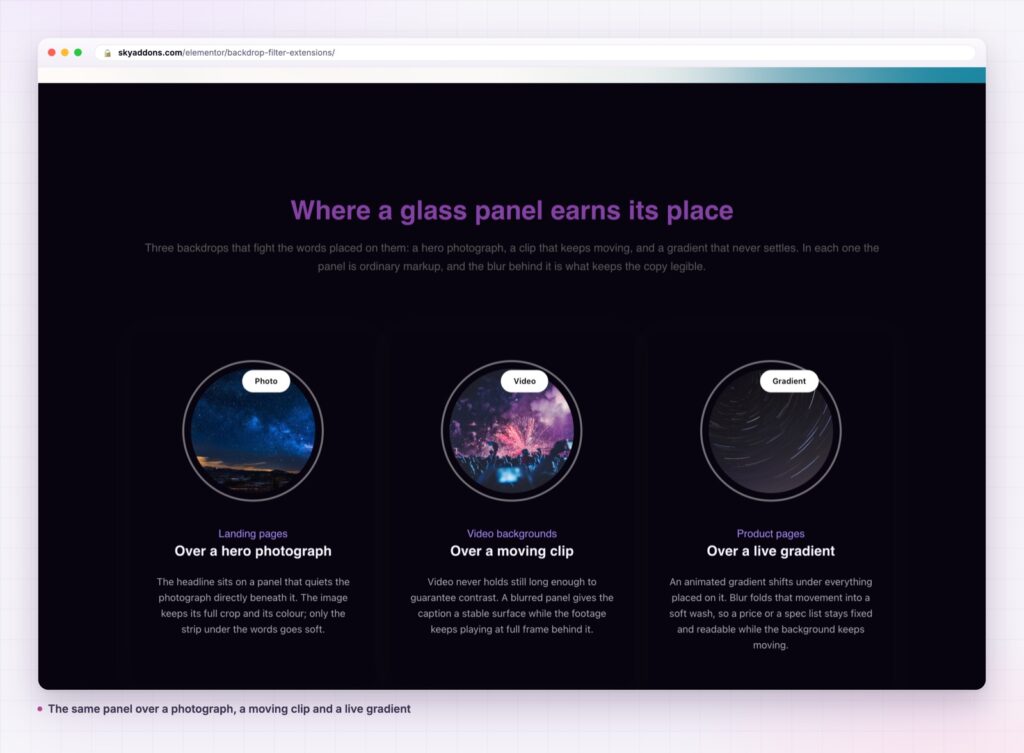
Backdrop filter samples what is painted behind the element and processes it before the element is drawn. The background is not covered, it is reprocessed, so depth survives. A blurred photograph still tells you it is a photograph, and the eye reads two layers instead of one.
That is also why the occlusion problem exists. If the element paints its own background, there is nothing left to sample. The overlay mode solves it by putting the filter on a dedicated layer that sits above the element’s background and below its content, with pointer events switched off so nothing becomes unclickable.
Glass works because the reader can still see that something is behind it. The moment the background becomes an even wash, you have painted a panel and paid for a filter.
boundary of the photograph behind it loses the effect at that edge and looks misaligned. Either extend the background past the card, or move the card in far enough that it always has something to sample. This is the most common reason a panel looks right in the editor and wrong on a phone, where the background crops differently.
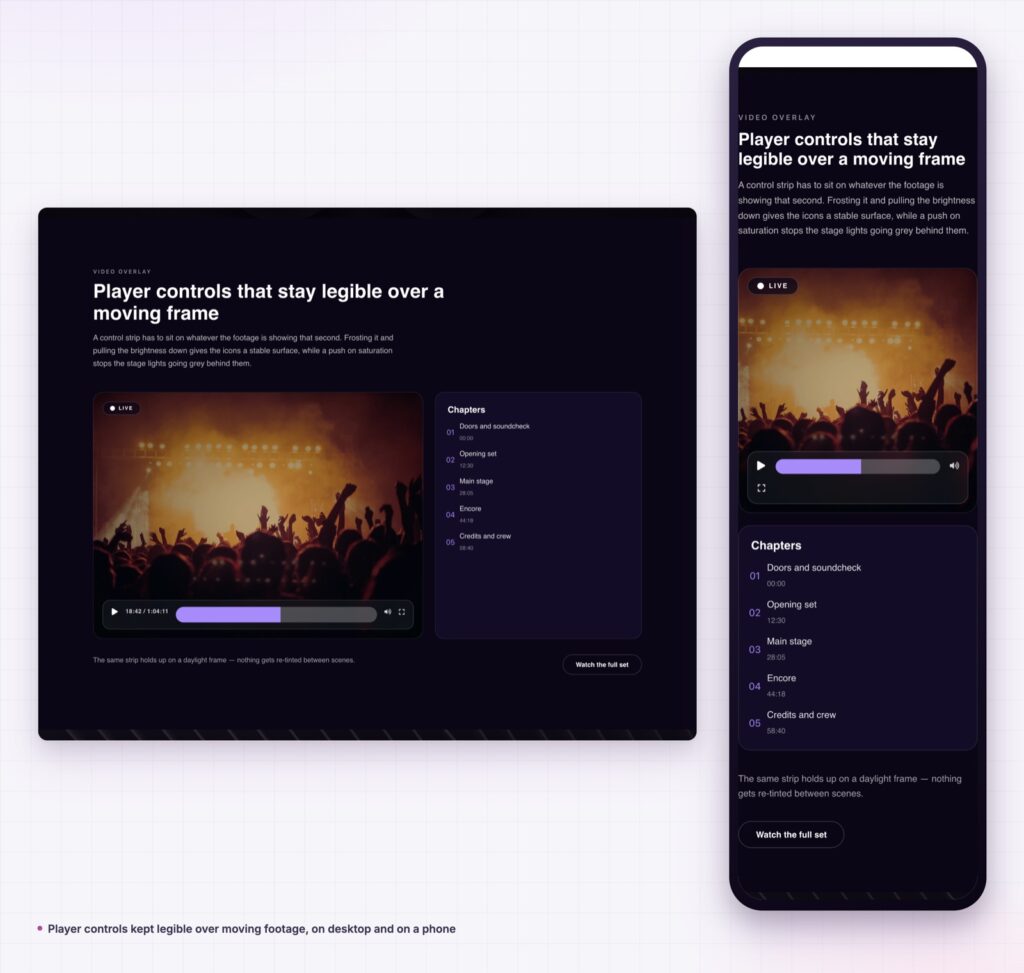
Because the extension is attached to every element type rather than one widget, anything can become glass. A sticky header container, a pricing table, a form panel over a hero, a testimonial card on a gradient, the toggle strip above a gallery. The controls are identical wherever you find them.
It also composes with the rest of a build. Set the blur on a container and the widgets inside it stay sharp, which is the usual reason a glass card looks right while a glass button looks muddy.
For the underlying property, its browser support and the full filter function list, the MDN reference on backdrop-filter is the place to check before committing to a design that depends on it.
Yes. The extension ships in the free Sky Addons plugin with all nine filters, the drop shadow group, the hover tab and the overlay mode. The free versus Pro page lists what the licence adds elsewhere.
No. Elementor and Sky Addons are enough. The effect is pure CSS, with no library behind it.
It adds no JavaScript at all. It does ask the browser to composite a blurred layer, which is real work on a weak device, so use it where it earns its place rather than on every card.
Yes, and the sliders are responsive, so you can lower the blur on phones. Some older devices render it at reduced quality, which is a browser decision rather than a plugin setting.
Almost always because the element has its own background image or colour occluding it. Switch Creative Selector to Background Overlay and it will appear.
Backdrop filter puts the browser’s real glass property into the Elementor panel, with nine filters, a drop shadow, a full hover state and a transition. The overlay mode handles the case that breaks hand written CSS, where the element’s own background hides the effect. It is free, it ships no JavaScript, and it works on sections, columns, containers and widgets alike.
See the range on the backdrop filter demo, then read the backdrop filter documentation for every control. For the layer behind the glass, the animated gradient background post pairs with it directly, and custom clip path covers shaping the panel itself. Plans are on pricing.

Comments are closed.