
Elementor PDF Viewer: Keep Every Document on the Page
The Elementor PDF viewer embeds any PDF on the page with a title, page badge and download button. Hosted or remote files. Free in Sky Addons.
Some of your best content is a PDF. The menu that changes with the season, the datasheet an engineer wants before they buy, the syllabus, the floor plan, the annual report, the terms of service. The usual way to share it is a link that downloads or opens in a new tab, which pulls the reader off your site, loses your header and gives them a bare file with no context and no way back.
A PDF viewer keeps the document on the page. The reader sees a title, a page count and a download button above the file itself, and can scroll, zoom and search it without leaving. Sky Addons includes a free PDF Viewer widget for Elementor that embeds any PDF from your media library or from a web address. This article covers where a PDF viewer is the right choice, how it works, and how to set it up so the document is easy to read on every device.
Use it when the document is the content, and the reader is better served seeing it in place.
A link is the simplest thing that works. The table shows what a viewer adds.
| Link to the file | Embed with an iframe | Sky Addons PDF Viewer | |
|---|---|---|---|
| Reader stays on the page | No | Yes | Yes |
| Title and page badge | No | No | Built in, styled |
| Download button | Is the link | Add by hand | Built in, with icon and label |
| Open at a chosen page | No | Add to the URL | One field |
| Hosted or remote file | Either | Either | Media library or a web address |
| Size and shape | Not applicable | Manual CSS | Width and height controls |
| Matches your brand | No | No | Colours, radius and spacing per part |
Any PDF, from two sources. Pick a file from your media library, or paste the address of a PDF that lives elsewhere. Use the media library for documents you control, and the web address for a file kept on another system that you want to show without copying it.
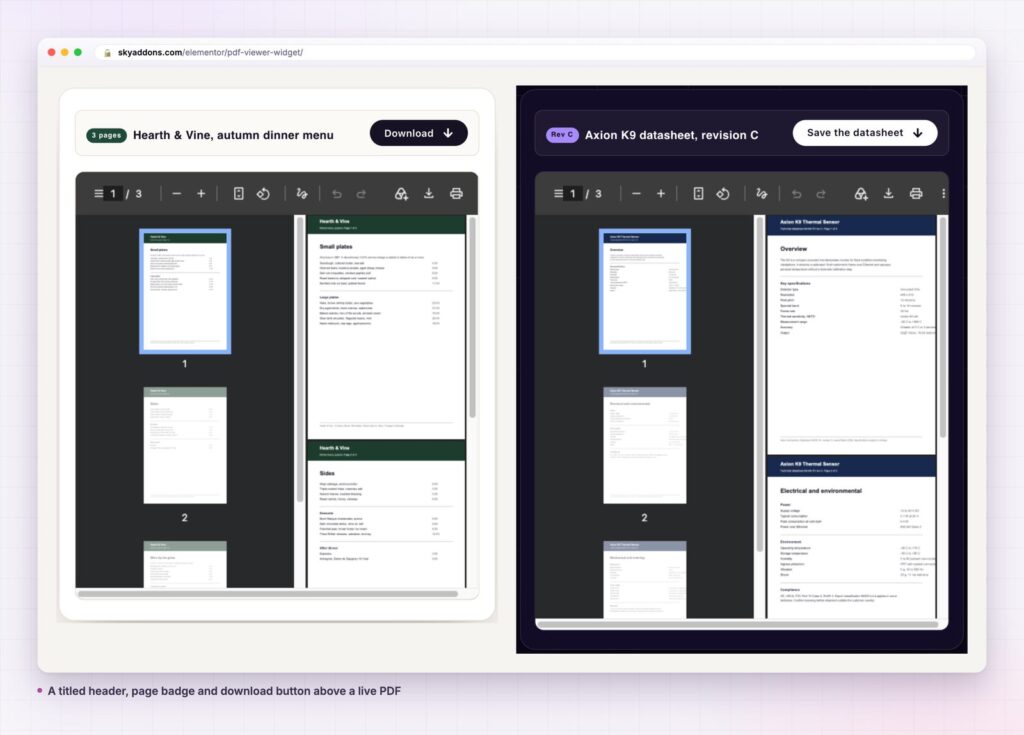
A header that gives the file context. Add a title, choose its HTML tag, and switch on a badge, for example the page count or the kind of file, with an icon before or after the text. The header turns a raw file into something with a name and a purpose.
A download button, built in. One switch adds a download button to the header with your own label, such as “Download the menu”, plus an icon, its position and its spacing. Readers who want a copy get it in one click.
Open at the right page. Set the page the viewer opens at. A long report can open at the summary, and a syllabus can open at week one. That is helpful when the reader needs only one section of a large file.
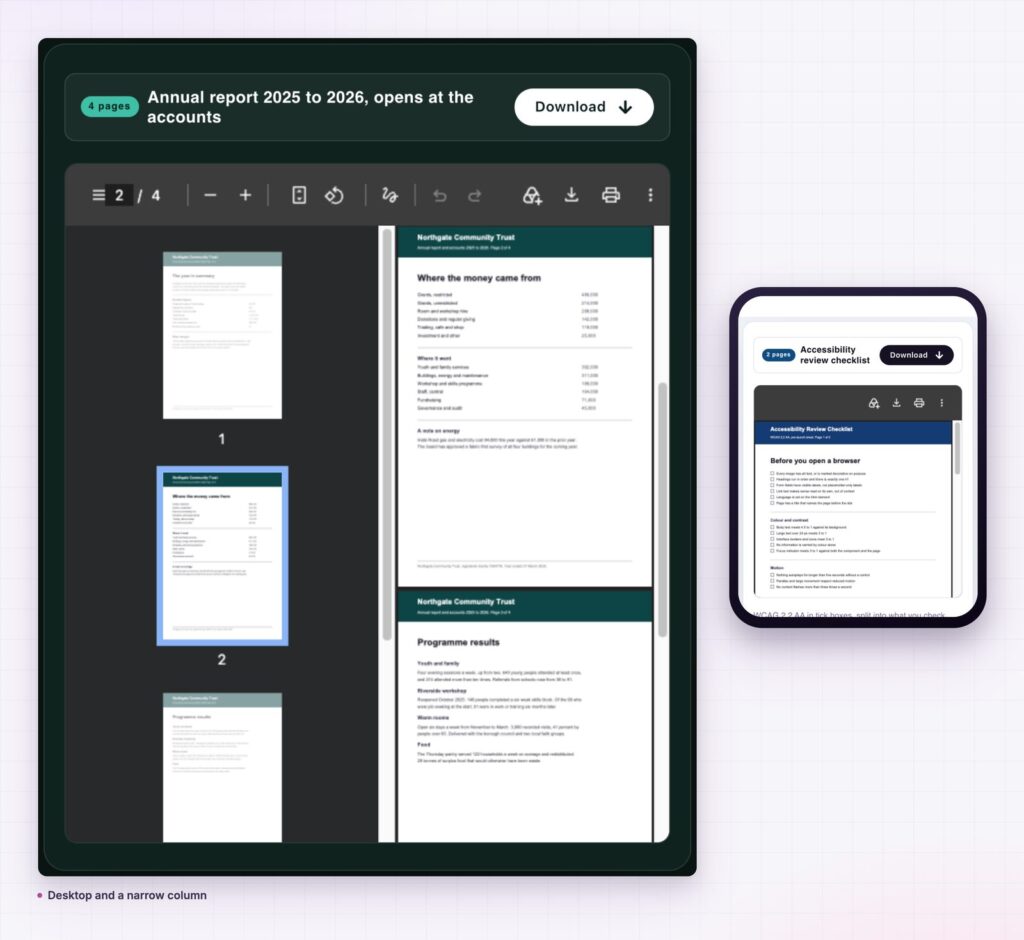
Size that fits your layout. Set the width and the height, so the viewer fills a column or a full-width section. Padding, margin and radius on the frame make it sit comfortably with the rest of the page.
Styled to match. The header bar, the title, the badge and the button each have their own colours, spacing and radius. A dark viewer for a technical datasheet and a soft cream one for a menu are both settings, not custom code.
A proven embed method. The widget uses PDFObject to embed the file with the browser’s own PDF reader, so you get the native scroll, zoom and search that people already know.
Readers leave when they lose their place. A link that opens a new tab, or worse, forces a download, breaks the flow of a page and often never returns. A viewer keeps everything in one spot. The reader sees your heading, reads your introduction, then reads the file, and the button and the next step are still on the same screen.
The header helps them decide to read. A title and a page count answer the question “what is this and how long is it?” before they scroll. That is more inviting than a filename like “final-v3.pdf”.
It also makes a PDF part of the design. The frame matches your colours, the download button matches your buttons and the document appears as a designed element, not a stray file.
Keep the document on the page, and the reader stays on the page with it.
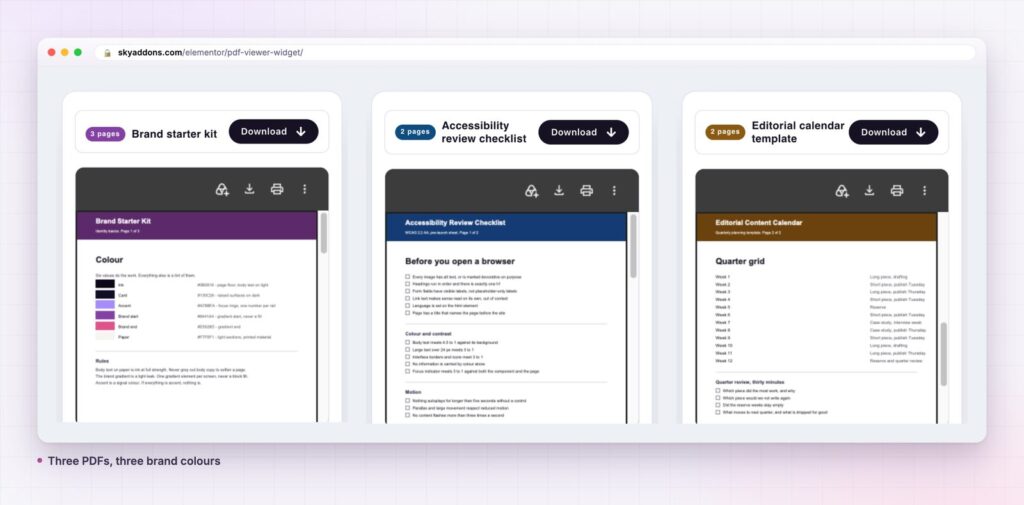
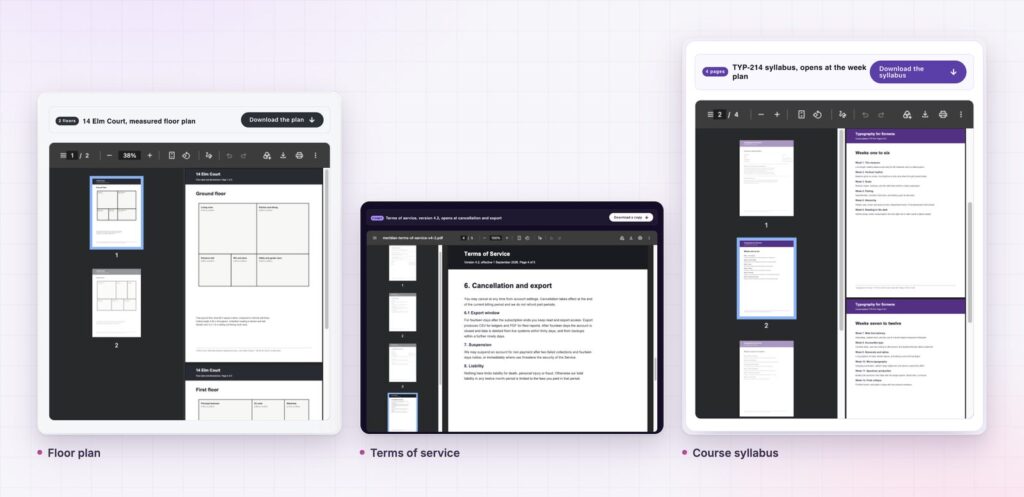
The widget is not limited to documents you publish. Use it to show a price list that a supplier updates, and paste the remote address so it always shows the latest version. Use it for a media kit, a recipe card, a printable form, a research paper or a lead magnet. Use the header’s download button to offer a copy while the reader scrolls the preview.
A viewer with a narrow width and a tall height works as a sidebar preview of a document. Two viewers side by side let a reader compare two versions of a plan or two editions of a report. With the title, badge and button styled, the same widget can serve a formal legal page and a friendly menu.
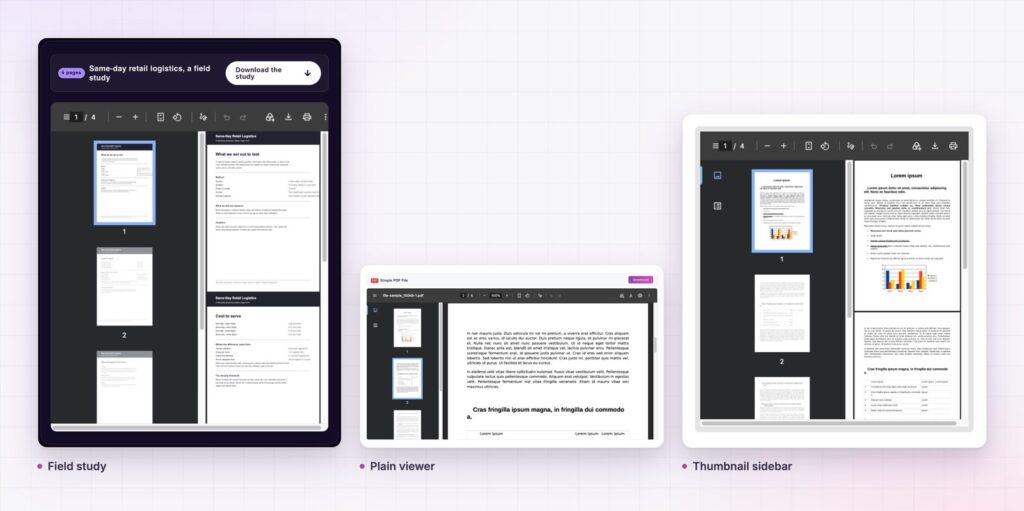
Yes. PDF Viewer is part of the free Sky Addons plugin. Free vs Pro shows what the Pro plugin adds.
No. The widget loads the PDFObject library itself and works with Elementor and Sky Addons alone.
The viewer loads a small script, and the PDF is loaded by the browser. The main factor is the file size, so compress large documents, and consider placing very large files behind a download button.
The widget is responsive, and the header and button adapt to small screens. Some mobile browsers show an embedded PDF differently, or as a first page only, which is why the download button is worth switching on.
Yes. Set the opened page number and the viewer starts there. The demo uses this to open a document on its second page.
A PDF viewer keeps the document on the page, with a title, a page badge and a download button above it. Sky Addons gives you hosted or remote files, an opening page, full styling and PDFObject-based embedding, all free. Compress the file, name it clearly and always offer the download.
Next steps: see the live demo, read the PDF Viewer documentation, compare plans and pricing, or read how a table of contents helps readers move through a long page. For gated downloads, see the form builder.

Comments are closed.