
Elementor Step Flow: Show What Happens Next Before They Ask
The Elementor step flow widget turns a process into timed steps with icons, badges and arrows, one card at a time and styled your way. Free to use.
The question every service page has to answer is “what happens next?”. A visitor who cannot picture the process assumes the worst: a long wait, a surprise fee, a meeting they did not agree to. The fix is not more reassurance. It is a clear sequence, shown in order.
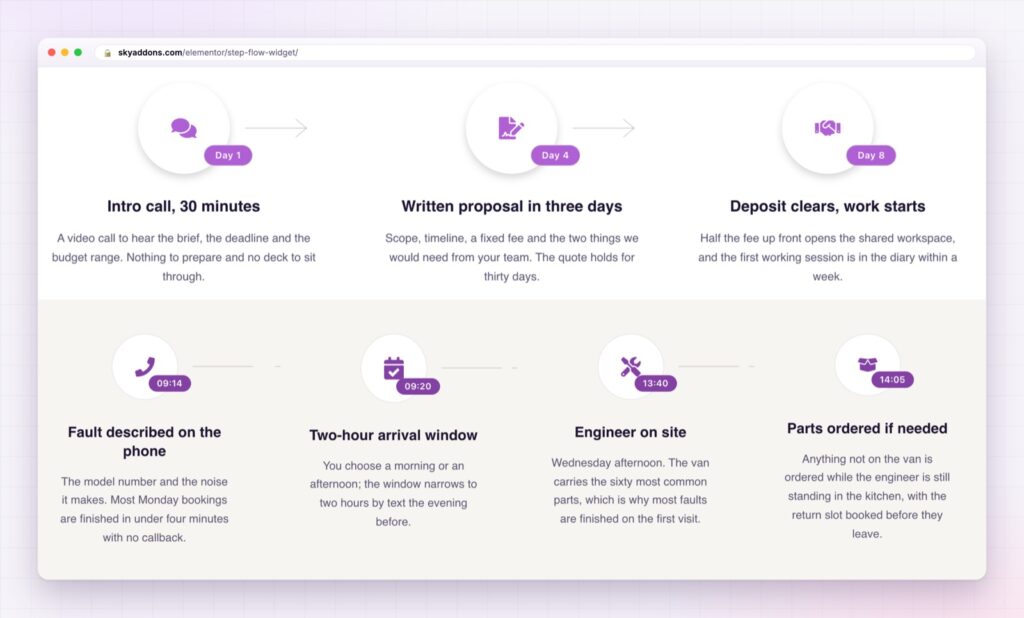
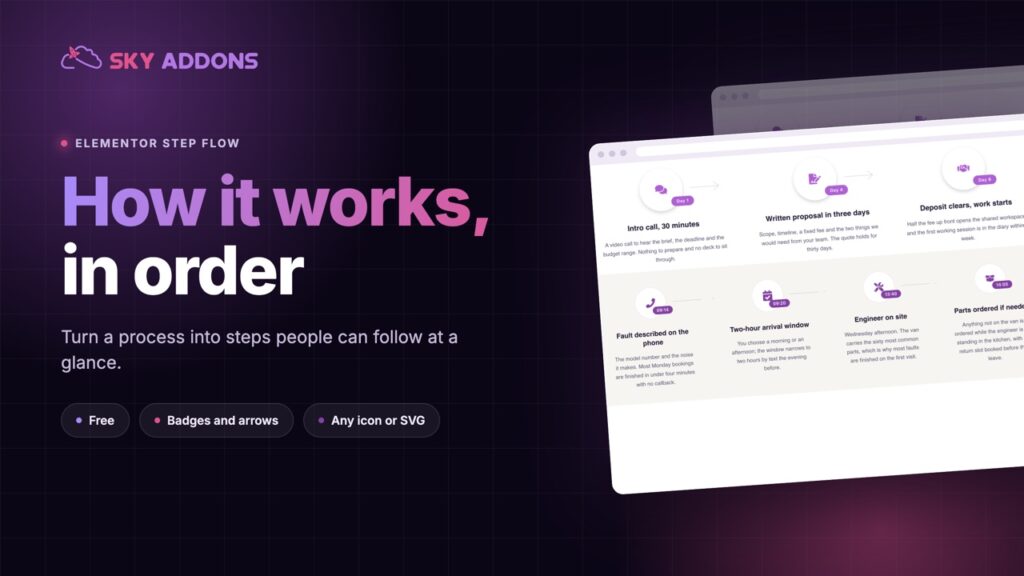
A step flow does that. Each step is a small card with an icon, a label such as Day 1 or Week 4, a headline and a line of explanation, joined to the next by an arrow. The reader sees the whole journey in a glance and knows where they will be at each point.
The Elementor step flow widget builds those cards, and it is in the free Sky Addons plugin.
| A paragraph of process | An Elementor step flow |
|---|---|
| The order is buried in sentences | The order is the layout |
| The reader keeps count in their head | Each step wears its own badge: Day 1, Week 4, 09:20 |
| Timing is vague | Timing is a label the eye finds first |
| Nothing says where the process ends | An arrow joins each step to the next, and the last one stops |
| Hard to skim | A headline per step, detail underneath |
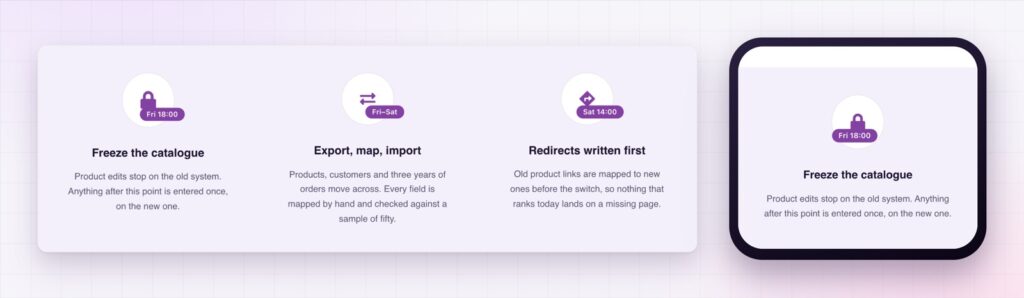
A badge for time or order. Each step carries a badge with text you choose: Day 1, Stage 2, Weeks 3 to 5, Fri 18:00. It can sit at the top left, top right, top centre or any of the bottom positions, so it can read as a number, a deadline or a duration.
Connectors that show direction. An arrow or a plain line joins one step to the next. Make it solid, dotted or dashed, set its thickness, width and offset, rotate it, and hide it on the last step so the sequence ends where it should.
Any icon. Pick an icon from the library or upload your own SVG. Size, colour, background, border, radius and shadow are all adjustable, with hover colours and a transition, so the icon can be a plain glyph or a badge in a circle.
Real headings and links. Every step has a title with the heading tag you choose, a description and an optional link, so a step can lead to a page that explains it in full.
Cards you can repeat. Each step is its own widget. Style one, duplicate it, and change the words. The row can be as long as your process, and steps can sit over a photograph or a dark background as easily as a plain page. For a story told across dated events, the Elementor timeline is the matching widget.
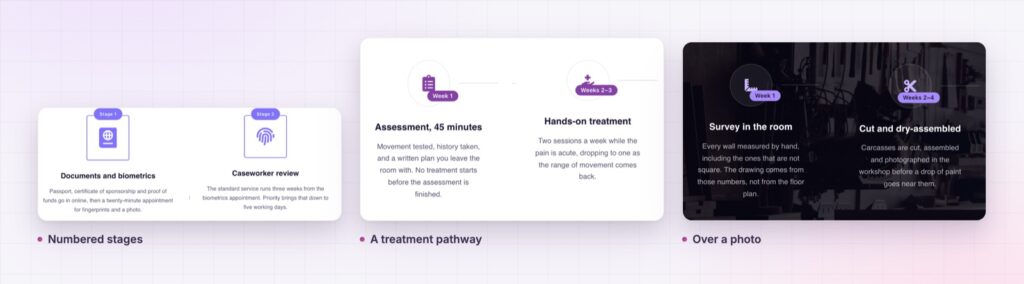
Write each step as something that happens to the customer, not something the company does. “Your quote arrives in three days” beats “Proposal preparation”.
A visible process lowers the cost of saying yes. People hesitate when they cannot see what they are committing to, and a step flow shows the commitment in full: how many stages, how long each takes and what arrives at the end. The badge does most of the work, because time is the thing readers worry about.
A sequence should be a sequence in the text as well as in the picture. The MDN reference for ordered lists explains why order is meaningful markup, and it is worth keeping in mind when you write the step titles.
Yes. The step flow widget is in the free Sky Addons plugin.
Each step is its own widget. Set one up, duplicate it for each stage and change the words, badge and icon.
Yes. The icon can come from the icon library or from an SVG you upload.
Yes. The connector can be hidden on any step, and it can be an arrow or a line in solid, dotted or dashed style.
Yes. The steps stack in a single column, as in the demo.
The Elementor step flow widget answers “what happens next?” before the visitor has to ask. Each step carries an icon, a badge, a headline and a line of detail, joined by connectors you style. It is free, and it is the quickest way to make a process feel simple.
The Step Flow demo runs thirty three steps on one page, in light, dark and photo styles. Every control is listed in the Step Flow documentation.
For the answers to what people ask after reading the steps, the Elementor advanced accordion is the natural next widget.
The step flow costs nothing. Sky Addons Pro adds the chart, motion and store widgets, and the free versus Pro page shows where the line falls.



Comments are closed.